Build a Local Service Website with DeepSite: Services, Prices and Enquiries
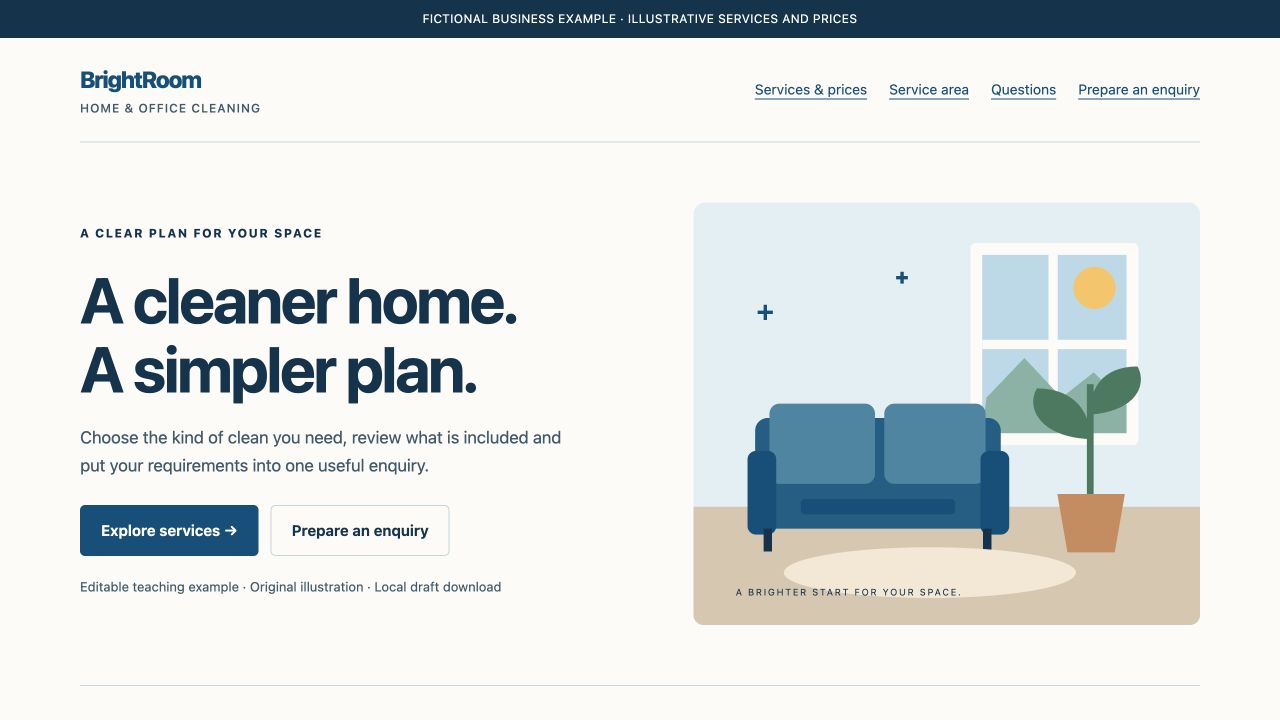
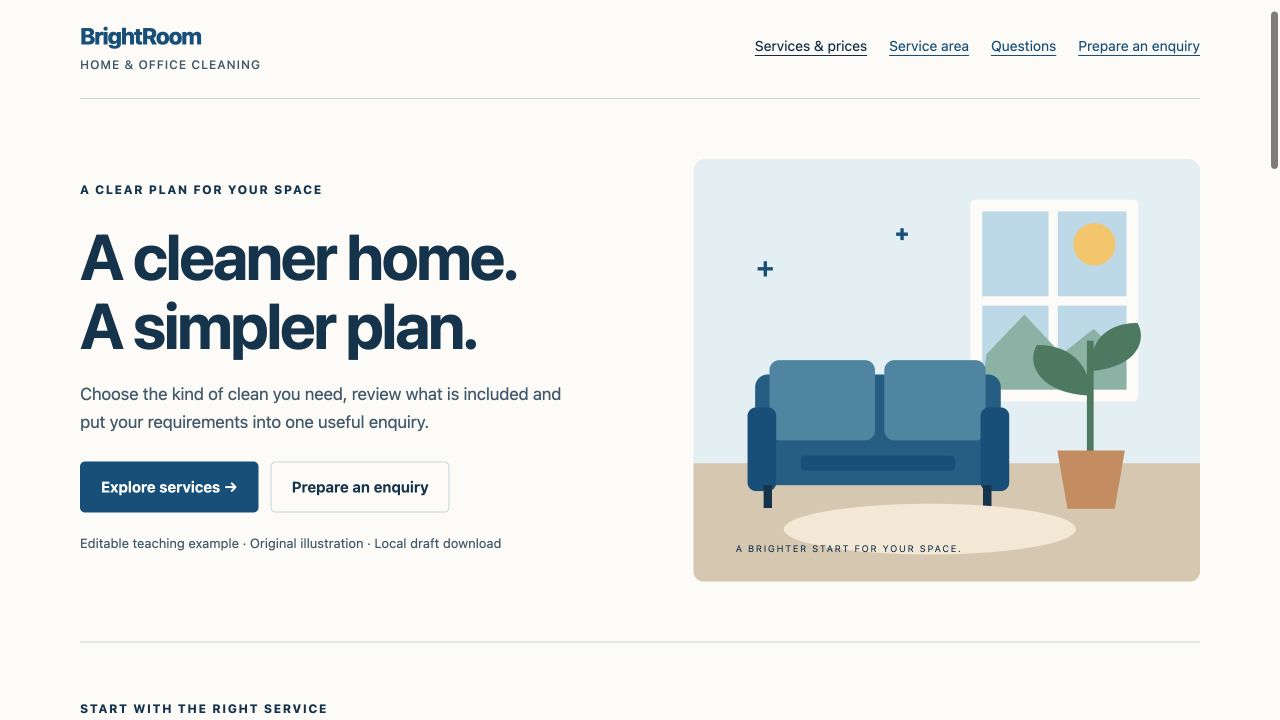
Give a local customer a short path from what you offer to what they should do next. A useful service website puts the service, area, pricing basis and enquiry action where people can find them.
Open the service-site example · Download the editable starter · Get the complete prompt
BrightRoom is a fictional cleaning business. Its services, areas, hours and prices are illustrative. The example is an AI-assisted HTML/CSS/JavaScript build prepared for this guide with original SVG artwork. Its enquiry action prepares a downloadable text draft locally.
Step 1: Write the business brief before choosing a layout
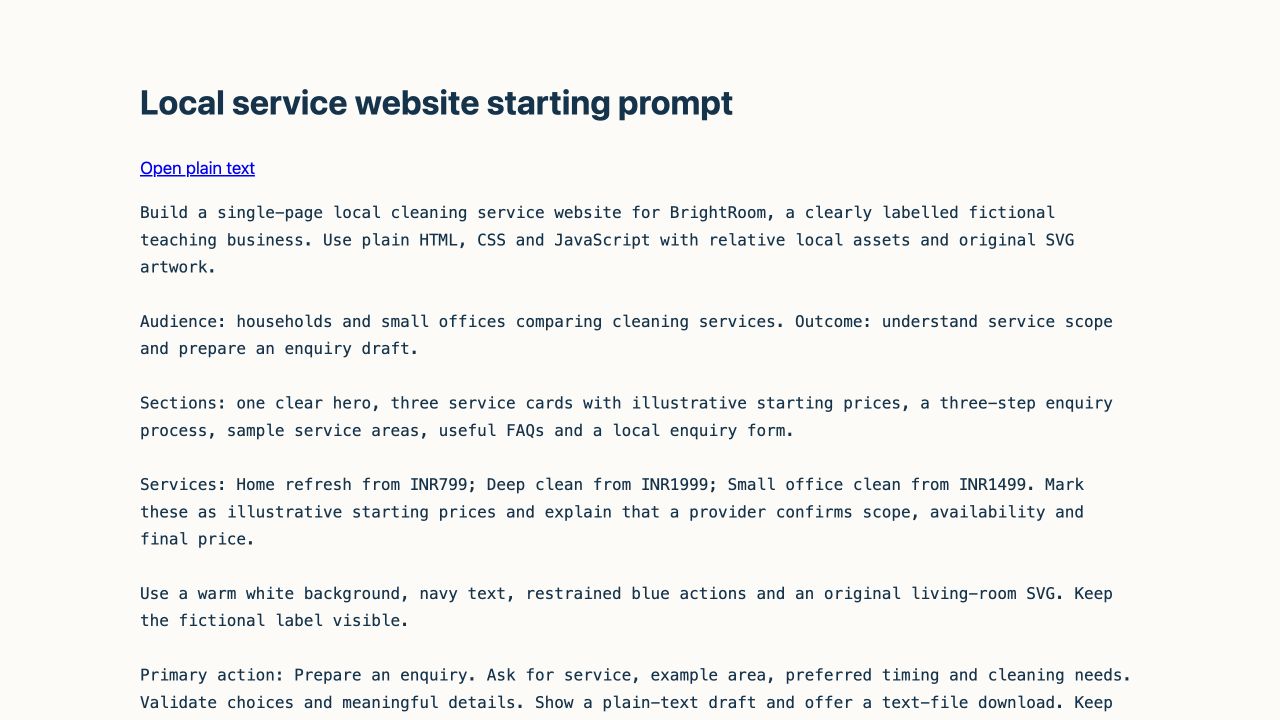
Open the website prompt generator to organize your business details. Use the DeepSite access guide to choose the current builder entry point, then start with a specific brief:
Build a single-page website for BrightRoom, a clearly labelled
fictional cleaning business. Use HTML, CSS and JavaScript.

Audience: households and small offices comparing cleaning services.
Outcome: understand service scope and prepare an enquiry draft.

Sections: hero, three service cards, illustrative starting prices,
service area, enquiry process, useful FAQs and an enquiry form.

Services: Home refresh, Deep clean and Small office clean.
Explain what is included and how a final quote is agreed.

Primary action: Prepare an enquiry. Ask for service, area, timing
and cleaning needs. Show a reviewable plain-text draft and let
the visitor download it. Keep the answers in the browser tab.

Use original artwork, labelled controls, visible keyboard focus,
relative assets and a single-column mobile layout.
Replace the sample identity, service area, hours, prices and enquiry destination with your own accurate details. The full prompt adds the example's styling and acceptance checks.
Step 2: Explain the service and the price together
Open Services & prices in the example. Each card names the service, shows an illustrative starting price and lists the included scope. A visitor can compare the three options before starting an enquiry.
For your business, make the pricing basis explicit: per room, per visit, per hour, fixed package or quote after inspection. If a price depends on size or condition, say what needs confirming. Use your actual minimum charge and inclusions rather than copying the example's amounts.
The service-card action should preserve the visitor's choice. In the example, Ask about a deep clean opens the enquiry section with Deep clean already selected. Keep that connection when changing the service names or adding a new card.
Step 3: Prepare an enquiry with a clear outcome
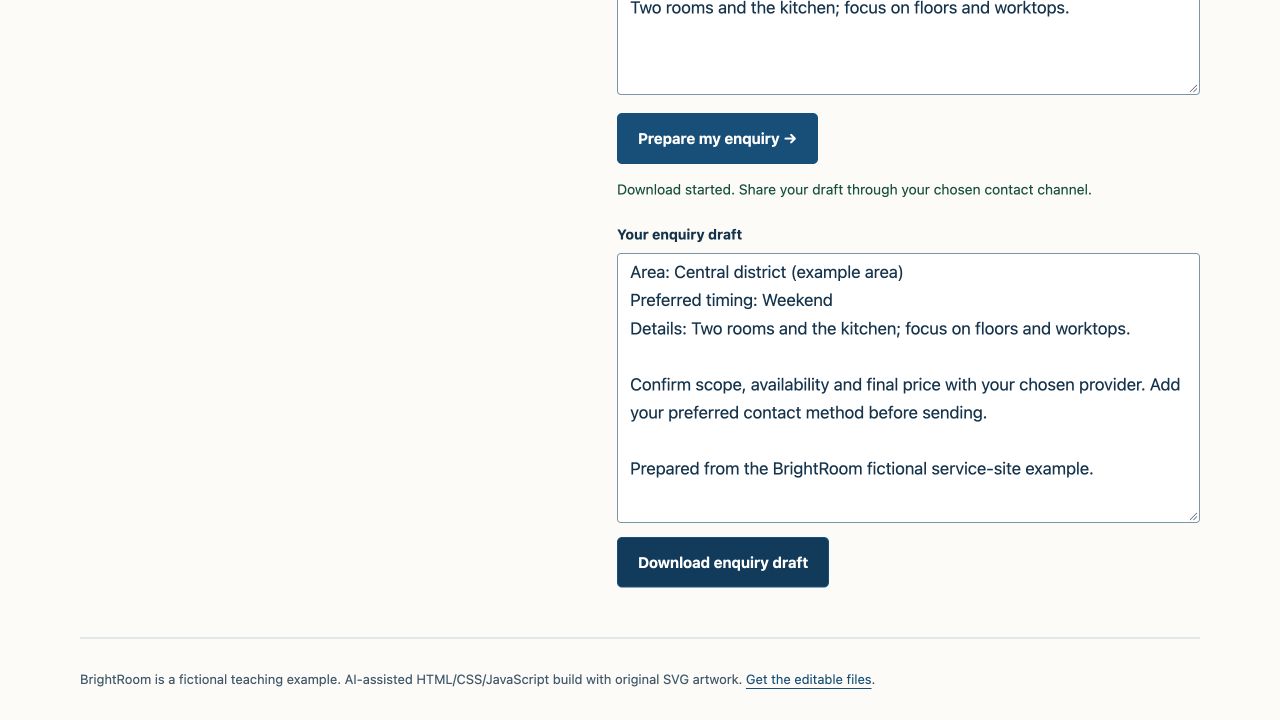
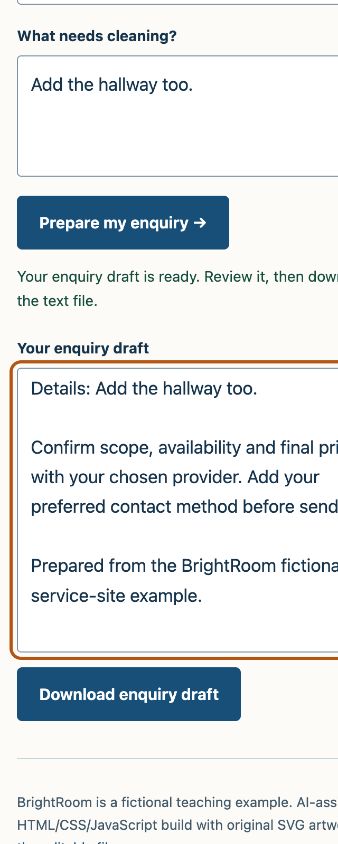
Choose a service, sample area and preferred timing. Describe what needs cleaning, then select Prepare my enquiry. Review the resulting text and select Download enquiry draft to save service-enquiry.txt.
The draft brings the chosen service, illustrative starting price, area, timing and needs together. Changing an answer clears the previous result so the next draft matches the current selection.
For a real service website, choose an enquiry channel you can maintain. Use your actual email, supported messaging account or configured form destination. Match the action's wording to its result: opening a conversation, preparing a draft or requesting a quote. Agree availability, scope and final price with the customer before confirming a visit.
Use the revision prompts to refine input checks, service selection and feedback in separate passes.
Step 4: Check the same customer path on mobile
Open the page at 320px and 390px widths. Read a service card, follow its enquiry action, complete the fields and save the text draft. Confirm the selected service carries through and the text file contains the current answers.
Check the service area and FAQ links as well. They should lead to the right section. Use the keyboard to move through links, selectors and buttons, and keep the focus indicator visible.
Step 5: Publish the complete folder and repeat the flow
Extract the starter ZIP. The site folder contains index.html and its assets directory. Keep them together when publishing:
site/
  index.html
  assets/
    style.css
    room.svg
    enquiry.mjs
    form.mjs
For local preview, open a terminal in site, run python3 -m http.server 8080, then open http://localhost:8080. The example uses JavaScript modules, which should be loaded over HTTP or HTTPS; see MDN's module guidance.
Follow the HTML publishing walkthrough for the complete folder workflow. From the public HTTPS address, open the service section, choose an option, prepare the enquiry, save the file and refresh the page. Repeat that path on your phone.
Use the launch checklist to replace the fictional details, connect the actual contact channel, set the page metadata and choose the index settings for your own business website. Keep the prompt and revision notes with the project so the next improvement starts from a clear brief.
For another example of work-led navigation and enquiry preparation, see the freelancer portfolio guide. Both editable starters are in the free resource pack.
To add inbox delivery, use the contact integration walkthrough. Keep this example's downloadable draft, connect your own sending route and verify receipt before changing the action to a sending claim.
Recent Posts
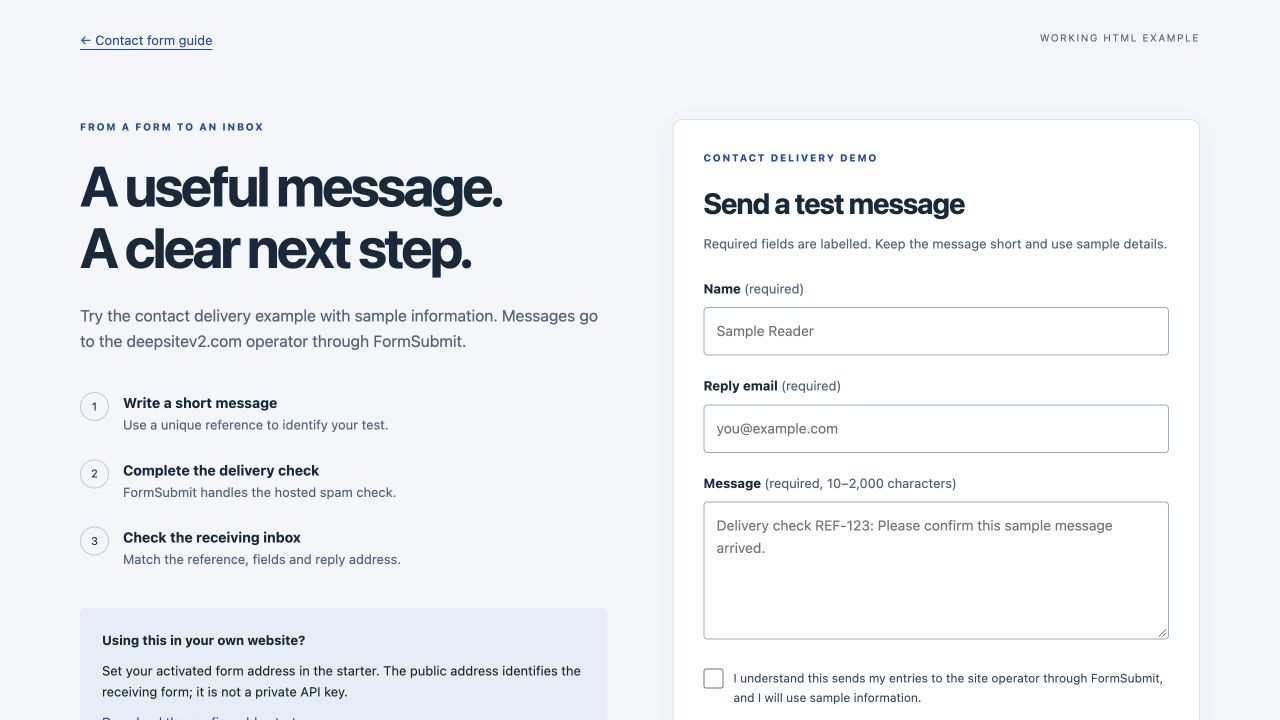
Make a DeepSite Contact Form Send Messages: A Working HTML Setup
Connect a DeepSite HTML contact form to FormSubmit, activate the receiving inbox and verify a real message. Includes validation, spam checks, screenshots and editable starter code.
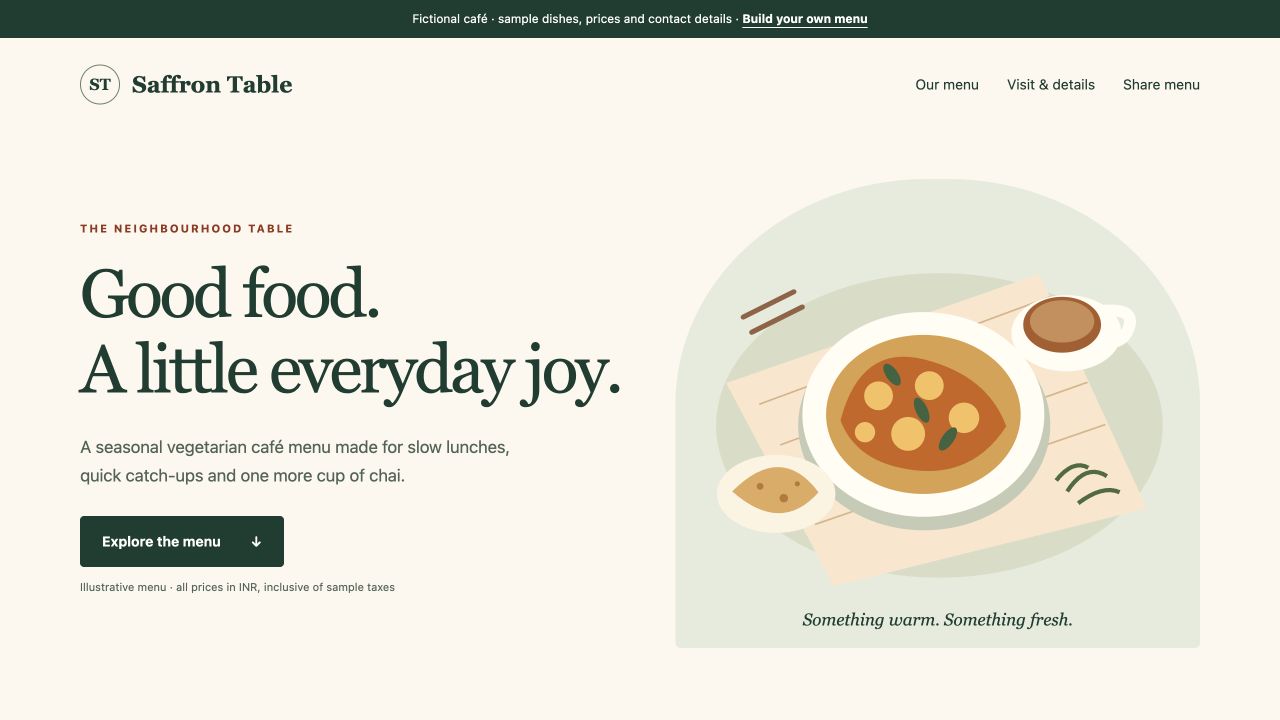
Create a Restaurant Menu Website with DeepSite: Prices, Categories and QR
Build a mobile restaurant menu with editable prices, accessible category buttons and a QR link. Includes a focused prompt, a fictional café example and downloadable code.
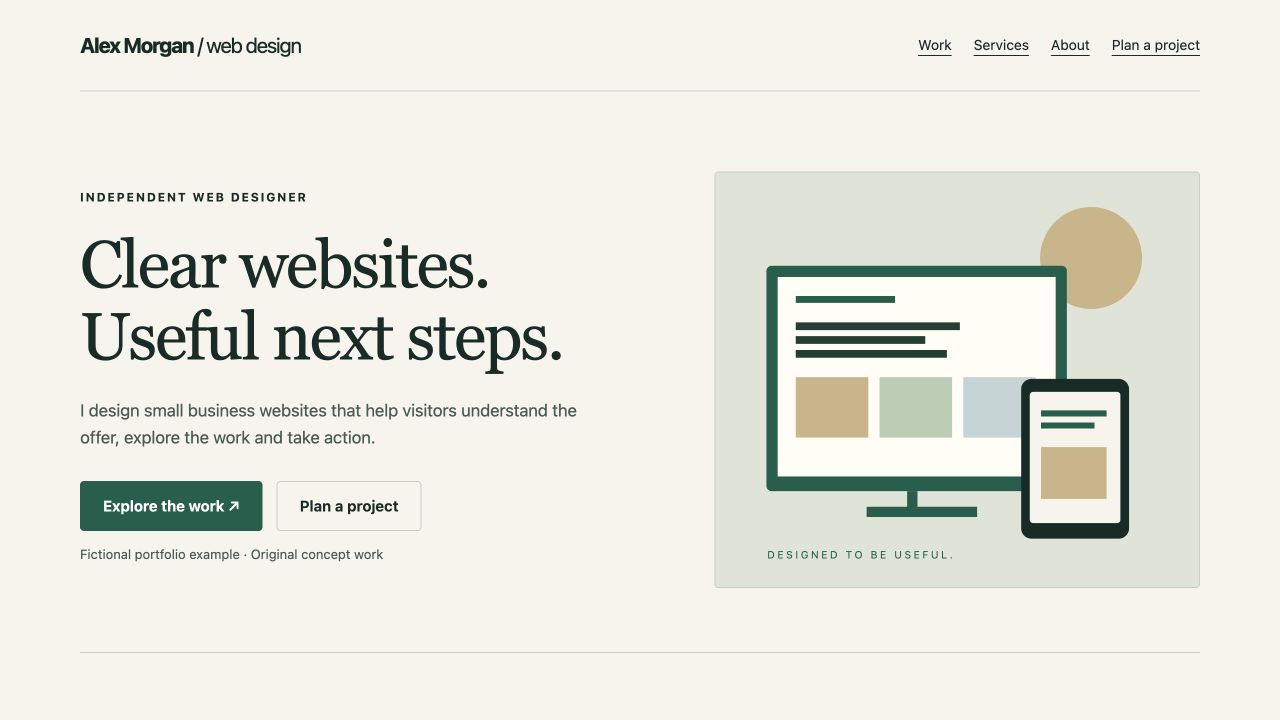
Build a Freelancer Portfolio with DeepSite: Prompt and Editable Example
Use a focused portfolio prompt, explain three projects, refine the mobile layout and give visitors a useful inquiry action. Includes editable code and a free starter pack.