DeepSite V2 vs Current DeepSite: Versions and Official Access
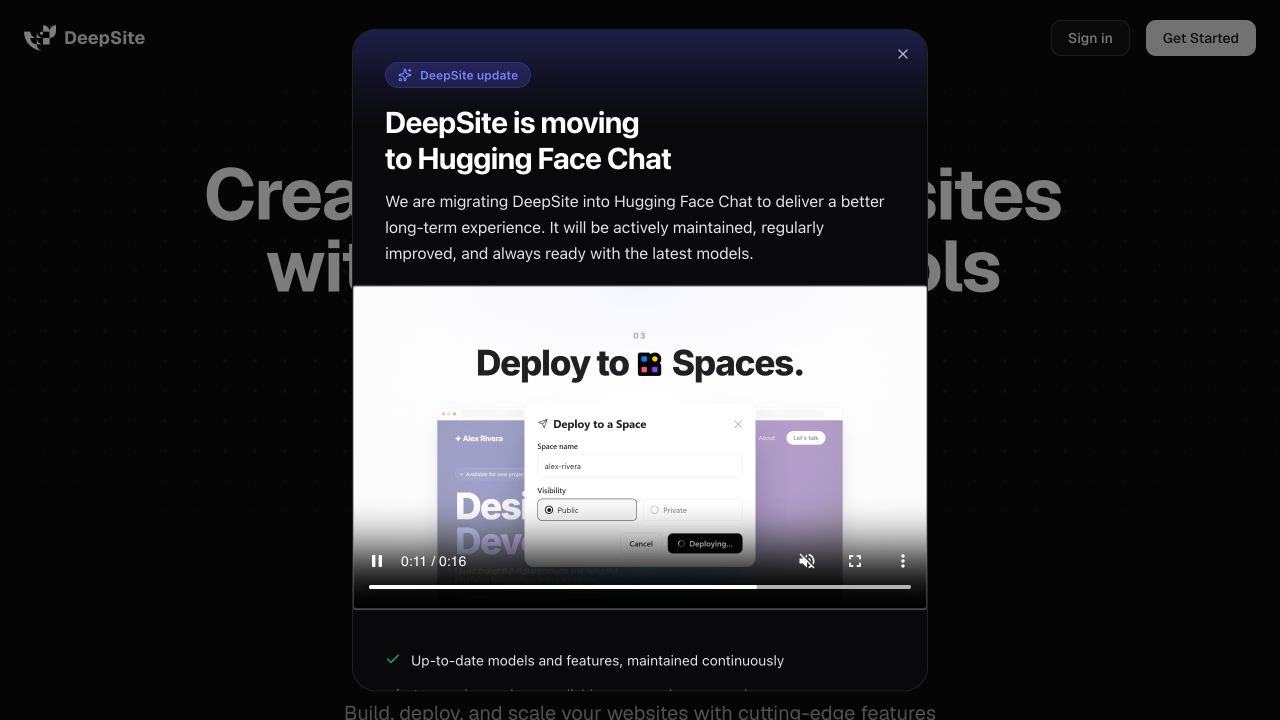
Checked on 27 October 2026. If an old DeepSite V2 tutorial does not match your screen, start with the official entry point. In our browser check, the original Hugging Face Space opened deepsite.hf.co, which displayed a notice that DeepSite is moving into Hugging Face Chat. After closing that notice, the underlying page still showed a v4 label. These observations describe two parts of the same current site; neither establishes that the V2 editor is available today.
This is an independent guide. DeepStudio, embedded elsewhere on this website, is a separate project and is not a substitute version of DeepSite.
Which version should you use?
- Starting a new website: open the official DeepSite entry point and follow its current access notice. Do not spend time finding buttons from an older video.
- Following a V2 tutorial: use it for general prompting ideas, but verify every model, editor and export instruction against the interface you can actually access.
- Reproducing an old V2 project: you need a verified historical source revision and its dependencies. Duplicating the current Space does not establish that you have copied V2.
The owner’s V2 announcement from 3 June 2025 described a refreshed interface, an R1 model option alongside V3, and edits focused on the affected area. That is historical evidence, not a current feature guarantee. The current Space README identifies v4. Our live browser observation adds the migration notice shown below.
Step 1: Open the official entry point and read the notice
Open official DeepSite. You can also begin from the original Hugging Face Space; it led to the same site in this check.
The notice we saw says DeepSite is moving to Hugging Face Chat. Read the current notice before proceeding, because the destination can change after this guide’s check date.
Step 2: Follow the destination provided by the official notice
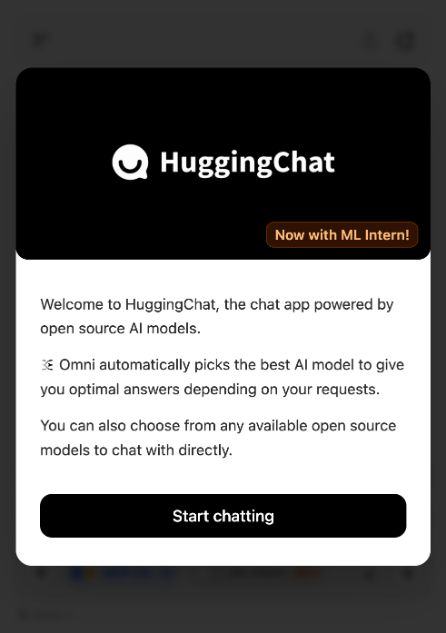
We clicked Open Hugging Face Chat. It opened huggingface.co/chat/ and showed a welcome screen. Check the domain before signing in. This check establishes the destination; it does not establish that every old DeepSite feature is present in Chat.
Step 3: Check the account requirement before entering your brief
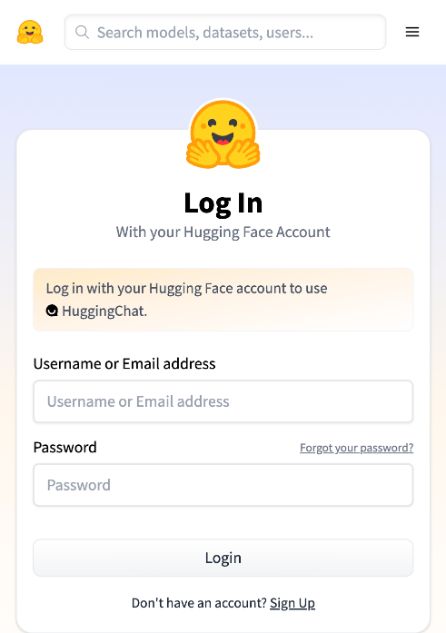
In the logged-out browser, Start chatting led to the Hugging Face login page. Sign in with your own account if you choose to continue. Review the current interface, model availability and any usage or billing conditions there.
We stopped at this account boundary. We did not generate, export or deploy a website through HuggingChat, so this article does not promise those actions or give untested button instructions.
Step 4: Prepare one clear website brief
Open our website prompt generator and select Load portfolio example. It fills a fictional product-designer brief with an audience, one goal, sections and acceptance checks. Replace the fictional name and project descriptions with your own approved content, then use Copy to Clipboard.
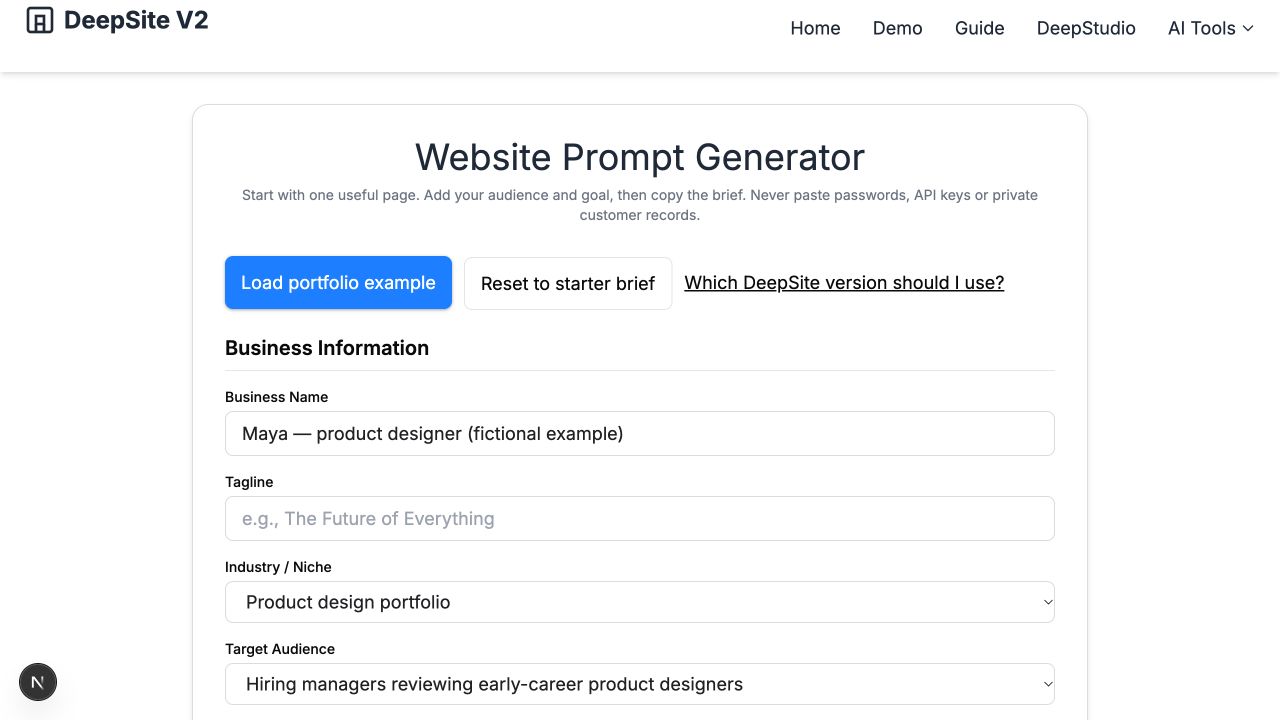
The starter asks for one page, working section links, readable contrast and keyboard navigation. It also asks the builder to identify unconfigured functionality. A form that looks complete is not evidence that submissions reach an inbox.
Do not include passwords, API keys or private customer records. Where content is missing, ask for labelled placeholders instead of invented testimonials, customer names or results.
What if you specifically need V2?
We did not verify a working official hosted V2 editor on the check date. The current official entry point led to the migration notice. The official repository refs we inspected had no V2-labelled release tag; branches such as save are not proof of a supported V2 deployment.
If exact V2 compatibility matters, preserve your existing files and identify the historical revision before installing or replacing anything. A community fork’s name alone does not verify its version, security or runtime requirements. This guide does not recommend an untested fork as official access.
Your next useful action
For a new project, prepare the brief and open the current official entry point. Once you have an accessible builder, create one small draft and check it at phone width, test every link and inspect any form behavior. If the current service cannot provide the workflow you need, keep the brief portable and evaluate another builder rather than assuming an old V2 tutorial will still work.
Prepare your brief · Browse all guides · Read the separate DeepStudio guide
All four step screenshots are unedited browser captures. No generated mockups are used as product evidence.
Already have exported HTML?
Follow the tested static-HTML publishing walkthrough. It uses a clearly labelled local-generator example to demonstrate hosting, relative assets and direct refresh checks; it does not claim an official DeepSite export was verified.
Recent Posts
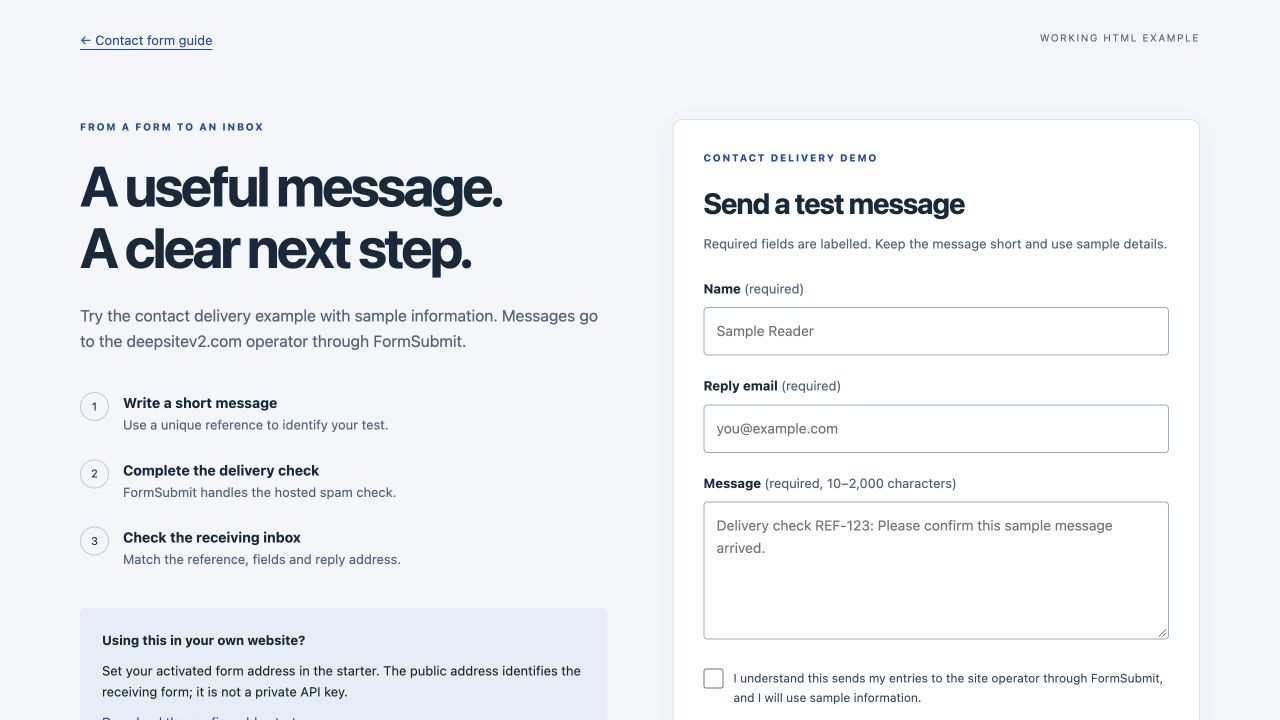
Make a DeepSite Contact Form Send Messages: A Working HTML Setup
Connect a DeepSite HTML contact form to FormSubmit, activate the receiving inbox and verify a real message. Includes validation, spam checks, screenshots and editable starter code.
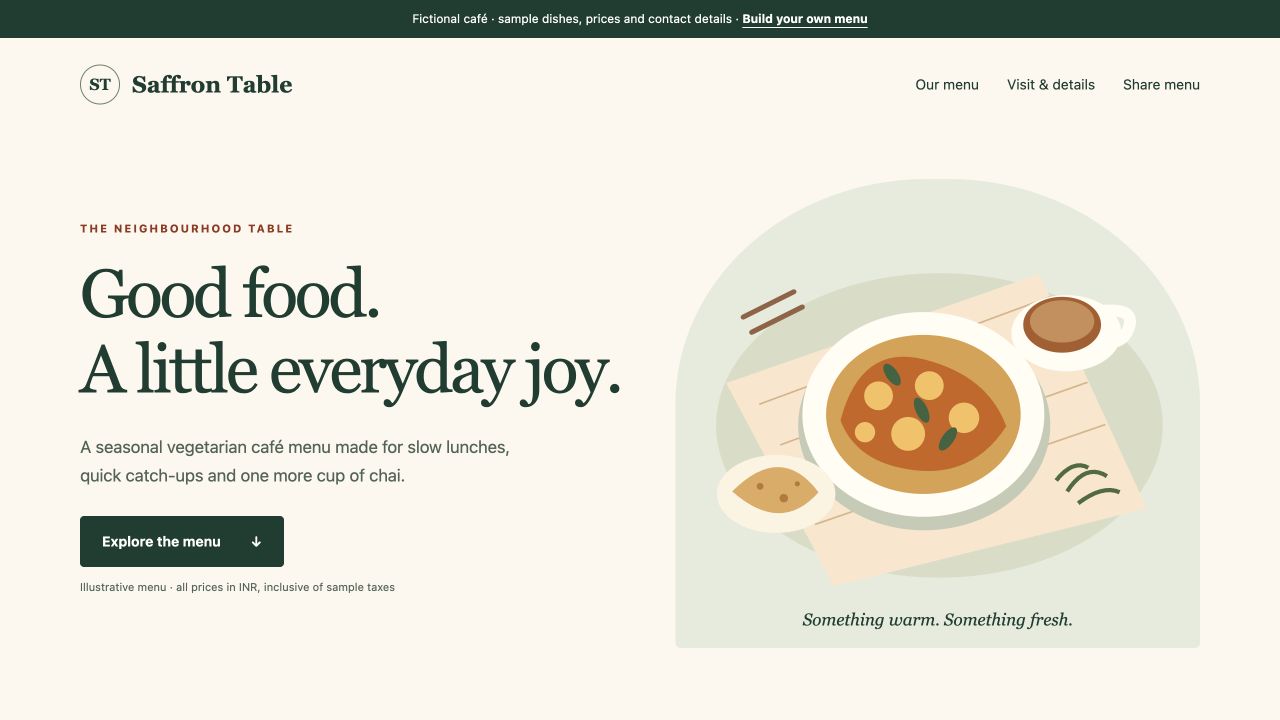
Create a Restaurant Menu Website with DeepSite: Prices, Categories and QR
Build a mobile restaurant menu with editable prices, accessible category buttons and a QR link. Includes a focused prompt, a fictional café example and downloadable code.
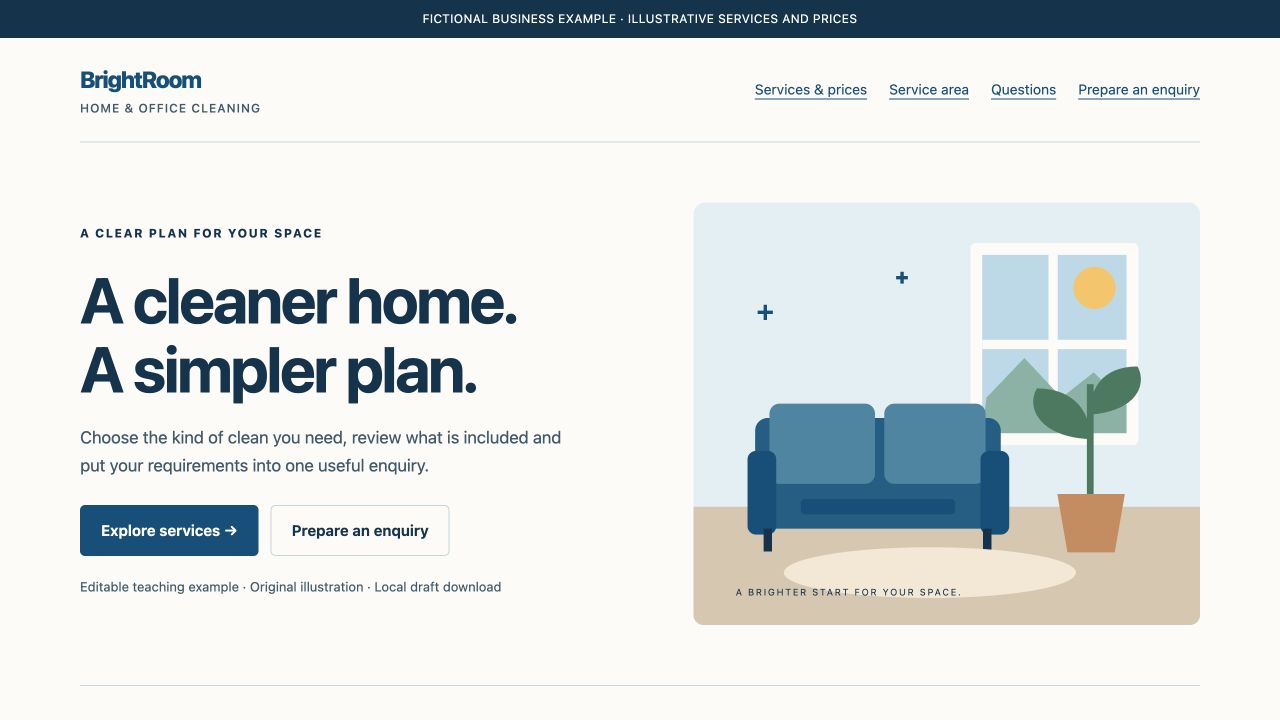
Build a Local Service Website with DeepSite: Services, Prices and Enquiries
Use a focused local-business prompt, explain service scope and pricing, and build a useful enquiry action. Includes an editable cleaning-site example and launch checklist.