How To Pause History on Google Chrome on PC
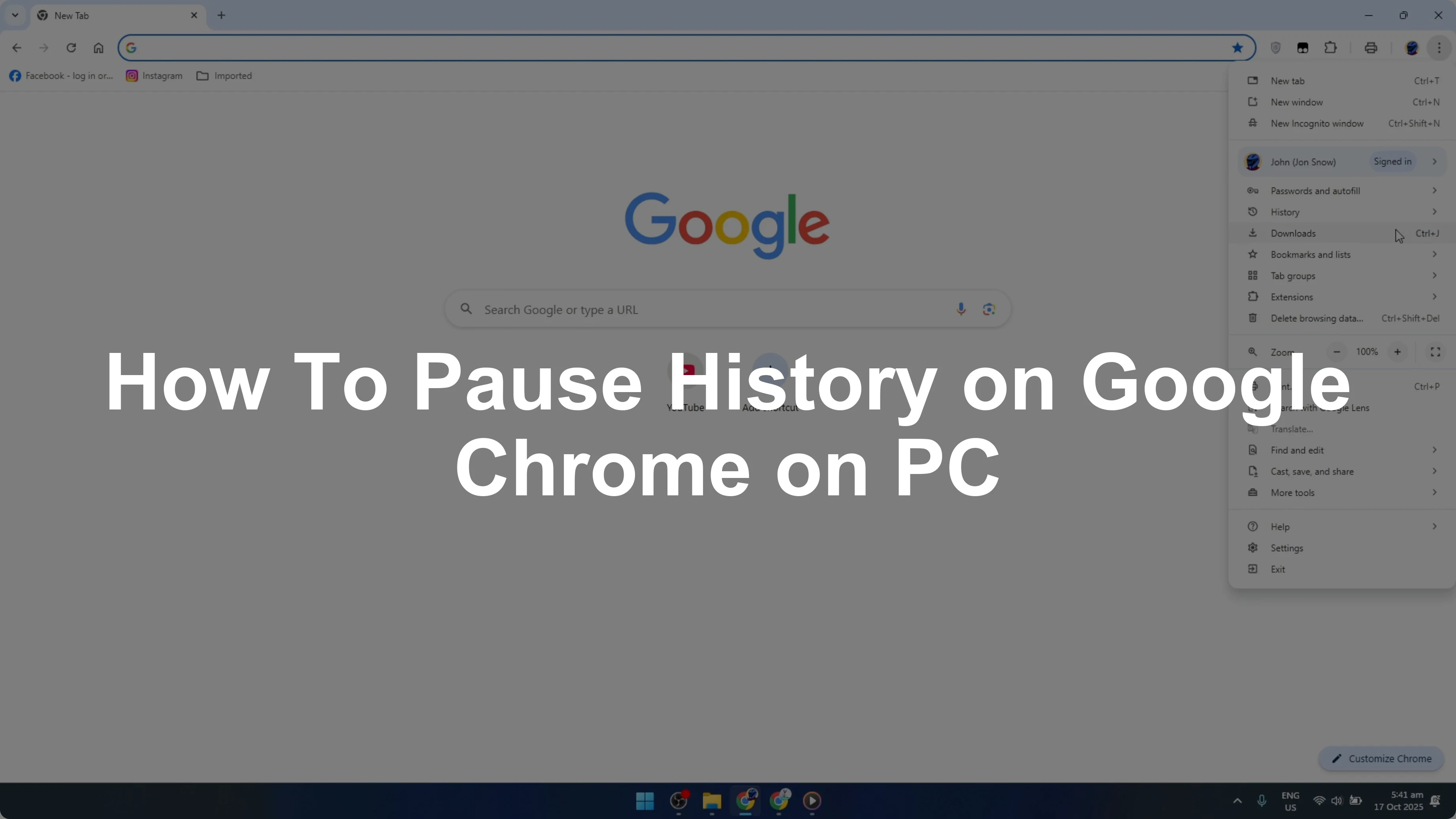
Pausing your browsing history in Google Chrome on PC adds a layer of privacy when you need it. When you pause your browsing history, Chrome stops saving the sites you visit, your searches, and related activity. Here is the exact process I use.
If you do not have Chrome installed yet, set it up first and then continue with these steps. You can follow this guide to install Chrome on your PC. Once Chrome is ready, move on to the controls below.
Why pause history on Google Chrome on PC
Pausing stops new entries from being recorded in your Google account’s activity log. This helps when you want greater privacy or plan a session that should not be saved.
If you also rely on private windows, learn how Chrome handles Incognito data. For context and cleanup options, see this guide on incognito history in Chrome.
Steps to pause history on Google Chrome on PC
Open Google Chrome.
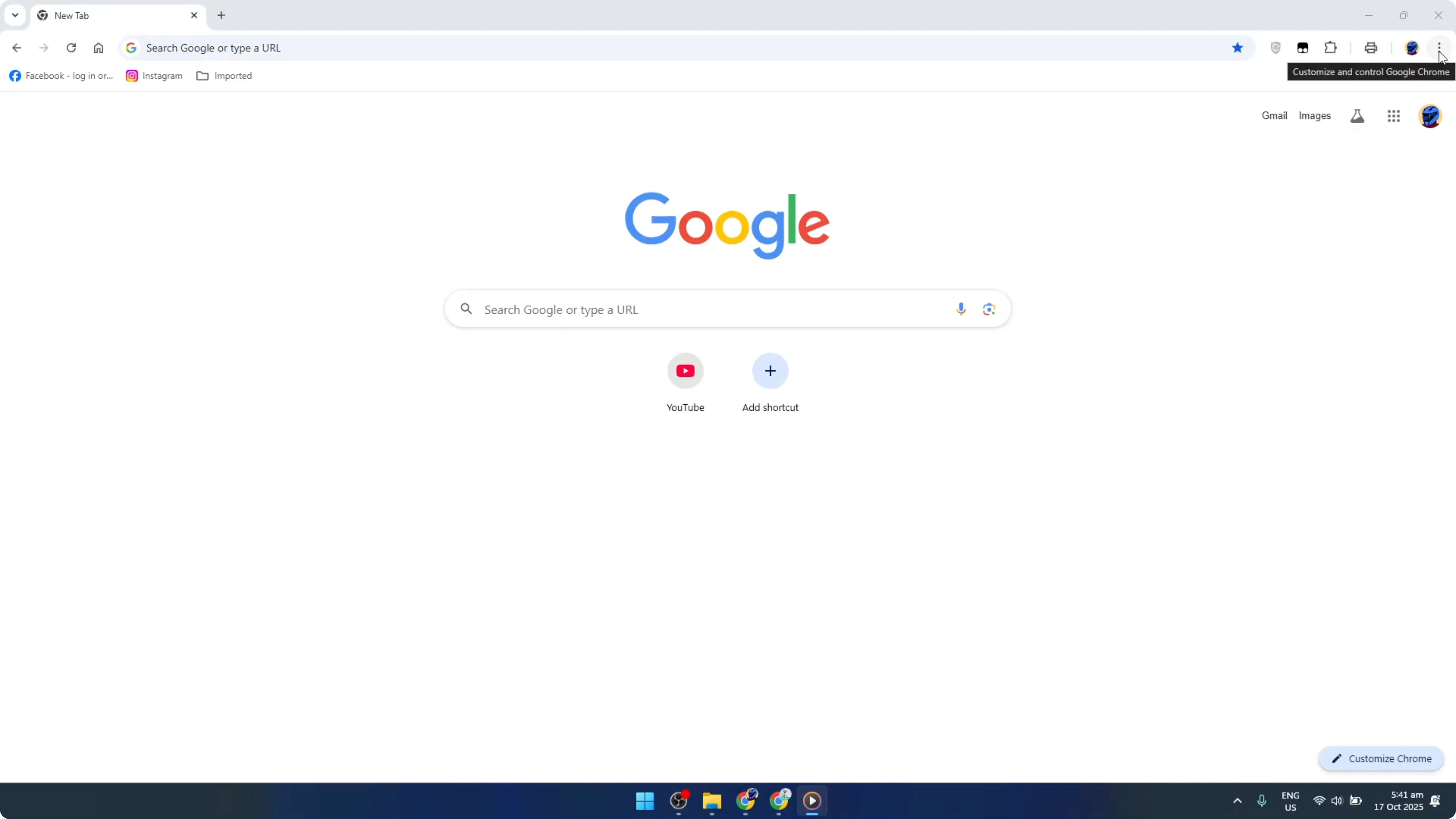
Click your profile icon in the top right of the browser window.
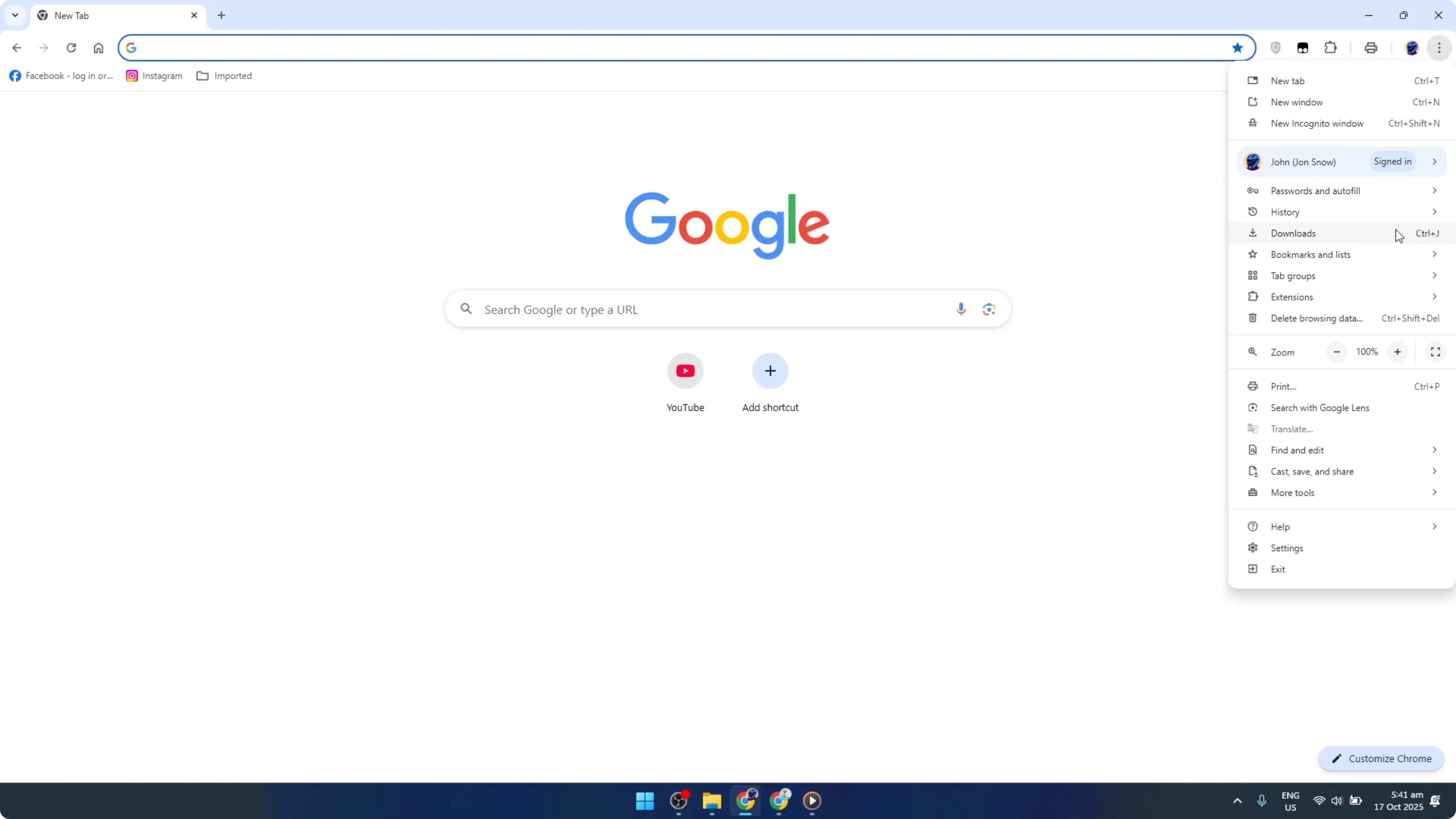
Select Manage your Google Account.
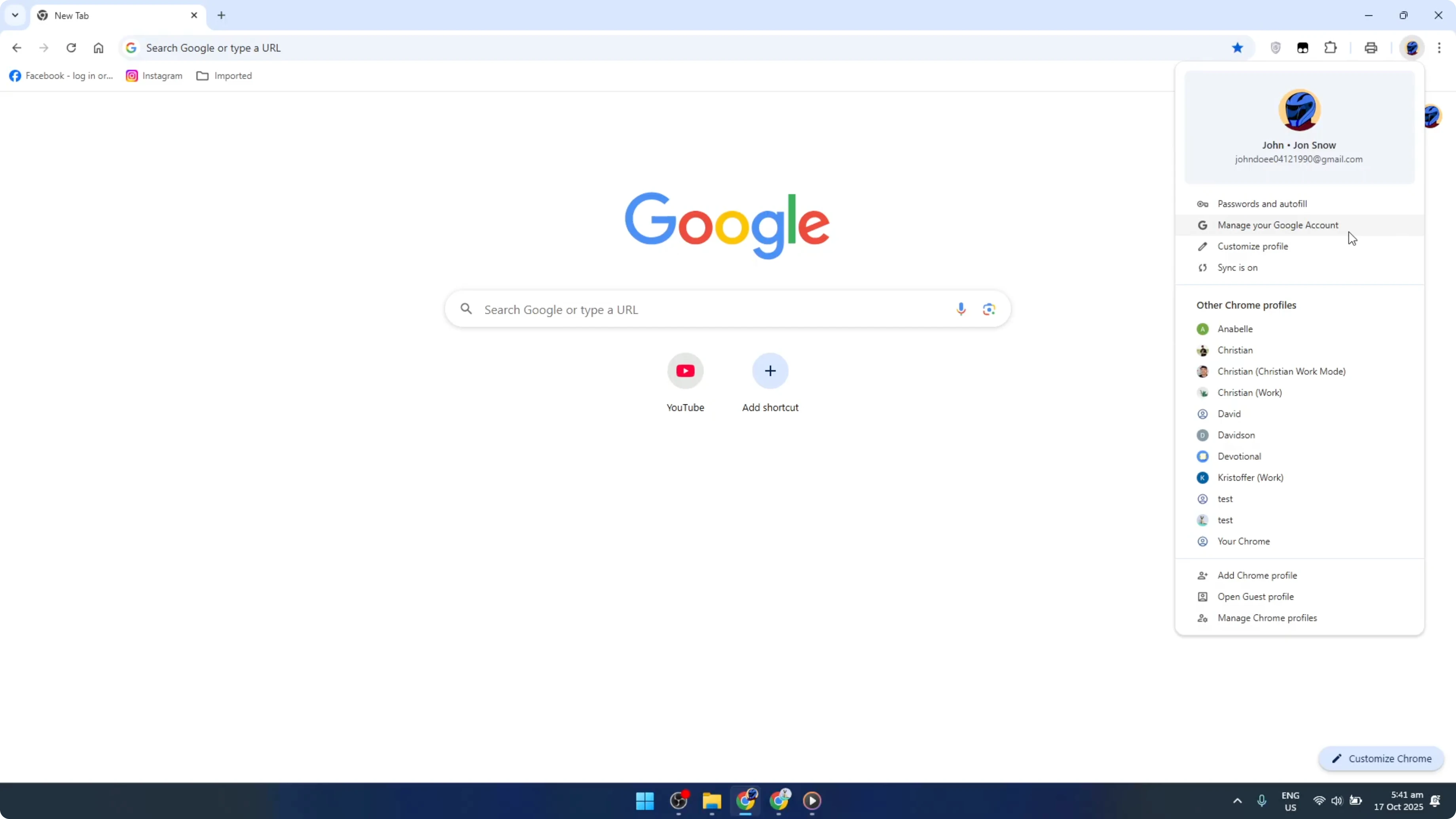
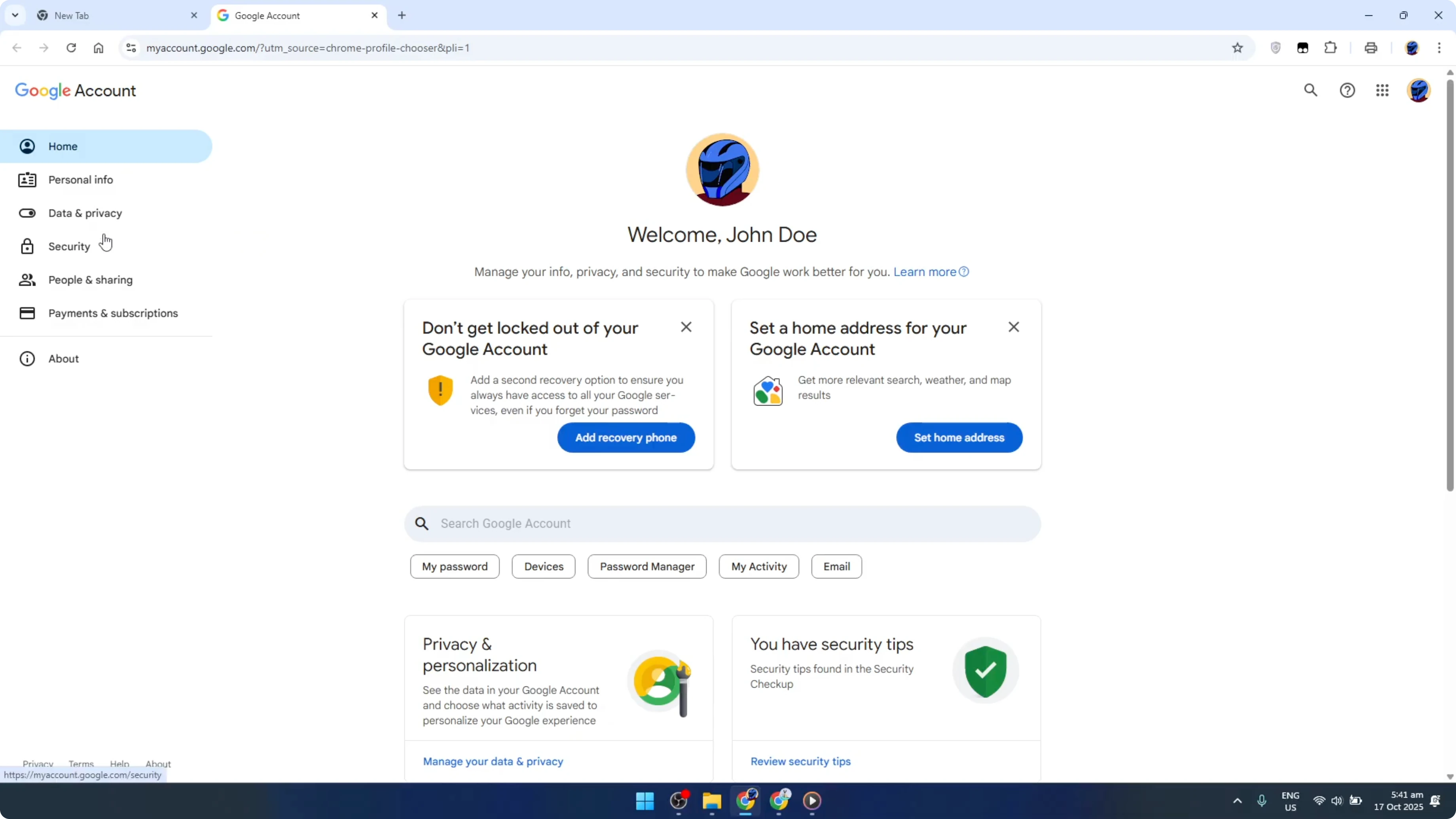
In the left sidebar, click Data & privacy.
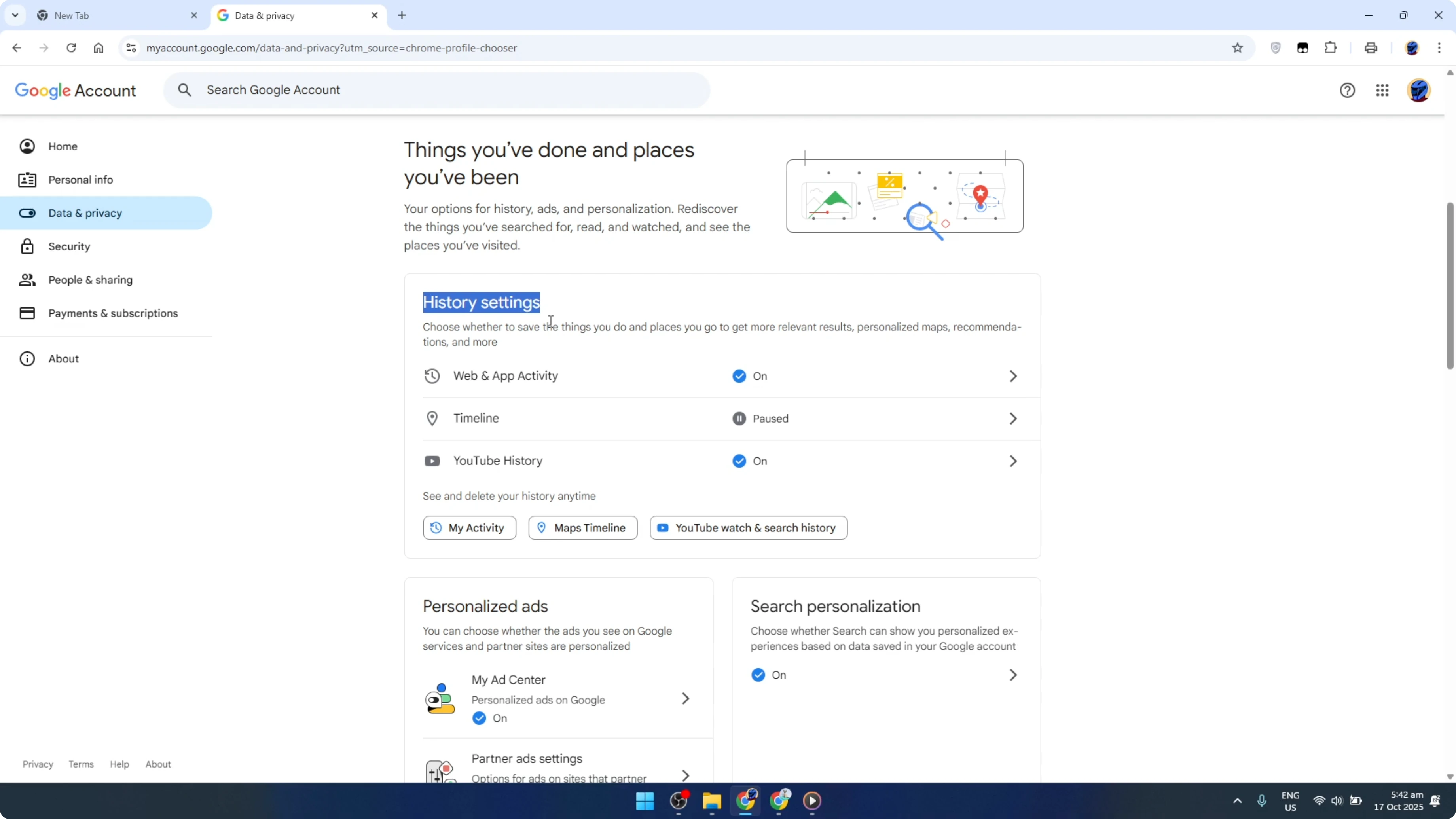
Scroll to History settings.
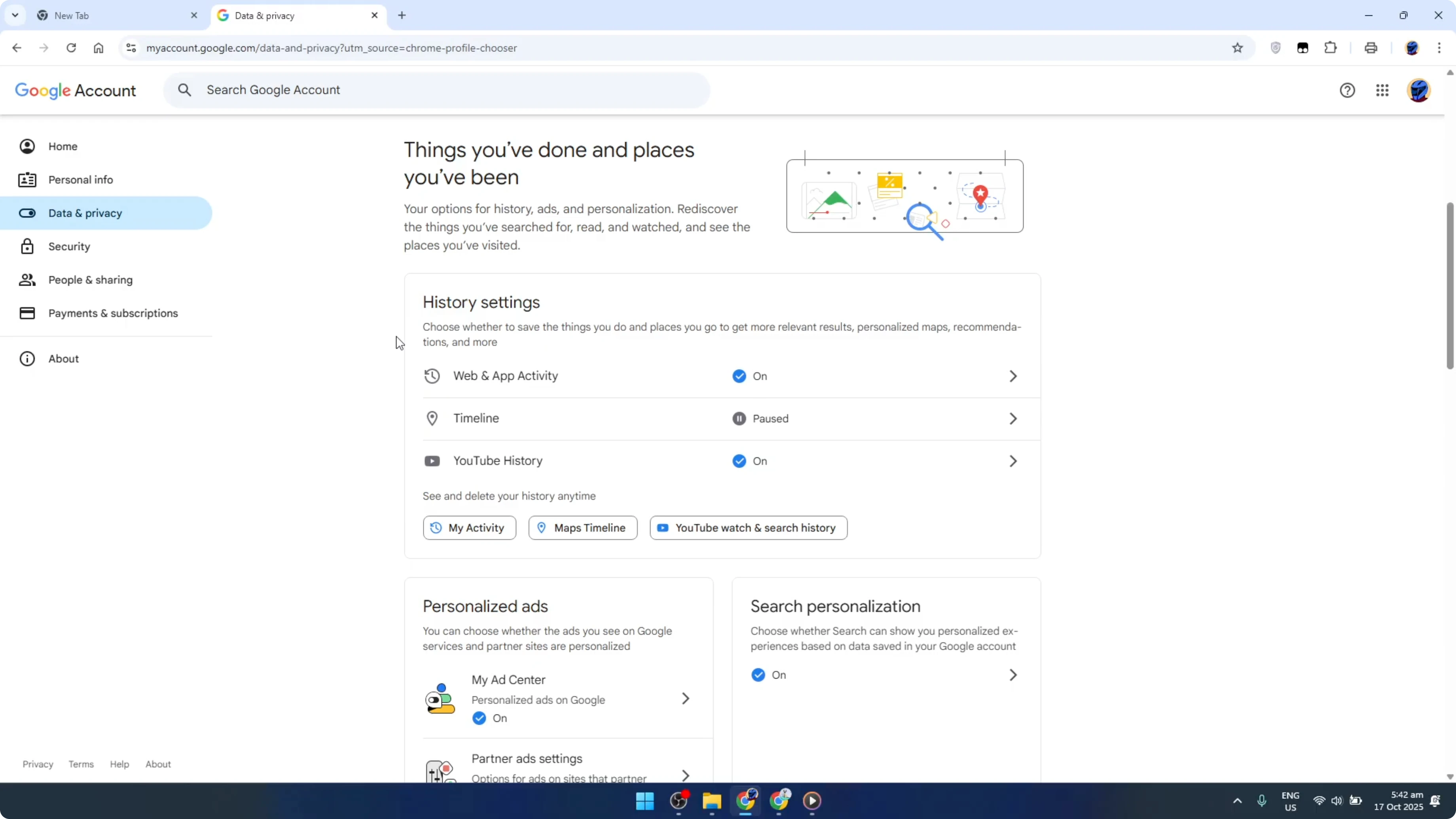
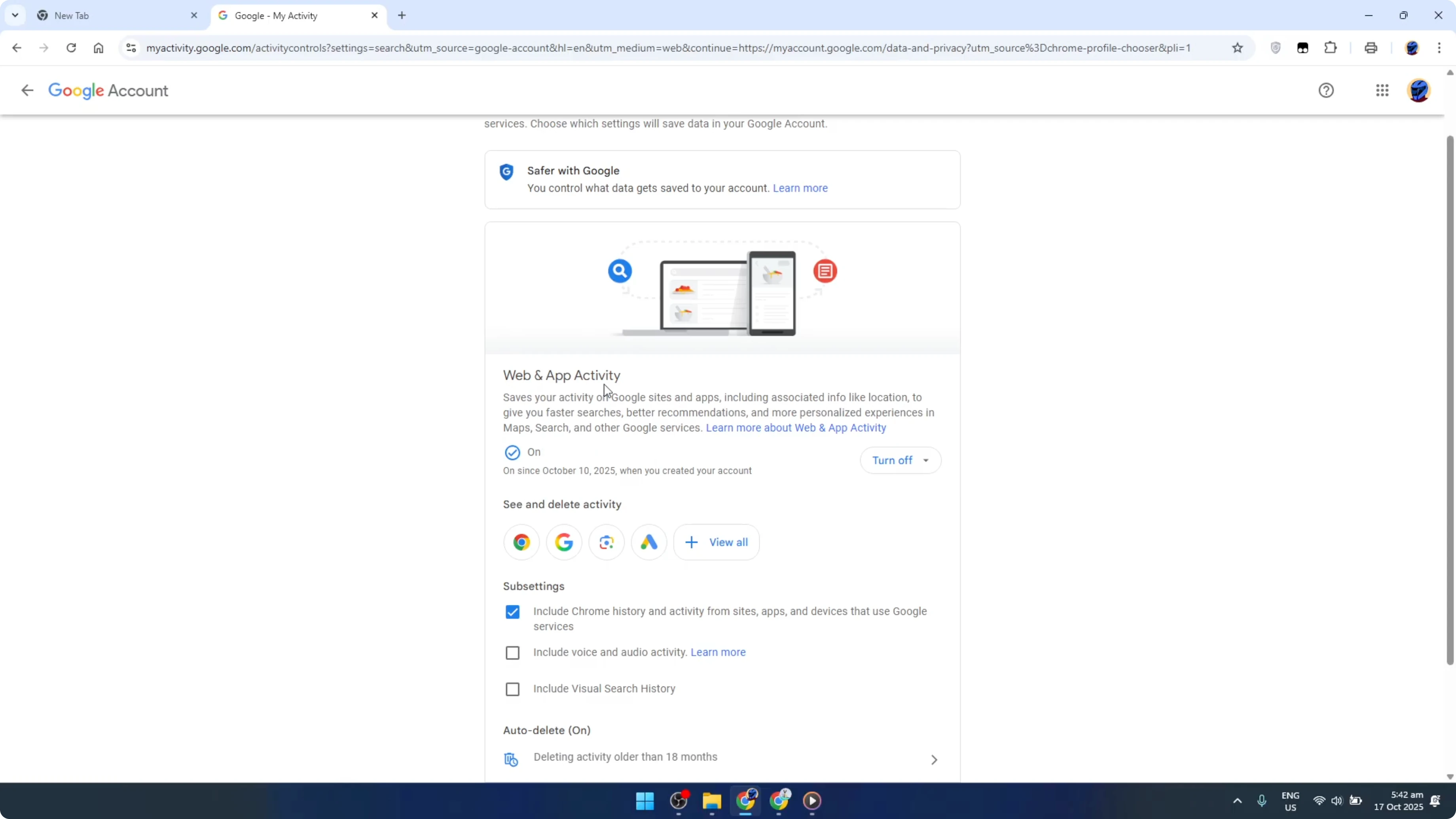
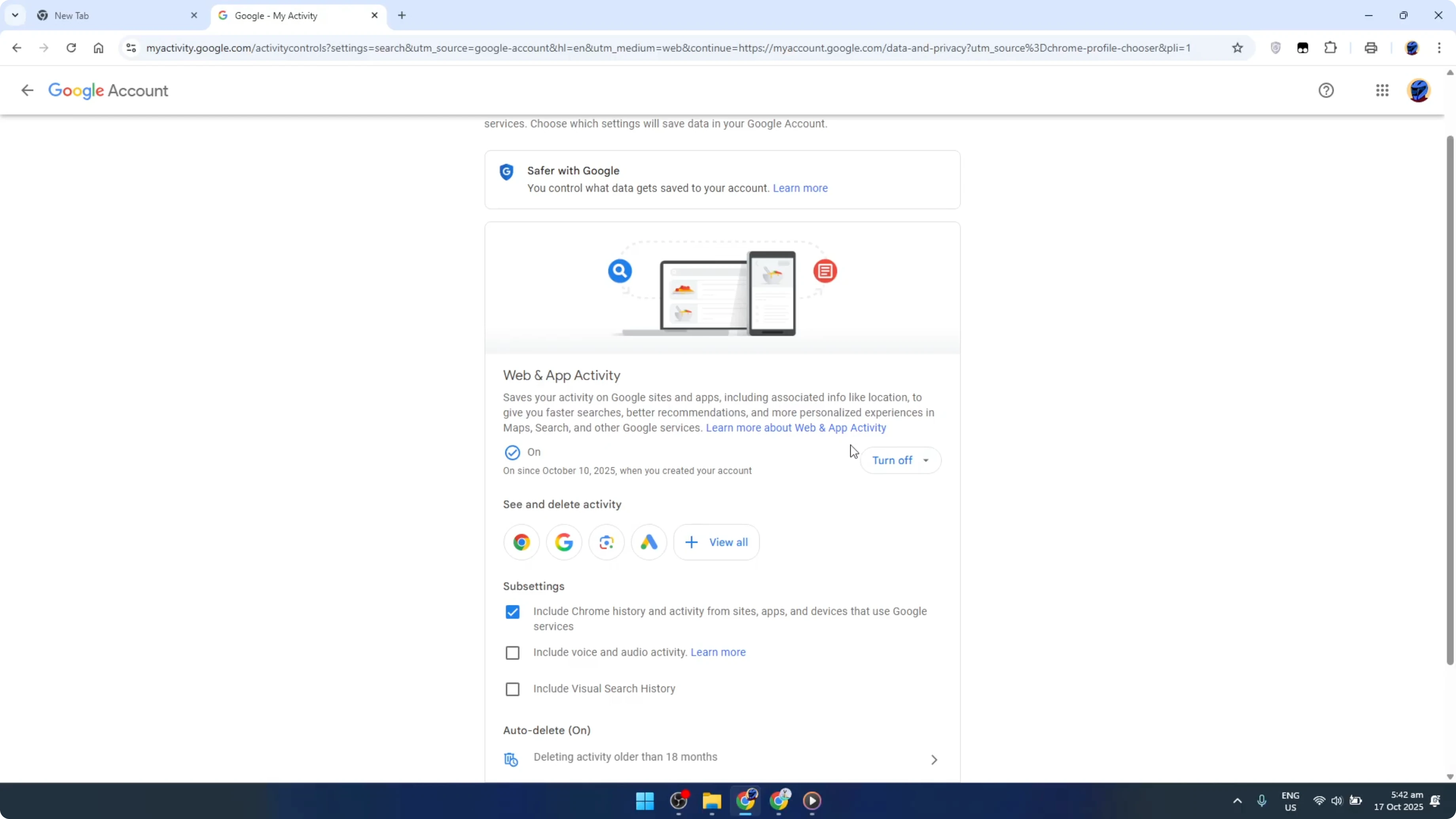
Click Web & App Activity.
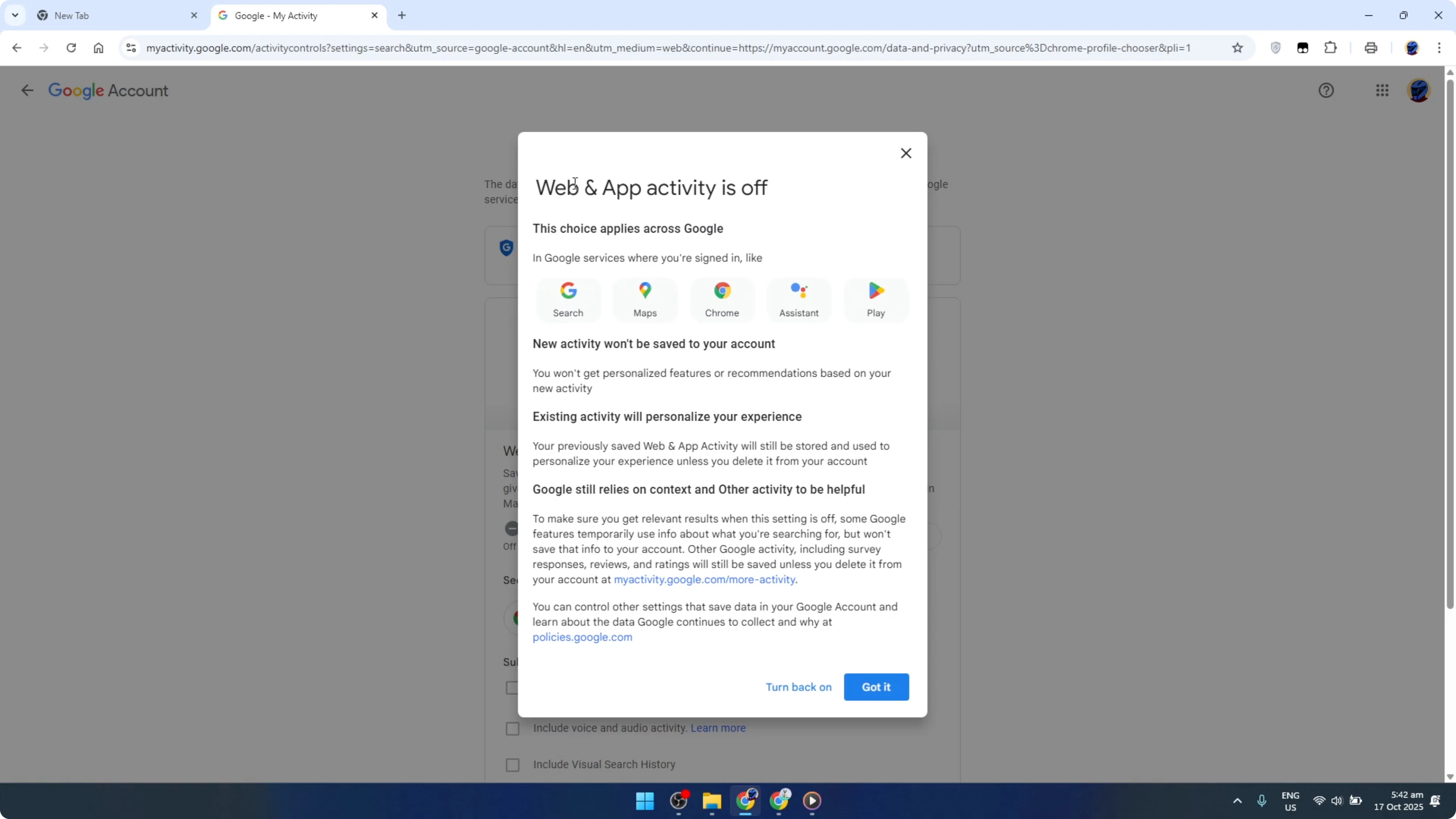
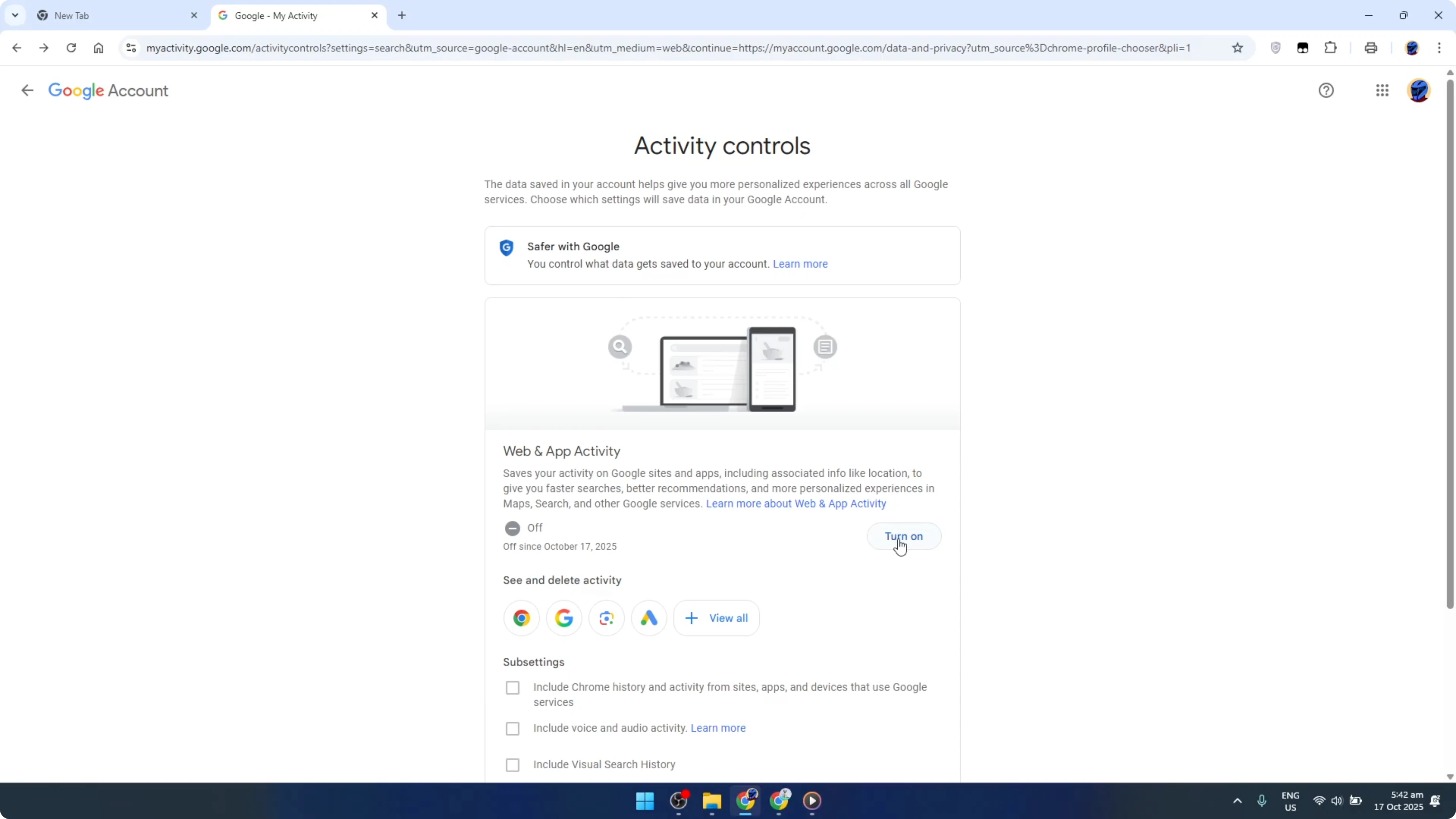
Turn the Web & App Activity toggle off.
Confirm by clicking Pause in the confirmation window.
Notes on what changes
Turning off Web & App Activity stops Chrome from keeping a record of your web and app activity tied to your Google account. This includes visited sites and searches. It is easy to revert if you change your mind.
If you polish your Chrome setup while focusing on privacy, backing up extensions can help you test different profiles safely. You can learn how to export a Chrome extension as a CRX for backup.
Resume history on Google Chrome on PC
You can switch tracking back on at any time. Repeat the same steps and turn the Web & App Activity toggle on. Your activity will start recording again.
Final thoughts
You now control when Chrome saves your browsing activity on PC. Use Web & App Activity to pause or resume recording as needed for privacy. Keep this toggle in mind whenever you want your browsing to stay local.


