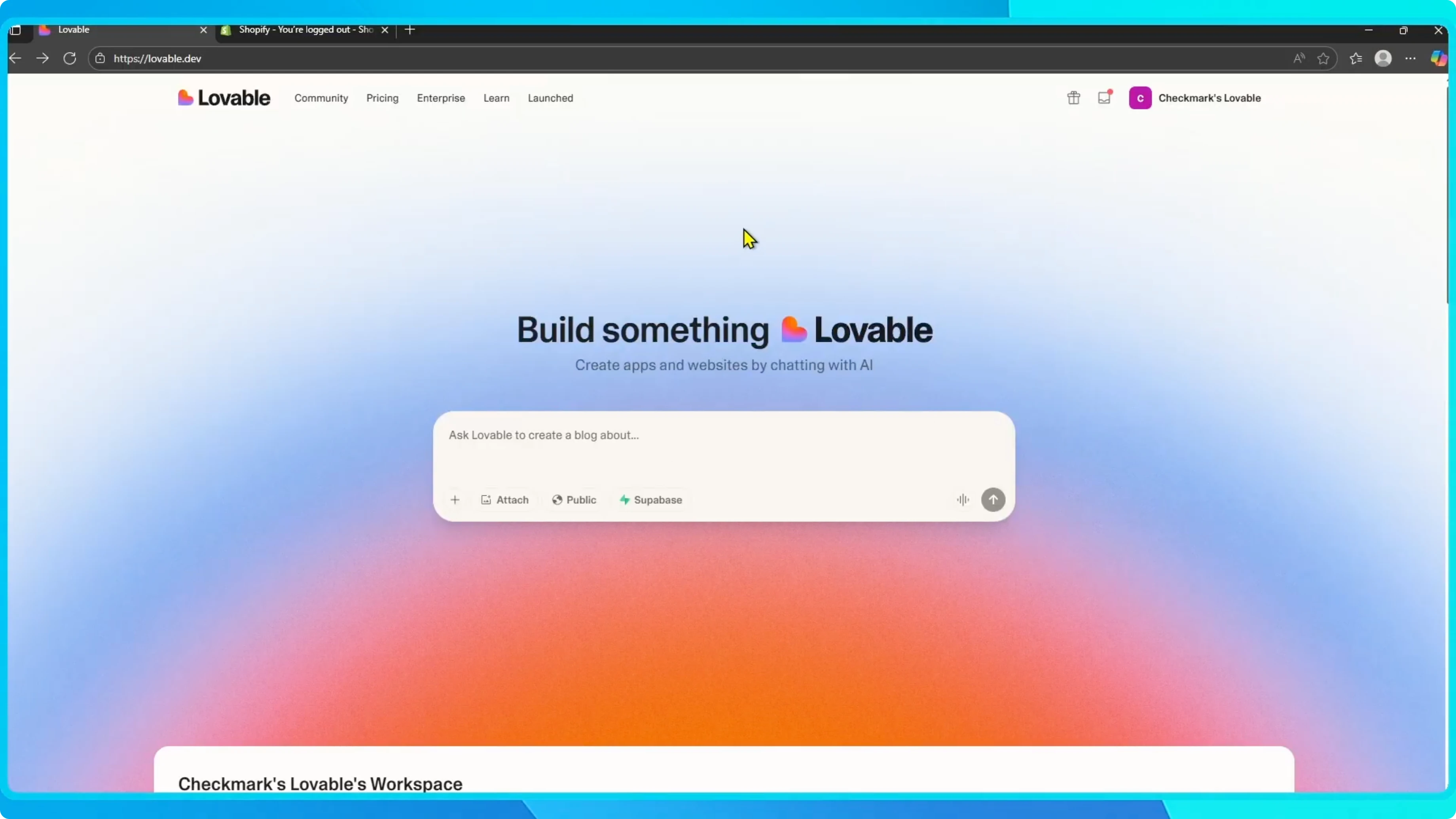
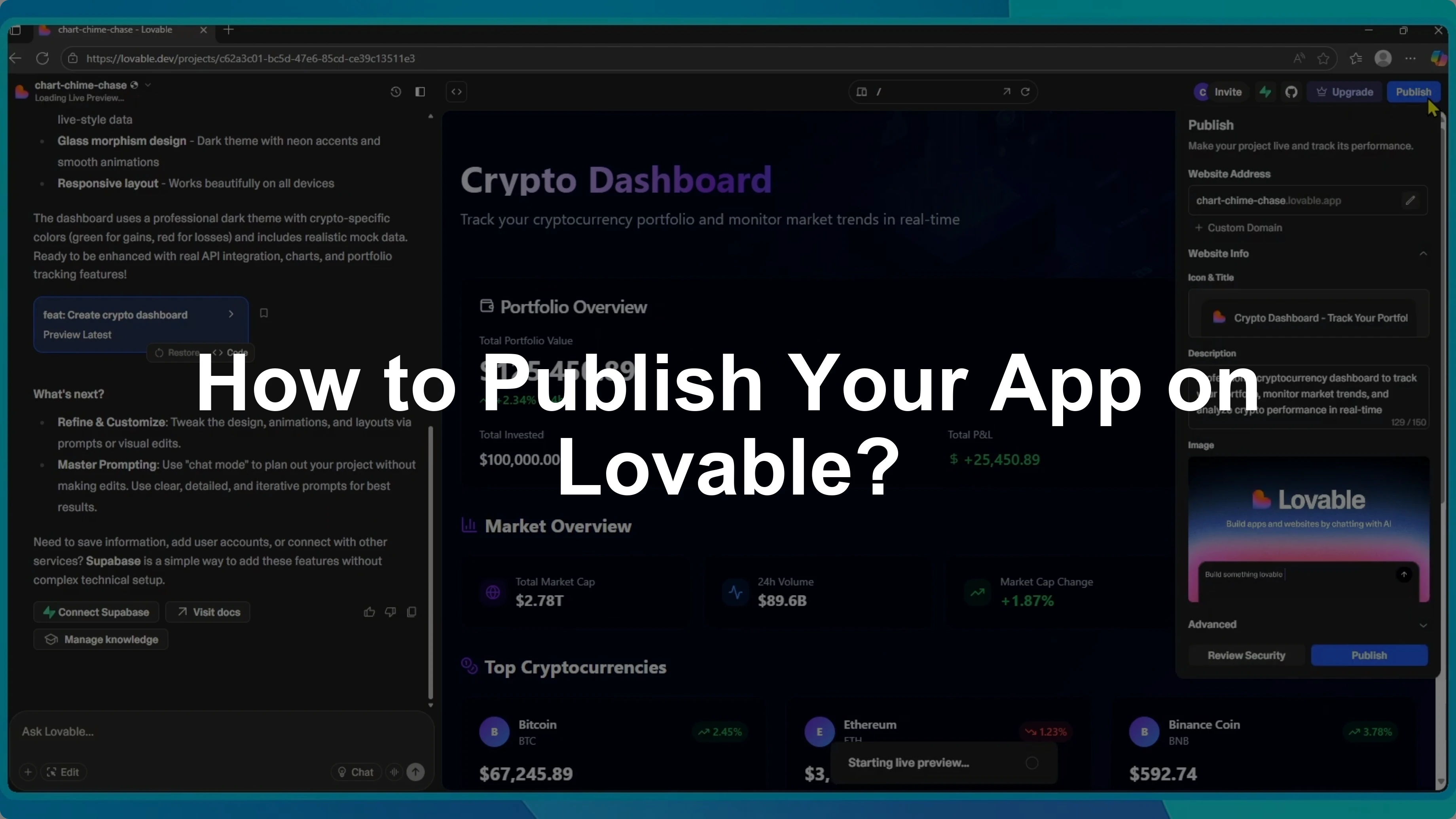
How to Change Dark Mode and Light Mode in Lovable?

I will show you how to change the appearance of Lovable, including switching between light mode and dark mode.
Changing the theme does not affect your app. It only changes the interface, which can make it easier and more comfortable to work in.
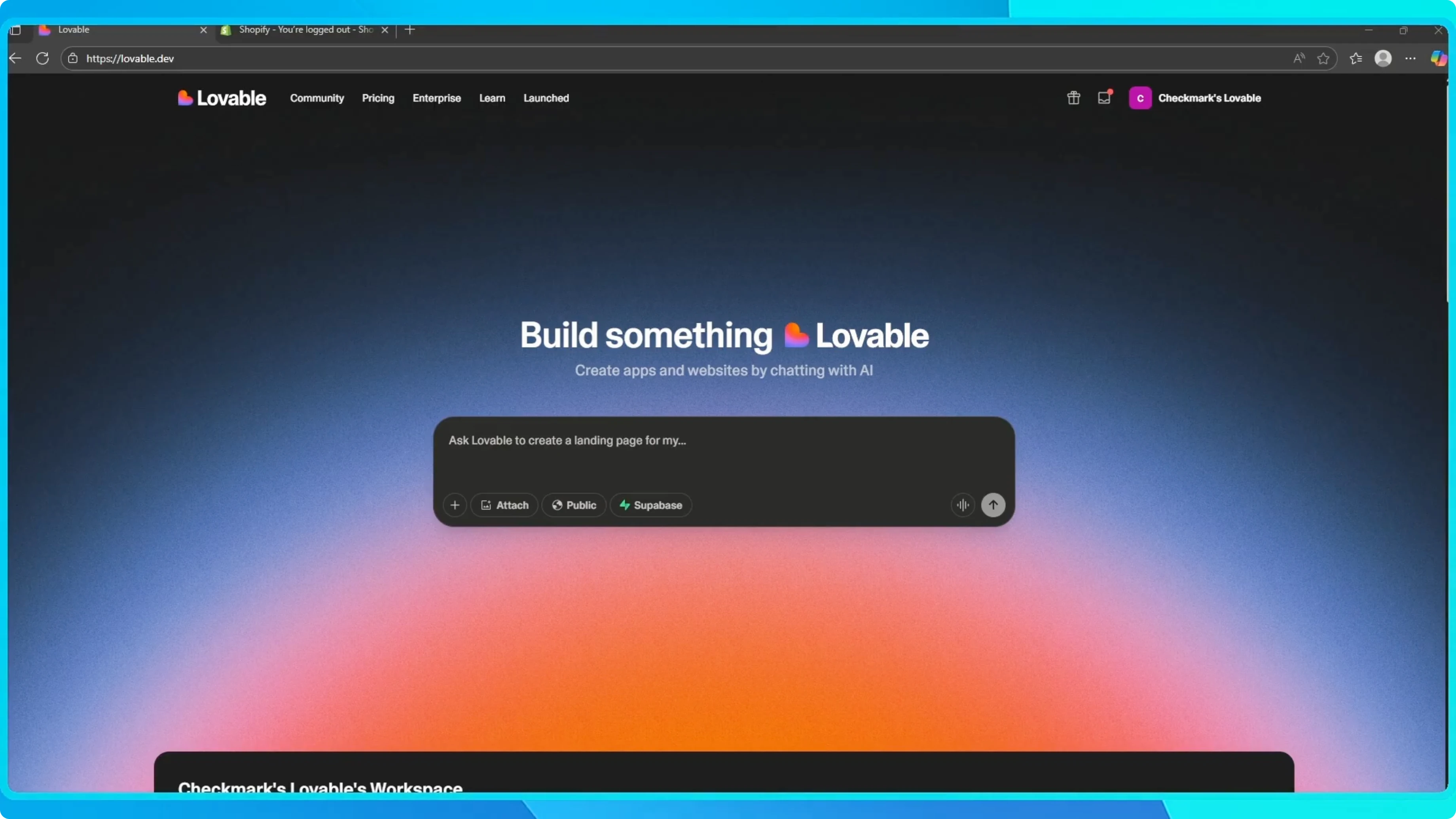
Overview
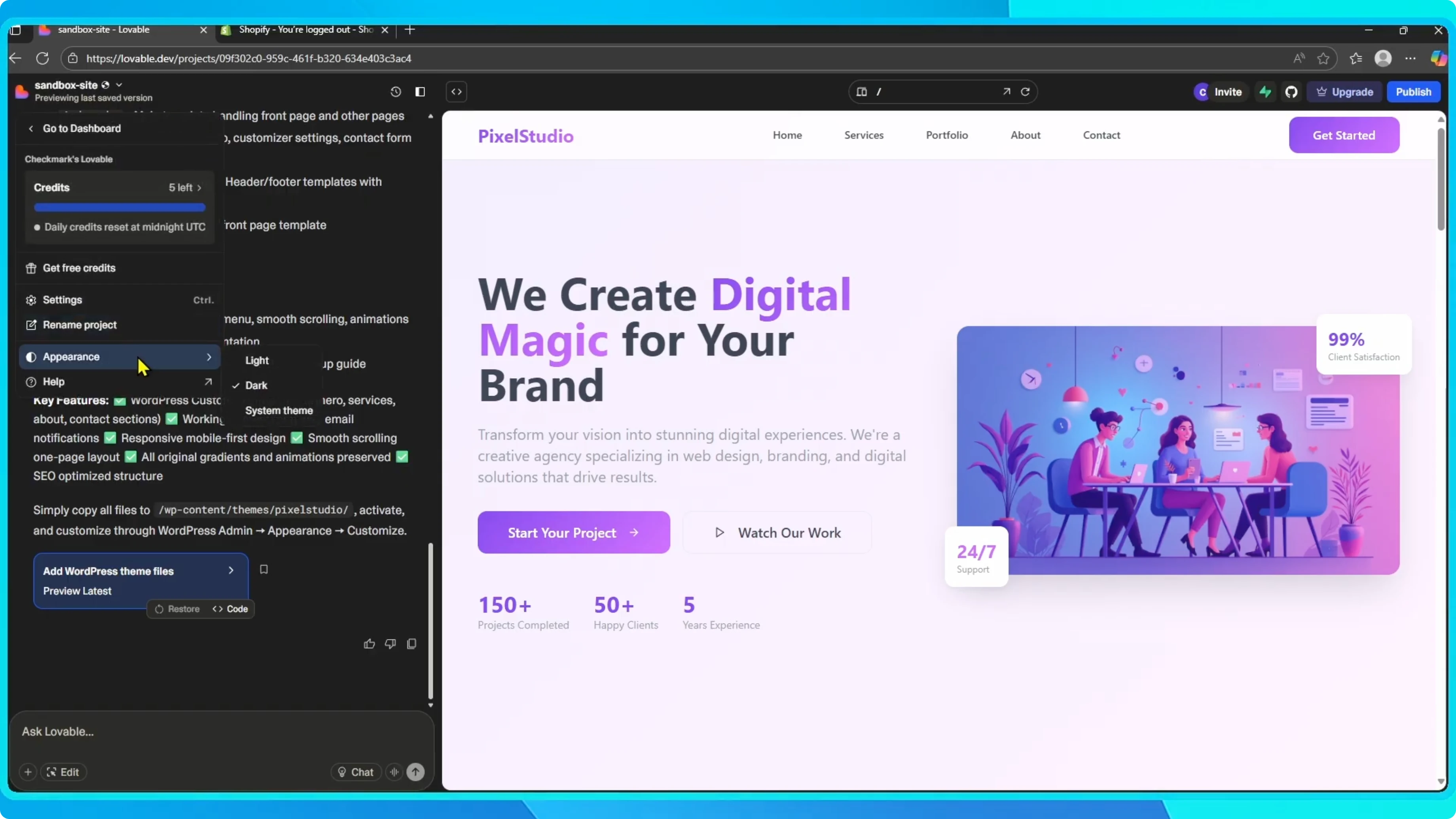
Here you will see three options. Light Mode, Dark Mode, and System Theme.
Read More: Force Dark Mode Google Chrome
Steps
Open project
Open your project in Lovable.
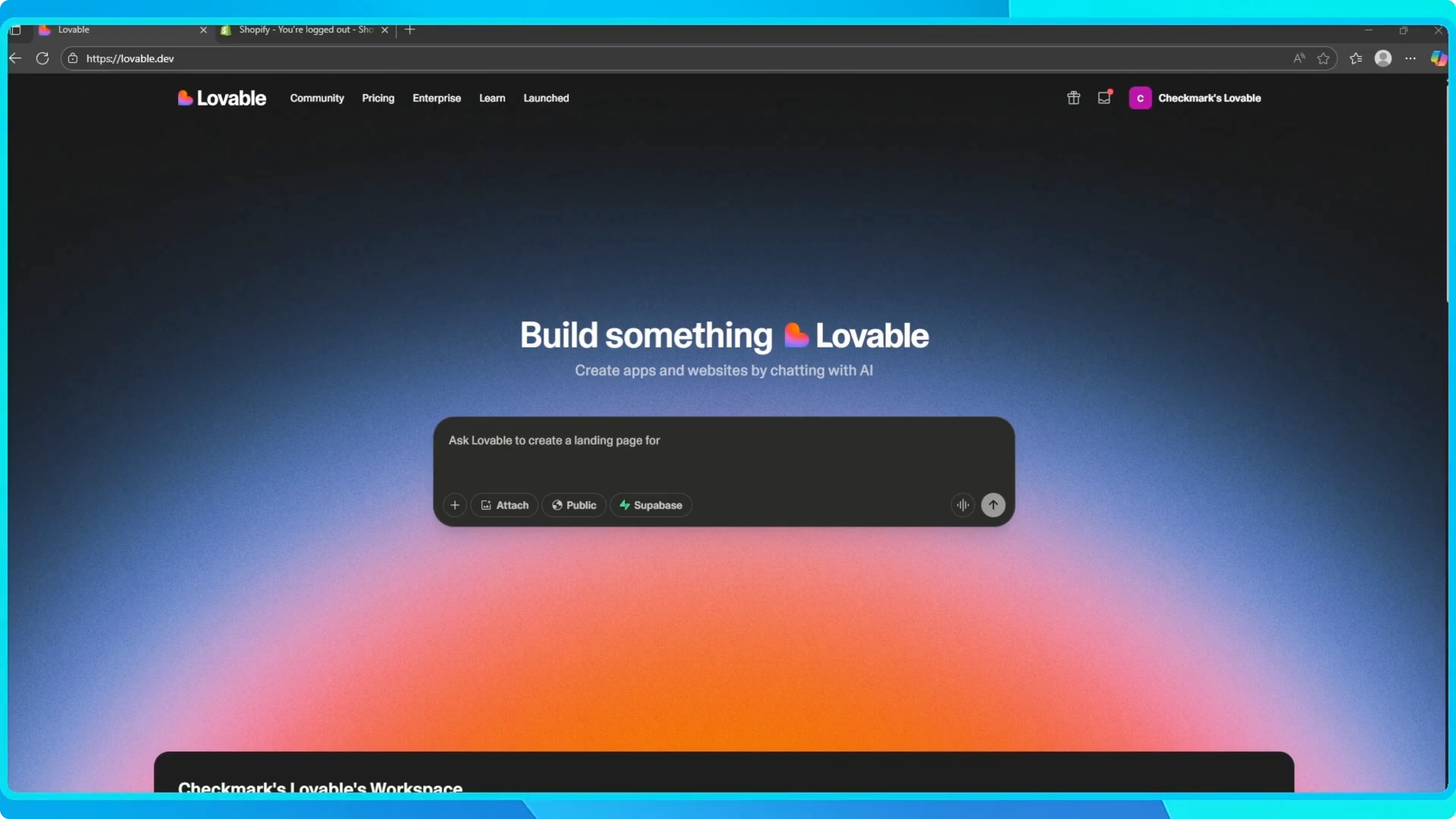
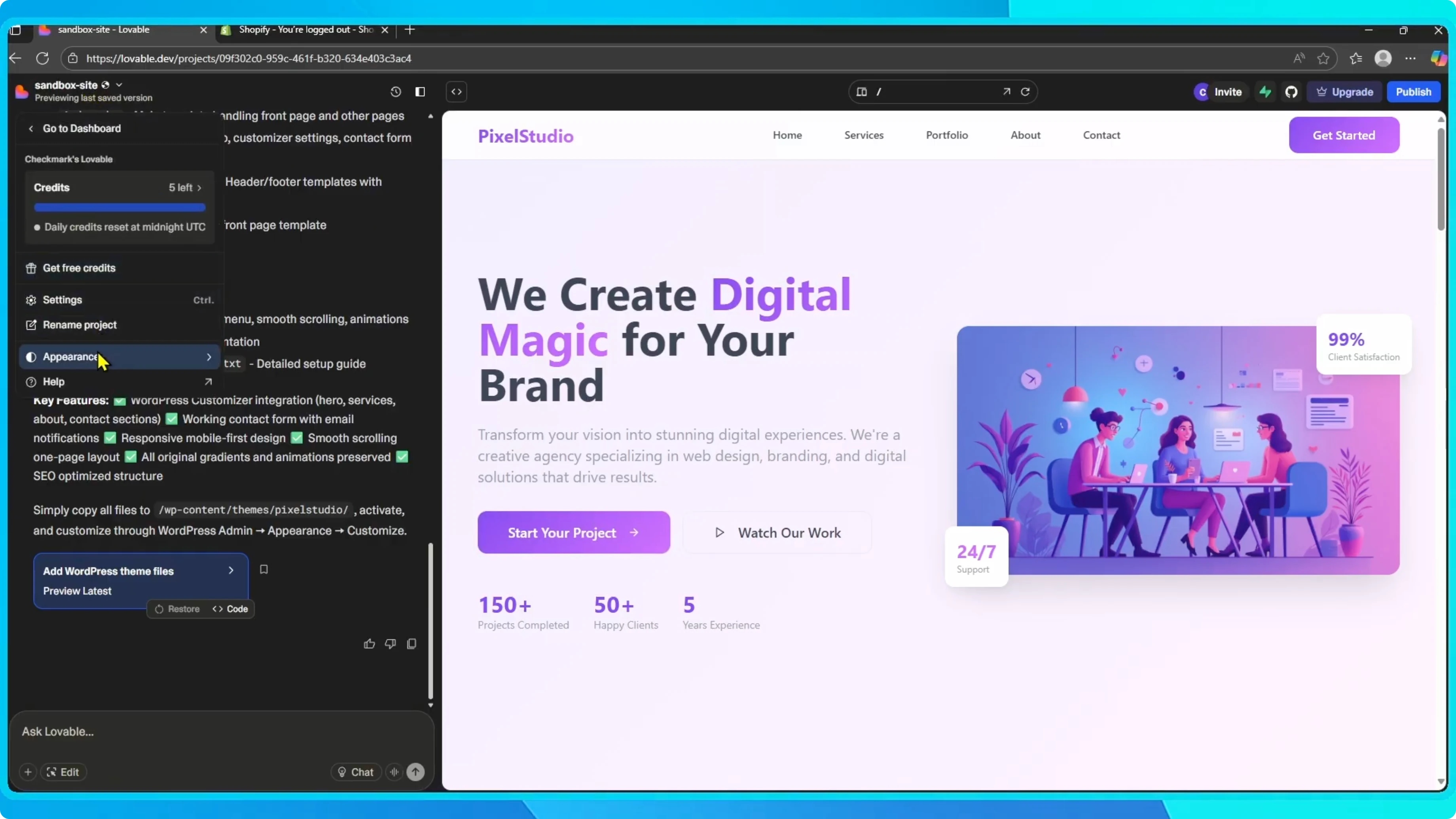
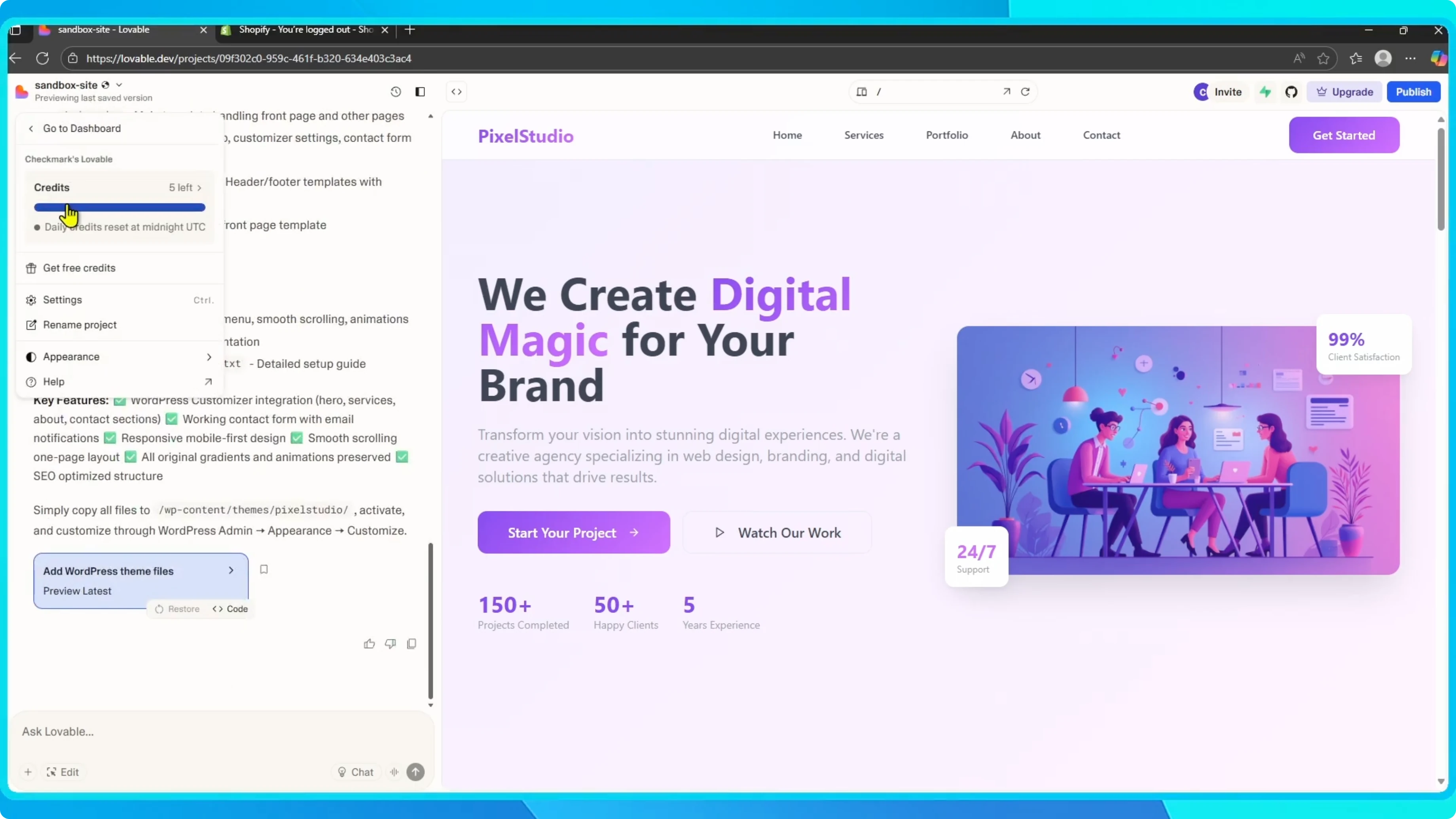
Click the project name in the top left corner.
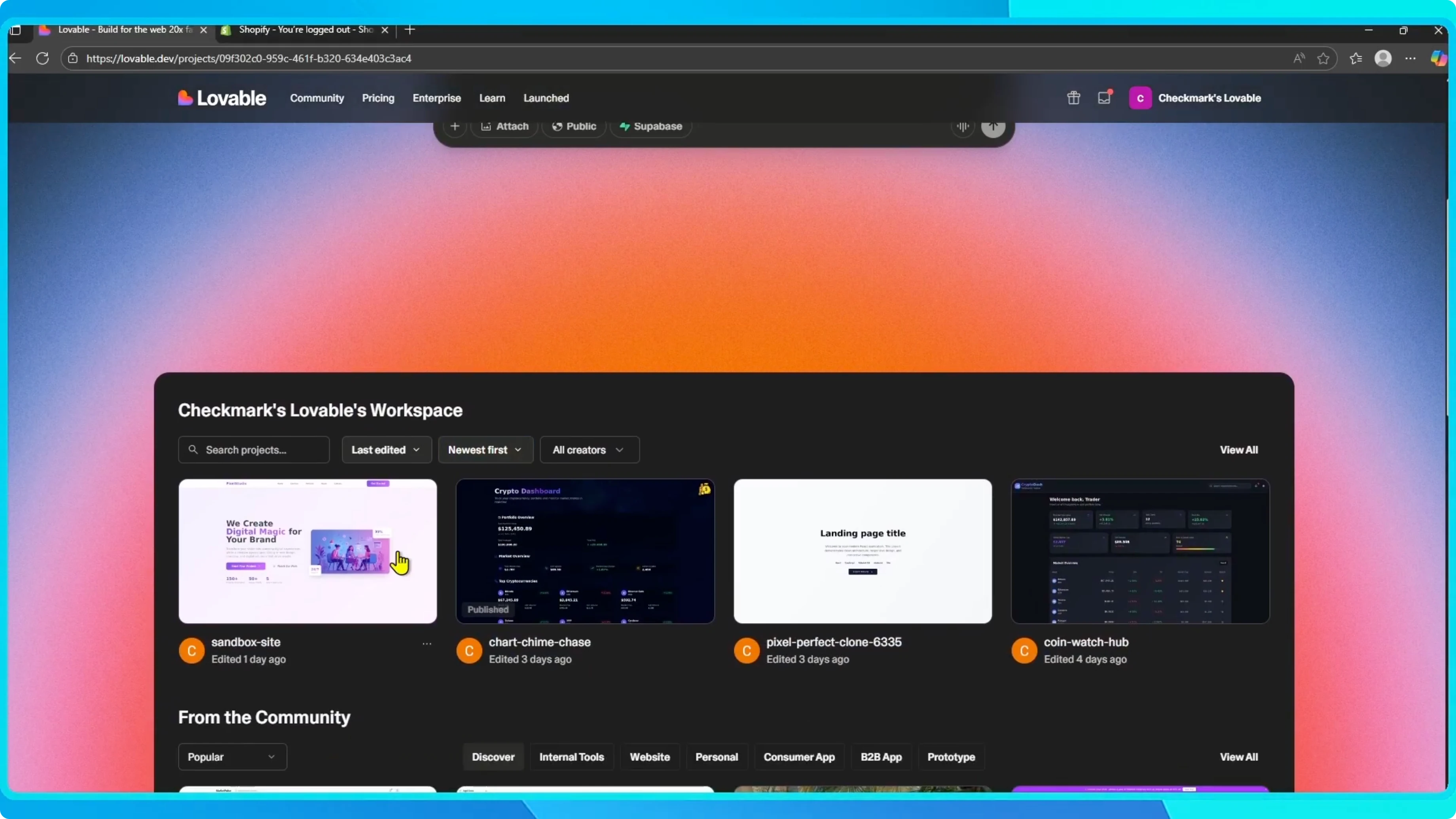
Select theme
From the menu, select Appearance.
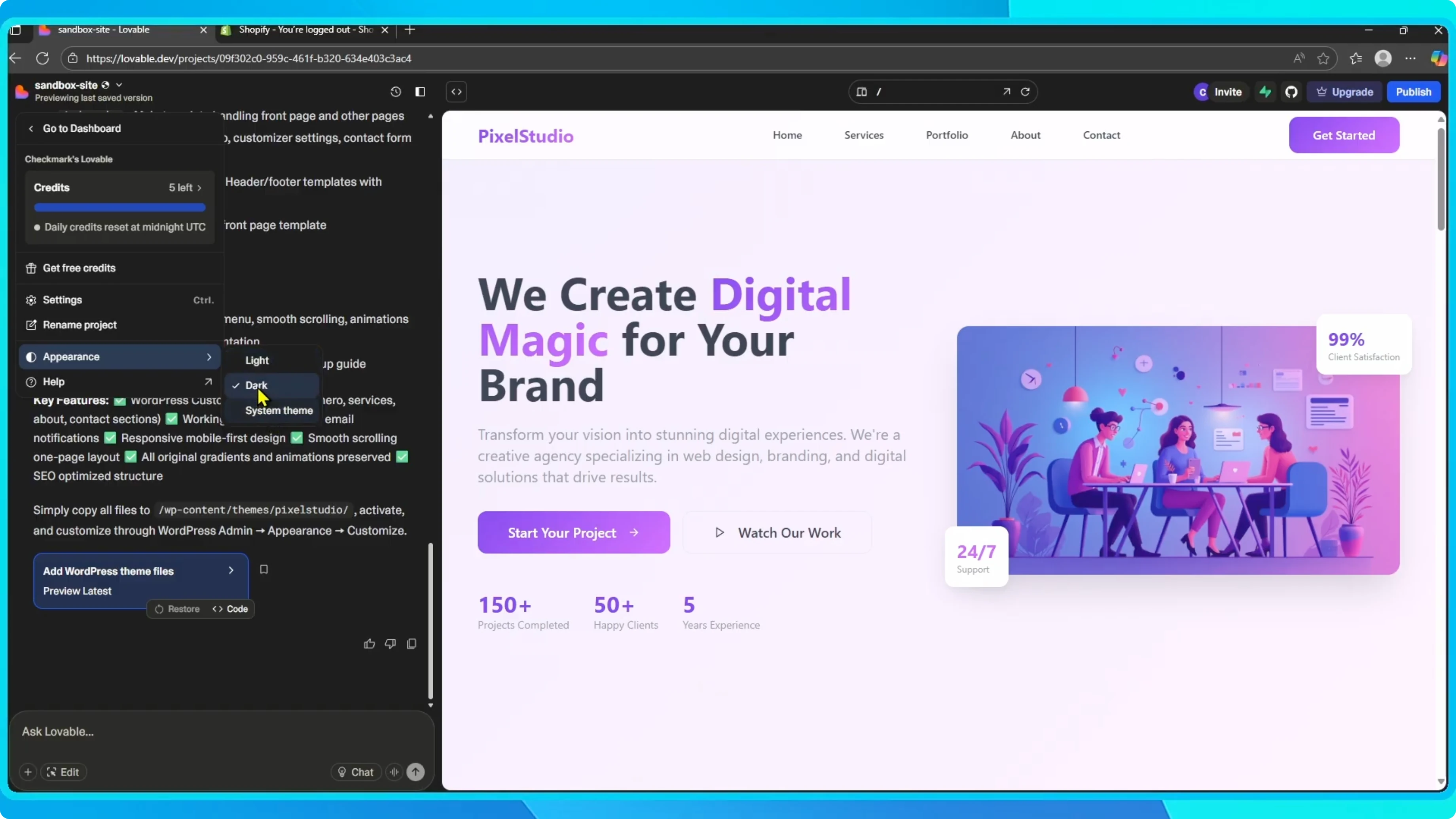
Choose Light Mode, Dark Mode, or System Theme.
Read More: Turn Off Dark Mode Google Chrome
Theme options
If you pick Light Mode, the interface switches to a bright layout.
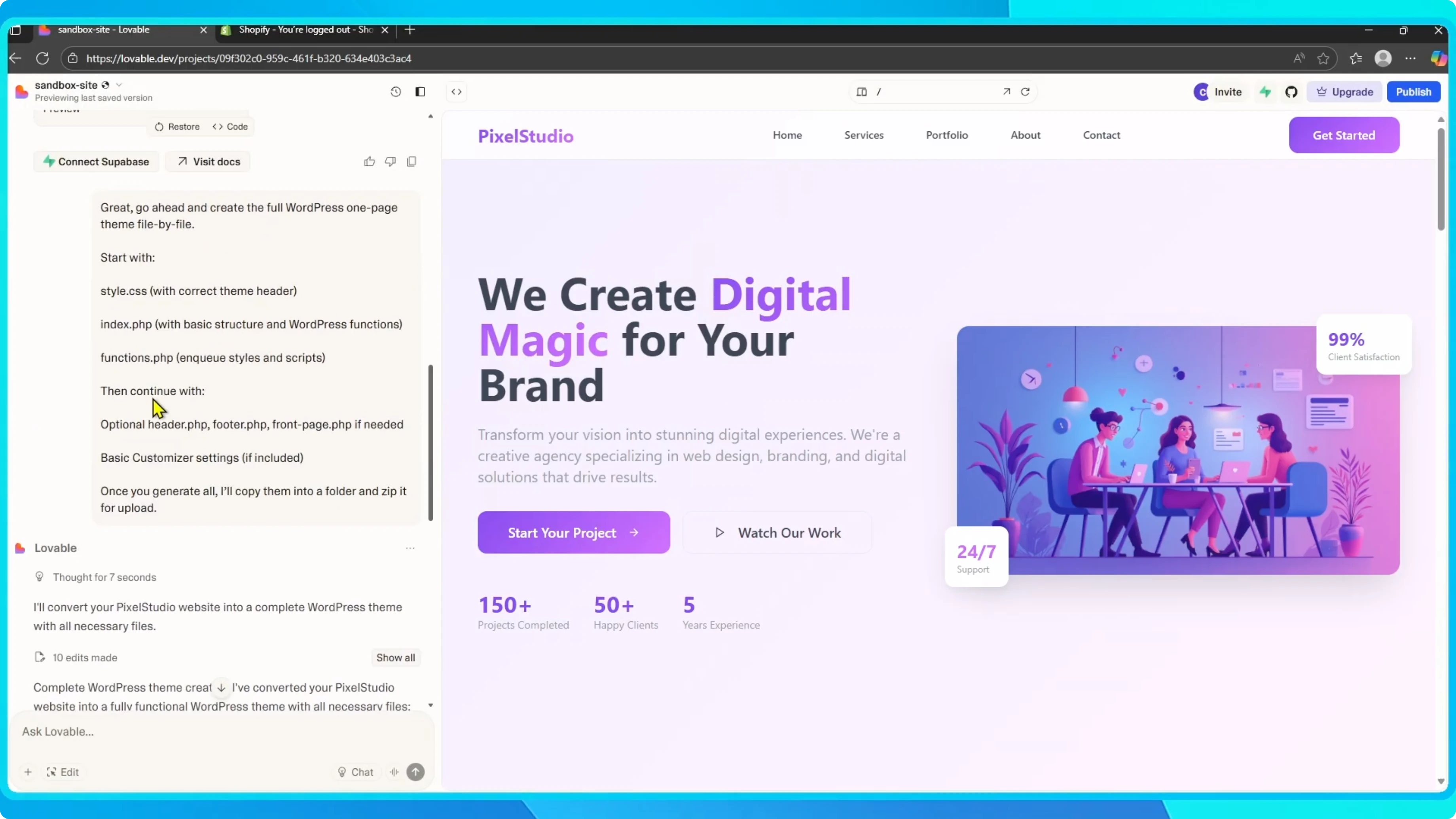
If you select Dark Mode, everything changes to a darker style, which many people find easier on the eyes.
If you choose System Theme, Lovable will automatically match your computer settings.
Read More: Change Camera Google Chrome
Final thoughts
That is all there is to it.
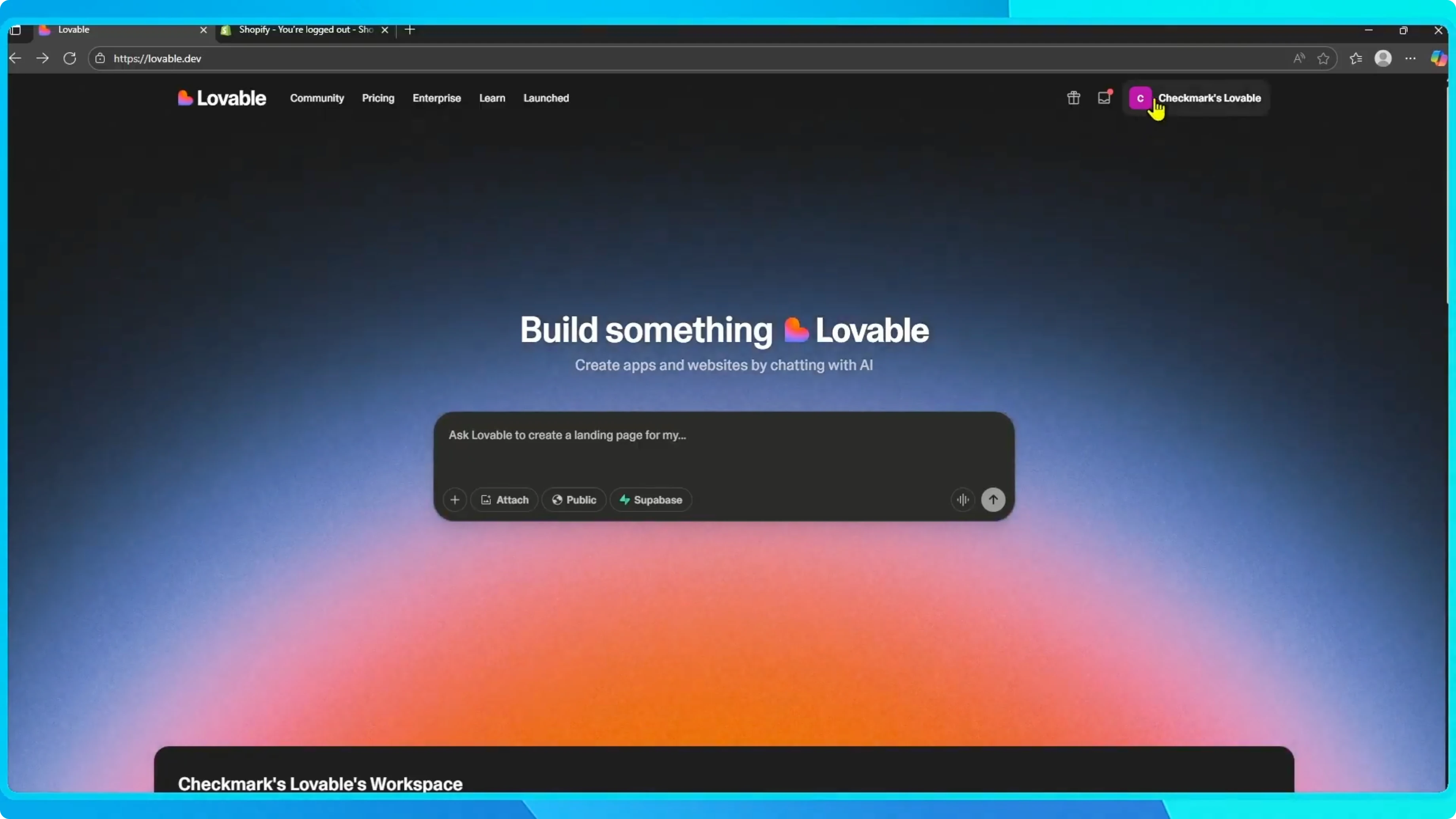
A quick way to personalize your workspace and make it more comfortable.