How to Transfer a Project to Another Account in Lovable?
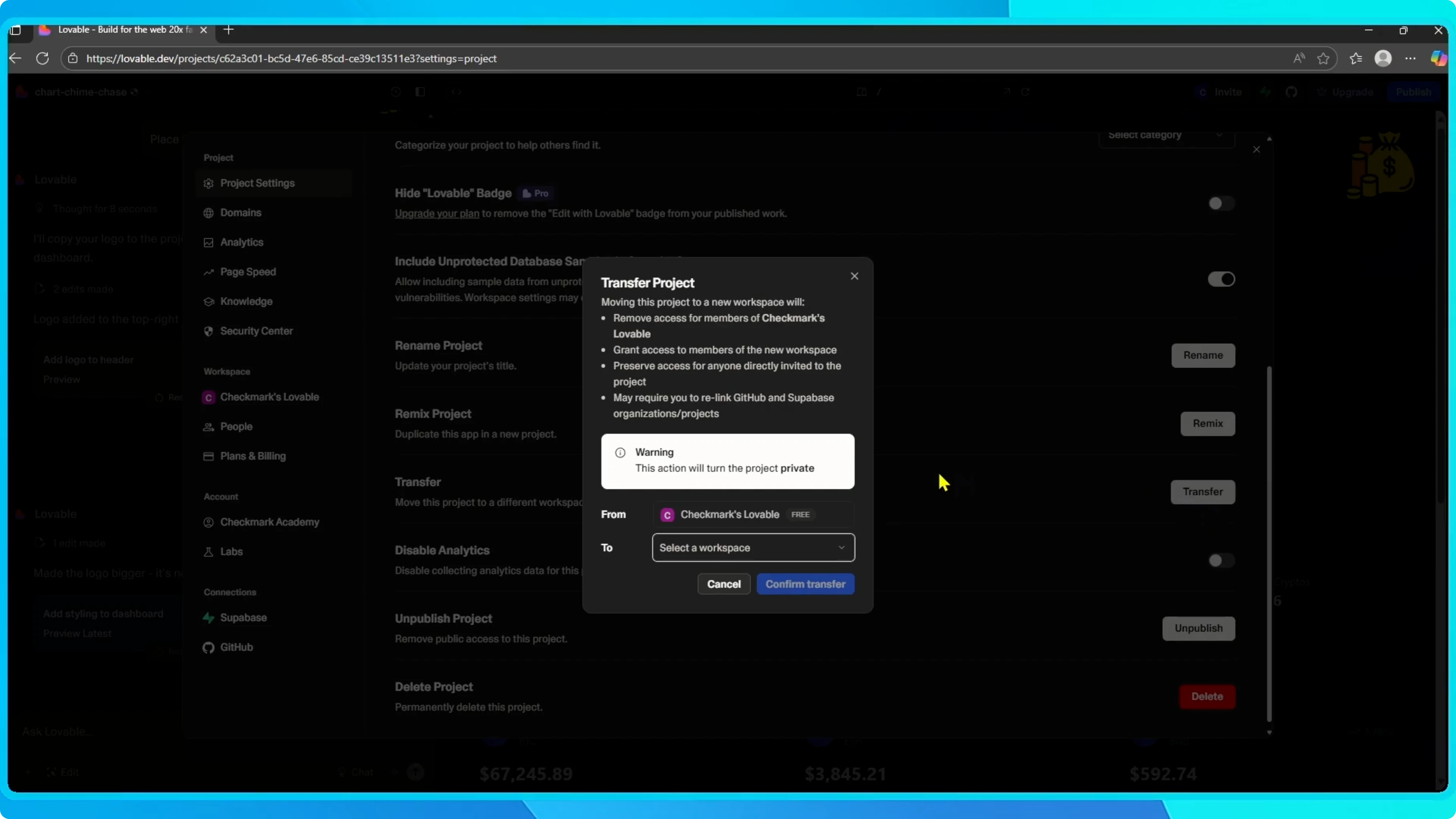
I will show you how to transfer a project in Lovable using the built in transfer option.
Transfer a project in Lovable without copying or losing anything.
This keeps your workflow simple across workspaces.
Read More: Change your default Google account in Chrome
Steps
Open your project and click the project name in the top left.
Go to Settings.
Scroll down until you see the option called Transfer.
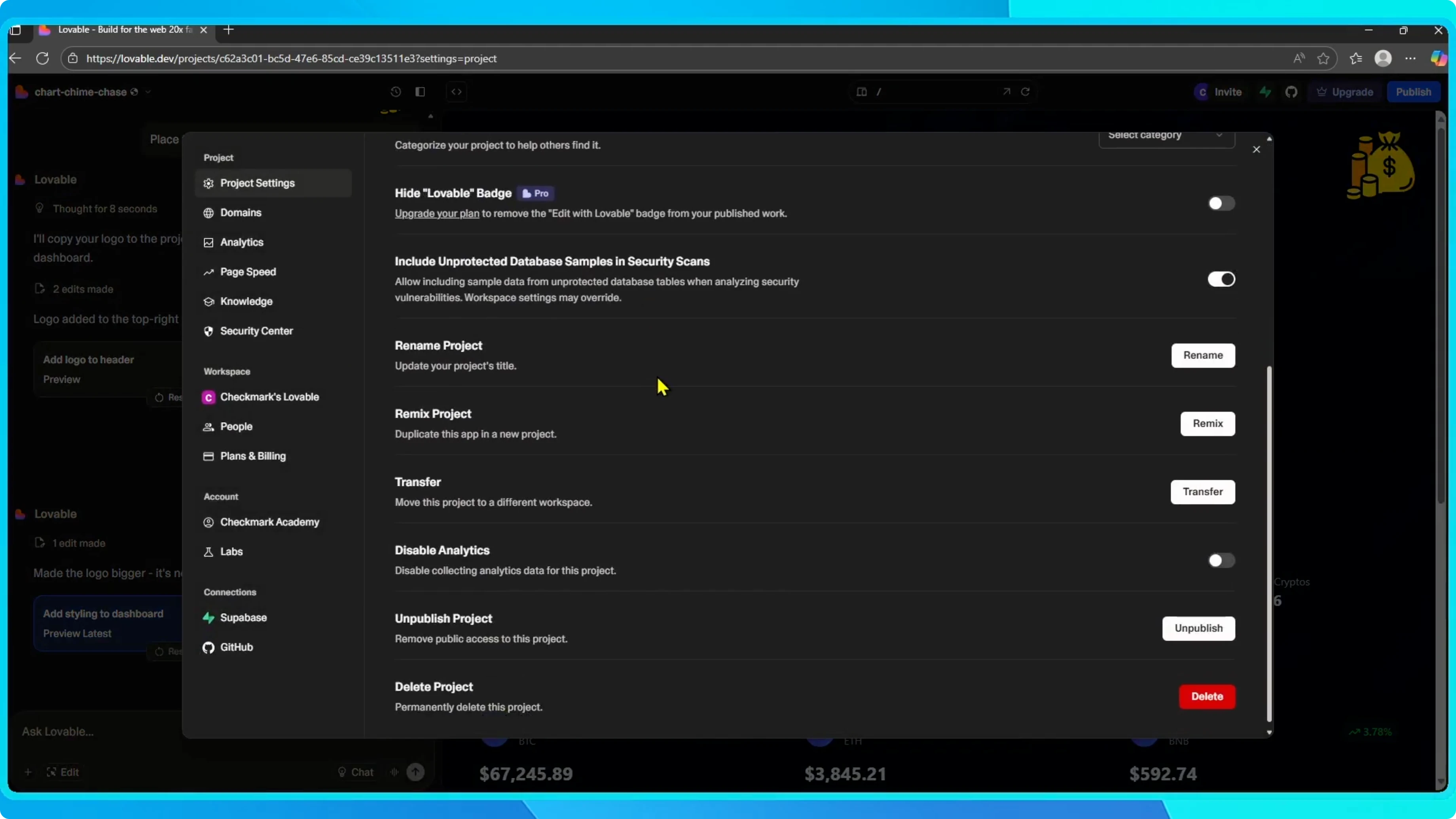
Click Transfer.
Lovable will ask you which workspace you want to move the project to.
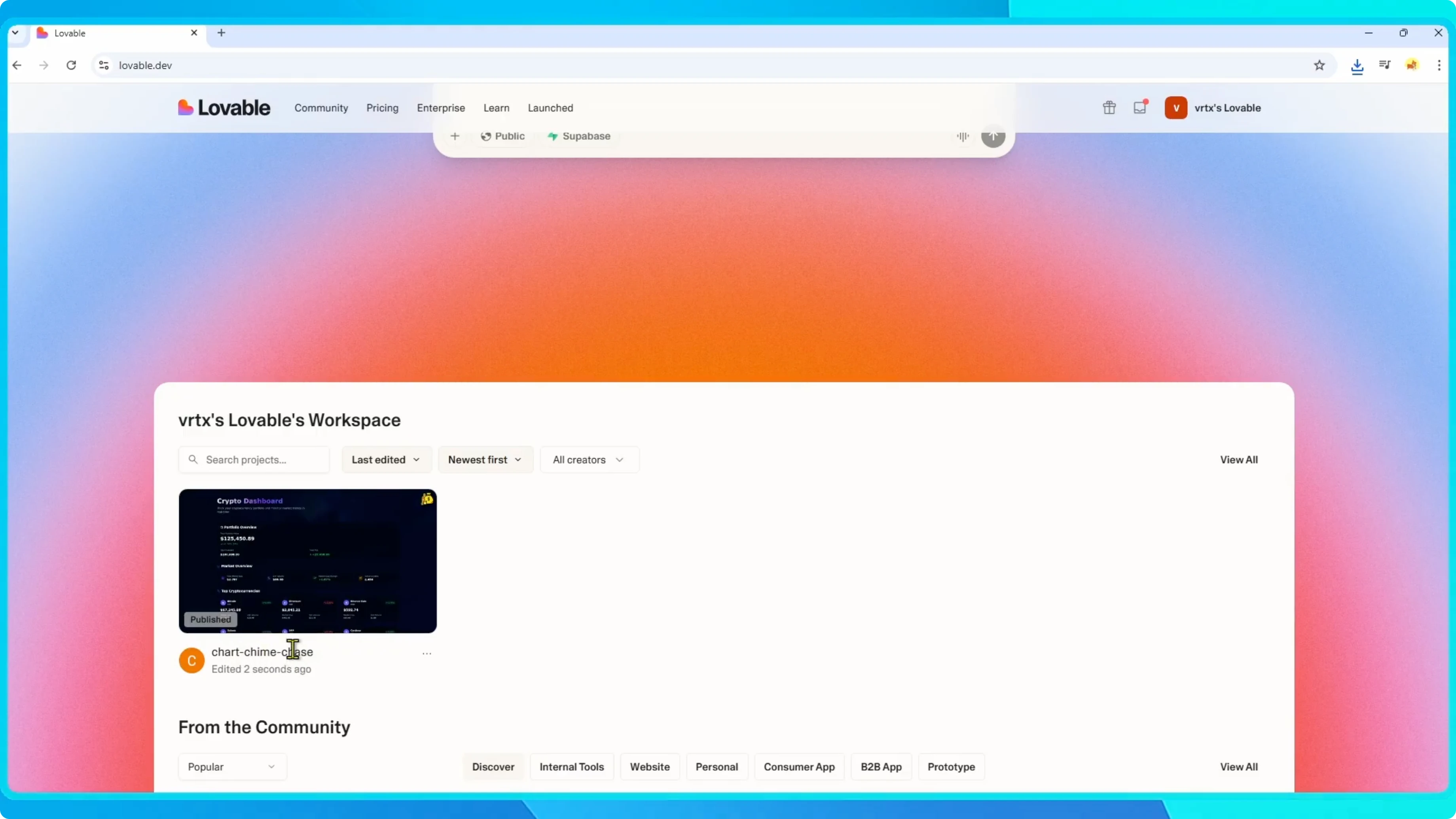
Select the workspace you would like to use, confirm the transfer, and that is it.
Read More: Move your Chrome bookmarks to another account
Why this helps
This feature is really useful if you have multiple workspaces.
For example, one for personal projects and one for your student or team projects.
Instead of duplicating your work, you can simply move it between workspaces without losing anything.
Read More: Fix Chrome account sync issues
Final thoughts
You can move projects between workspaces quickly and keep everything intact.


