Lost Saved Passwords in Chrome? Try This Before Giving Up
I'm going to teach you how to recover deleted passwords in Google Chrome. It's frustrating to lose access to your saved passwords, especially if you've relied on Chrome to remember them for you. While it may seem like they're gone for good once deleted, there's still hope. I'll guide you through the process of getting them back.
Lost Saved Passwords in Chrome? Try This Before Giving Up
What to know first
First, it's important to understand that once passwords are deleted from Chrome, they typically can't be restored directly. However, if you've been using Chrome on multiple devices and syncing your data, or if you have a backup somewhere, you might be able to recover them.
Step-by-step: Use another device that hasn't synced yet
- The first step involves checking another device that's signed in with the same Google account. It's all about taking advantage of the syncing feature that could still hold your missing passwords.
- Head over to this other device (a phone, tablet, or another computer) and open up Chrome there. The goal is to access a version of Chrome that may not have synced the recent deletion of your passwords yet. Timing is key, so doing this as soon as possible gives you the best chance of recovering your lost passwords.
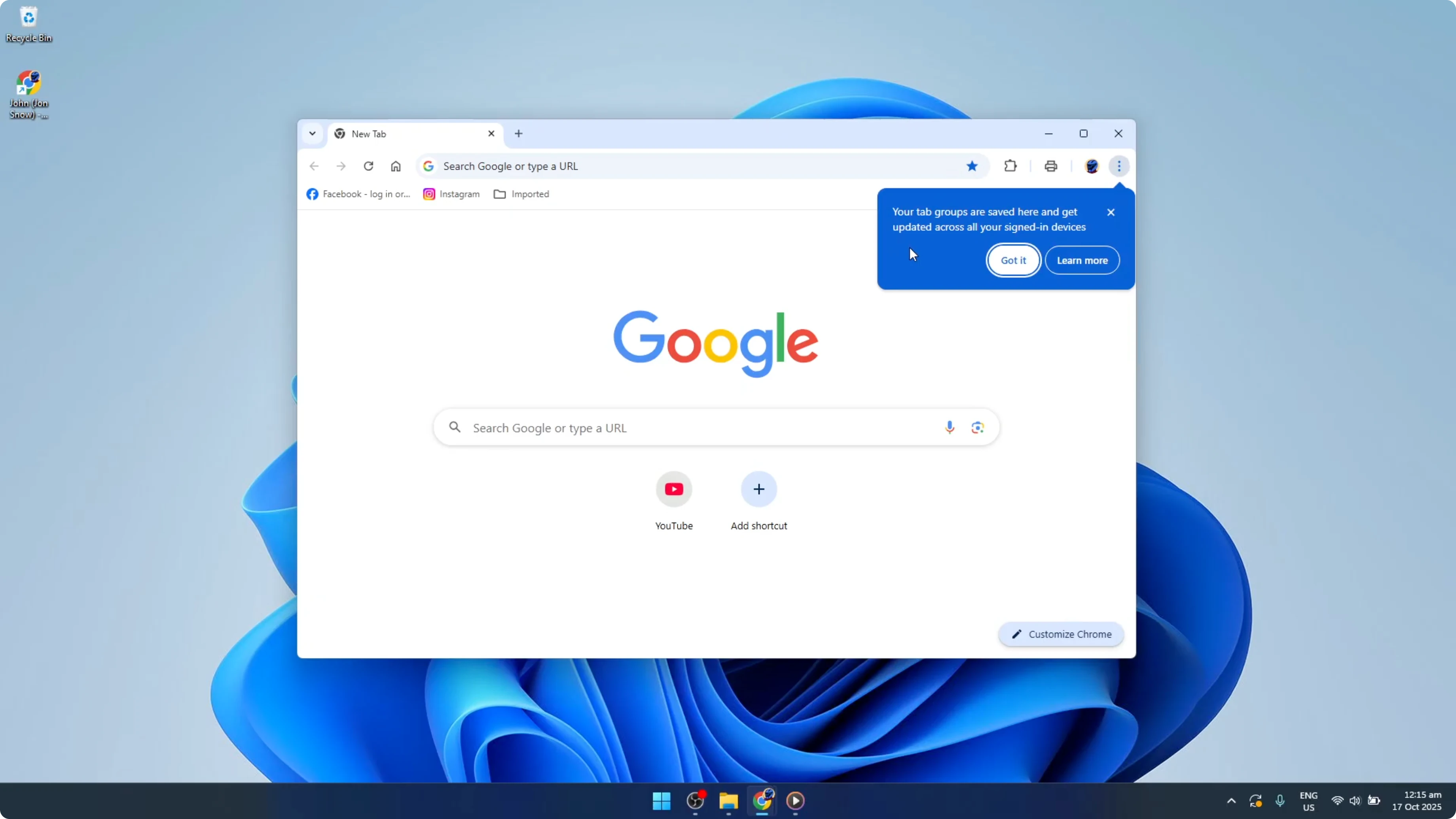
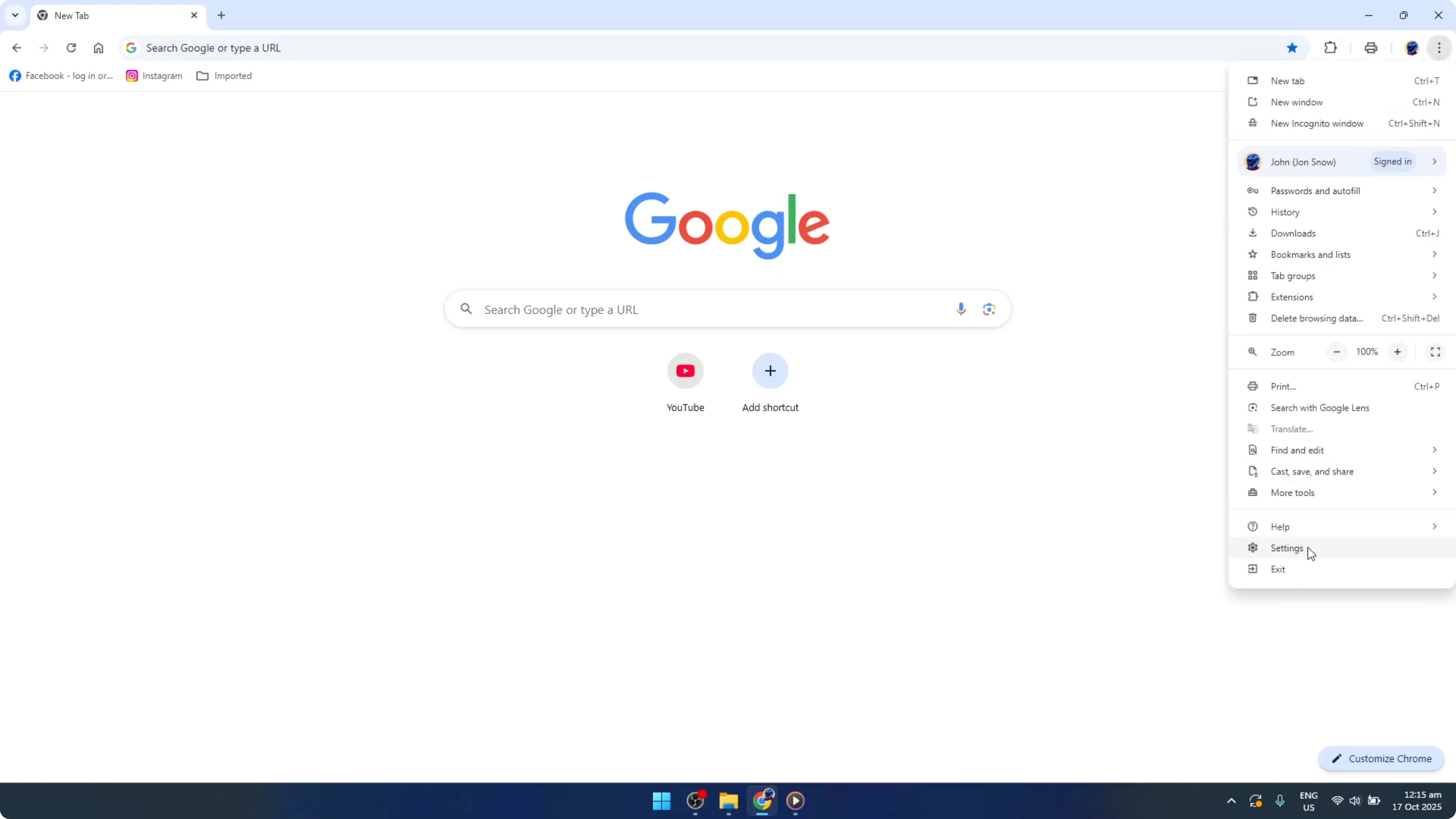
- Once Chrome is open, navigate over to settings by clicking on the three vertical dots usually found on the top right corner of the window. In the settings menu, look for the autofill section and then proceed to password manager. Password manager is where all your saved passwords are stored.
- With any luck, the passwords you lost on your primary device are still saved here if the device hasn't synced the deletions yet. Take a close look through the list to spot any passwords you need to retrieve.
- If you do find them, acting quickly is crucial. You'll want to export or take note of these passwords before reconnecting the device to the internet. This is critical because once the device connects to the internet, it might sync with your other devices and the deletions will take effect, wiping out the passwords.
Export your passwords
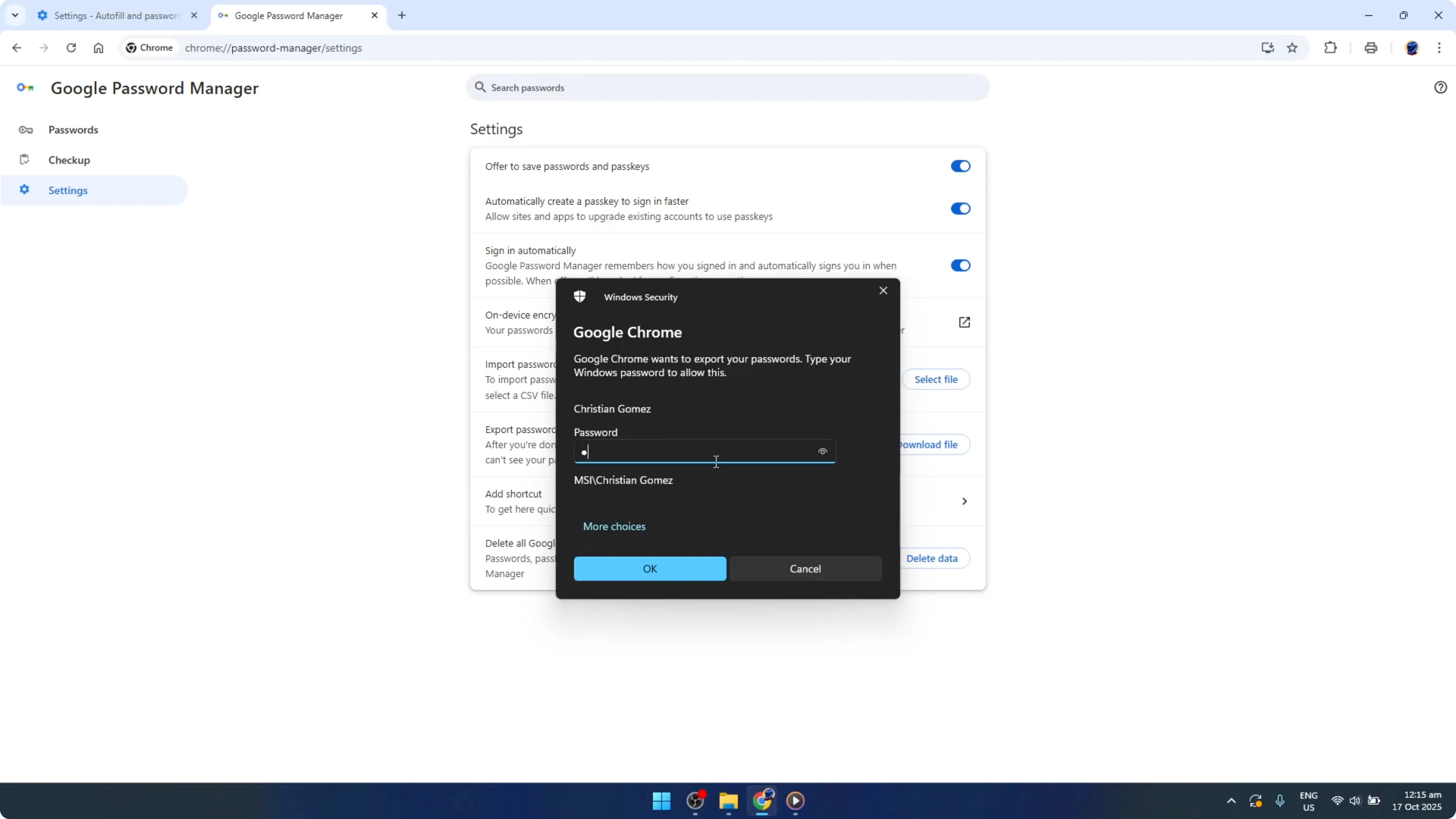
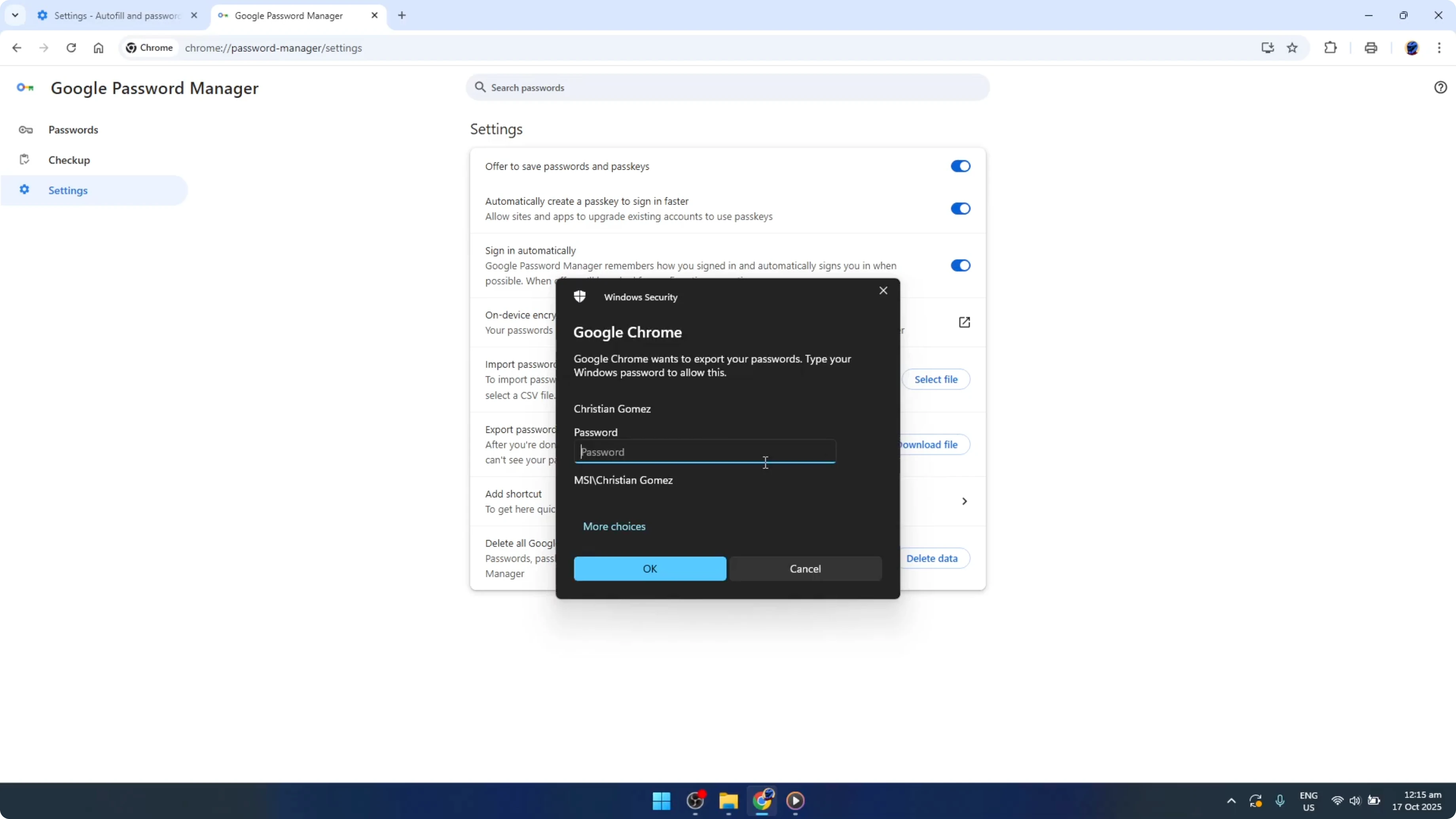
- To export your passwords, find and click on the export passwords option in the password manager.
- This allows you to save them externally, either as a CSV file or you can manually write down the ones you need. Doing this ensures that even if the syncing happens, you'll still have your important passwords at hand.
Final Thoughts
And that's it. By following these steps, you might be able to recover your deleted passwords. Remember to regularly back up important information and consider using a password manager for additional security and peace of mind in the future.


