Antigravity Chrome Extension Keeps Asking to Install? Here’s the Fix
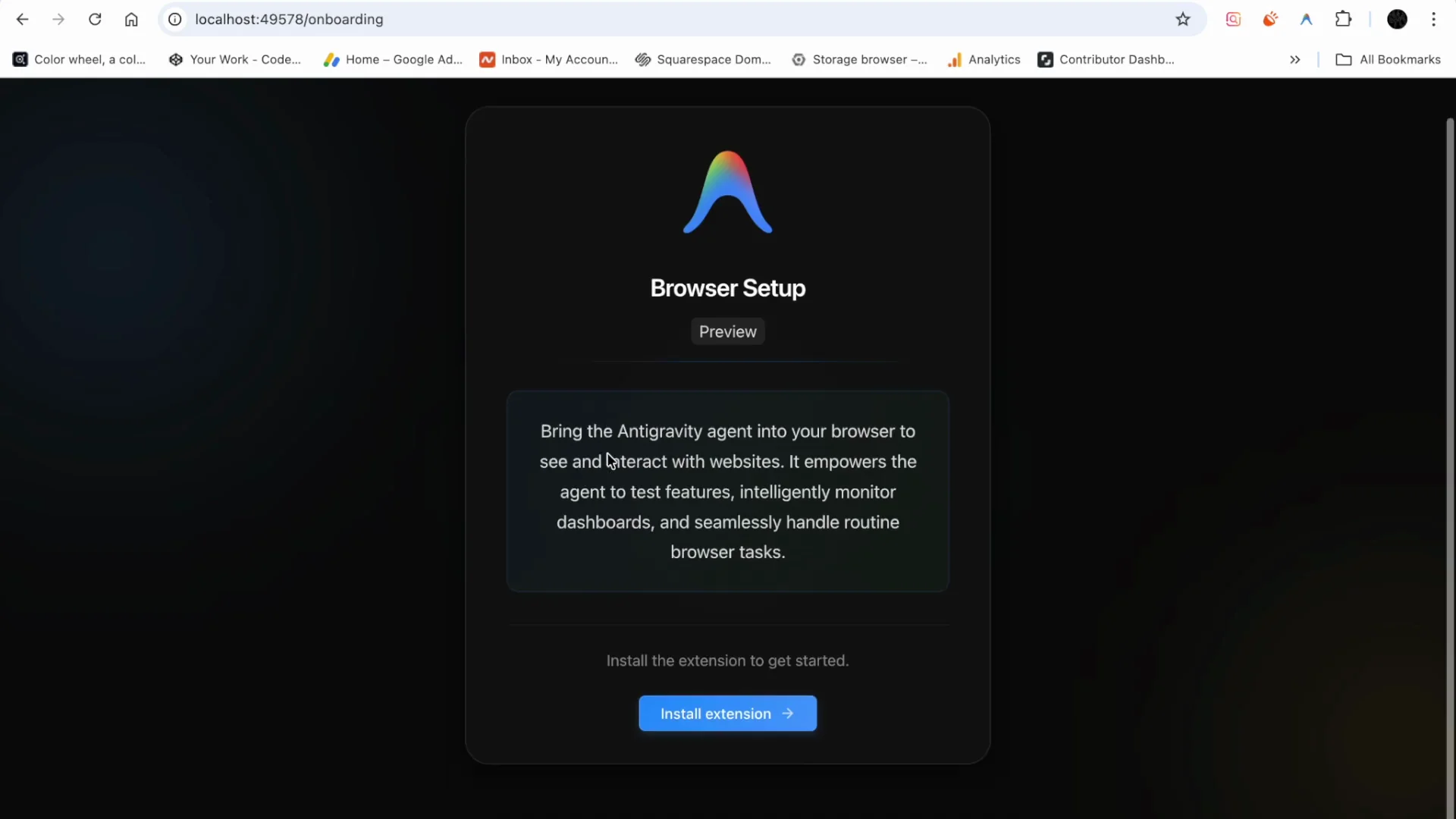
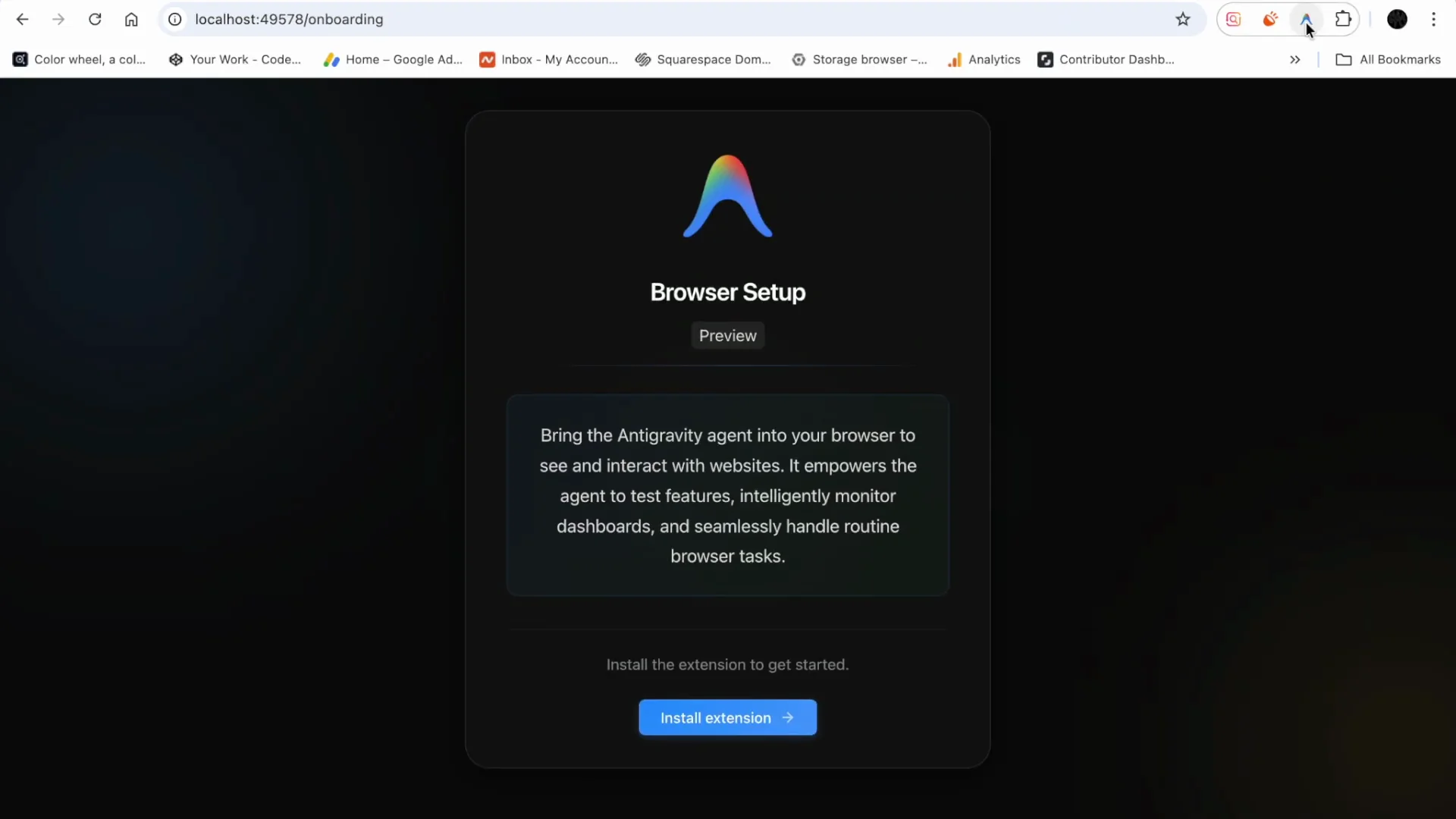
I’m trying to fix an Antigravity issue where the “Open in browser” action keeps telling me to “Install extension” even though the extension is already installed. Removing and re-adding the extension doesn’t change anything. Reopening the app and the browser doesn’t help. I’ve seen a bunch of people reporting the same loop.
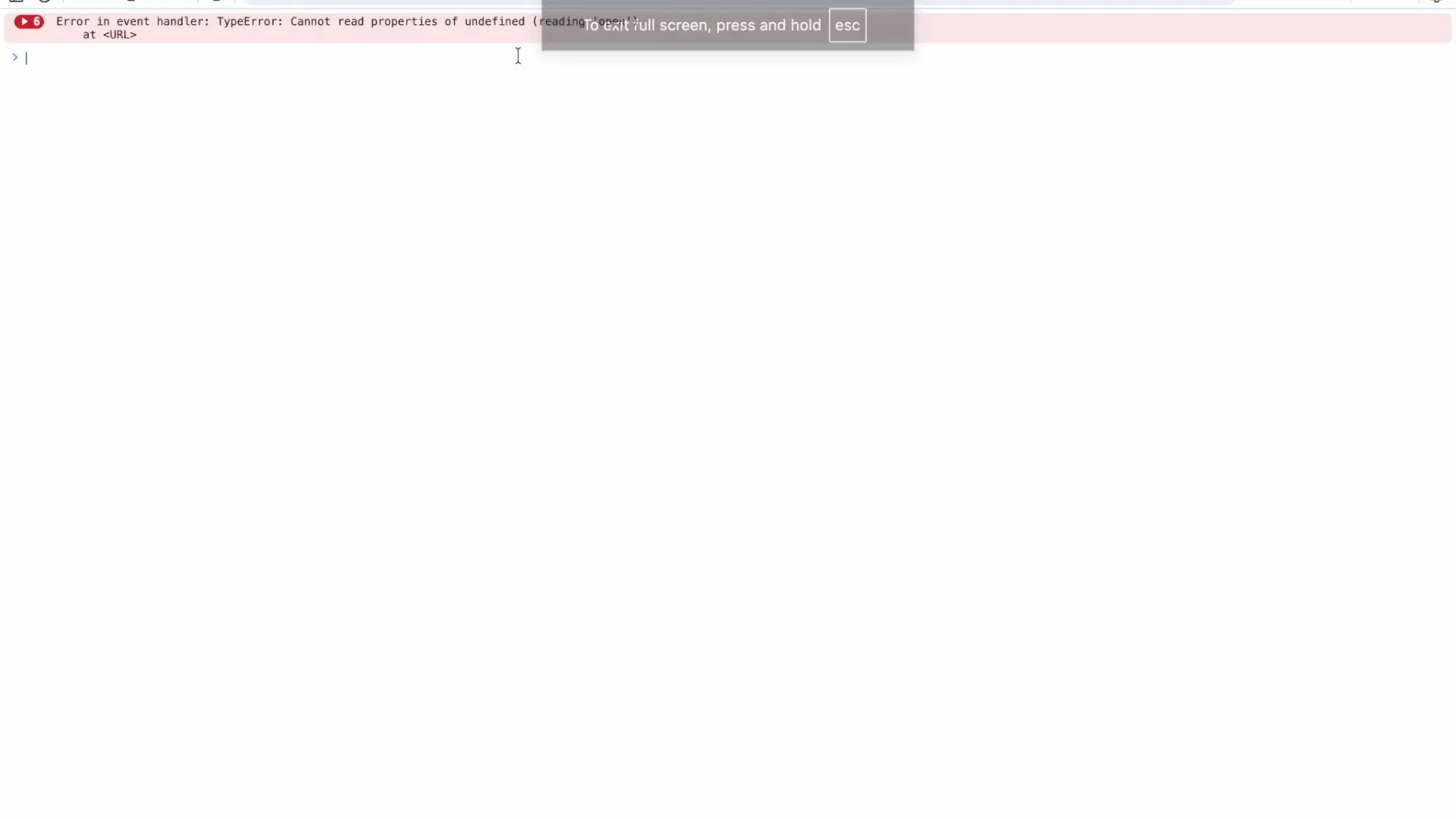
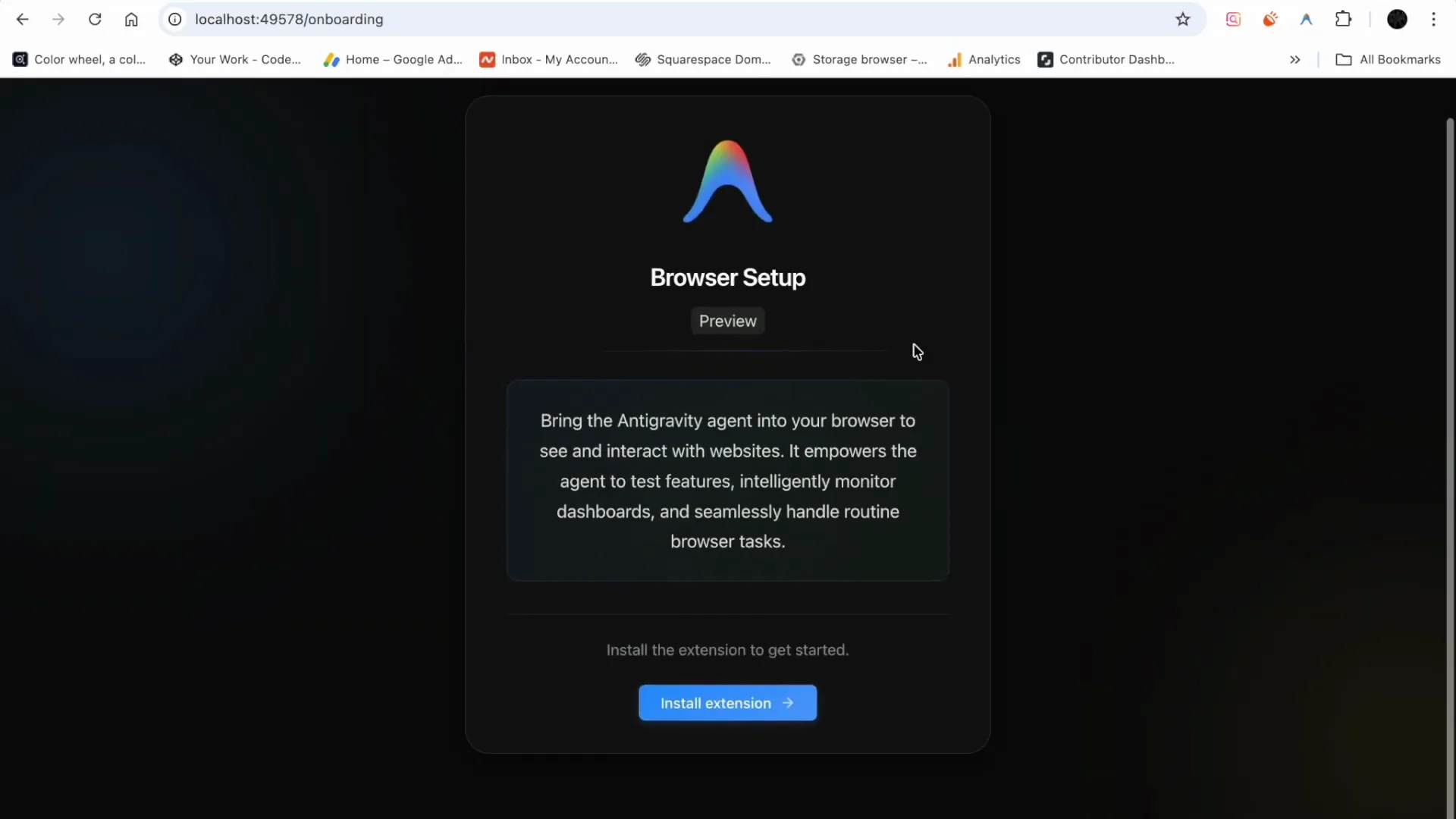
The symptom looks like this: I click Open from my index page, it says to install the extension, I confirm the extension is installed, but the button in the toolbar does nothing. Sometimes it only shows a Remove button. I also hit a console message about an event handler error while clicking.
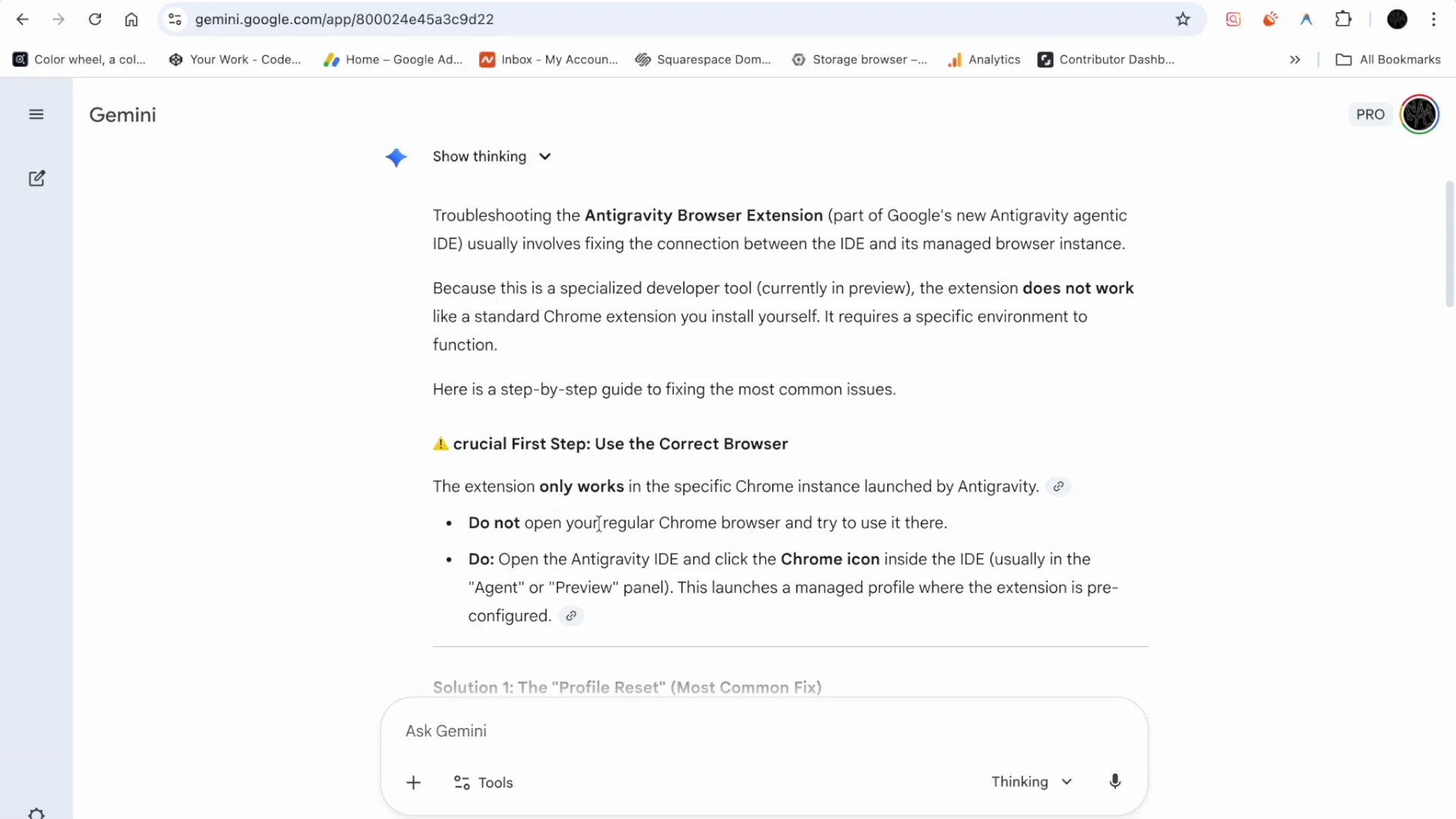
Understanding the Issue Some folks explained that the Antigravity extension doesn’t work like a standard Chrome extension you install in your regular browser. It requires a specific managed Chrome profile launched by the Antigravity IDE (agent/preview panel). If you open your system Chrome and try to use the extension there, or if the managed Chrome profile is corrupted, the extension appears installed but can’t connect and just loops on “Install extension.”
I also saw this error reported:
event handler type error can't read the properties of undefined reading open at URL
Trying to Fix the Antigravity “Install Extension” Loop
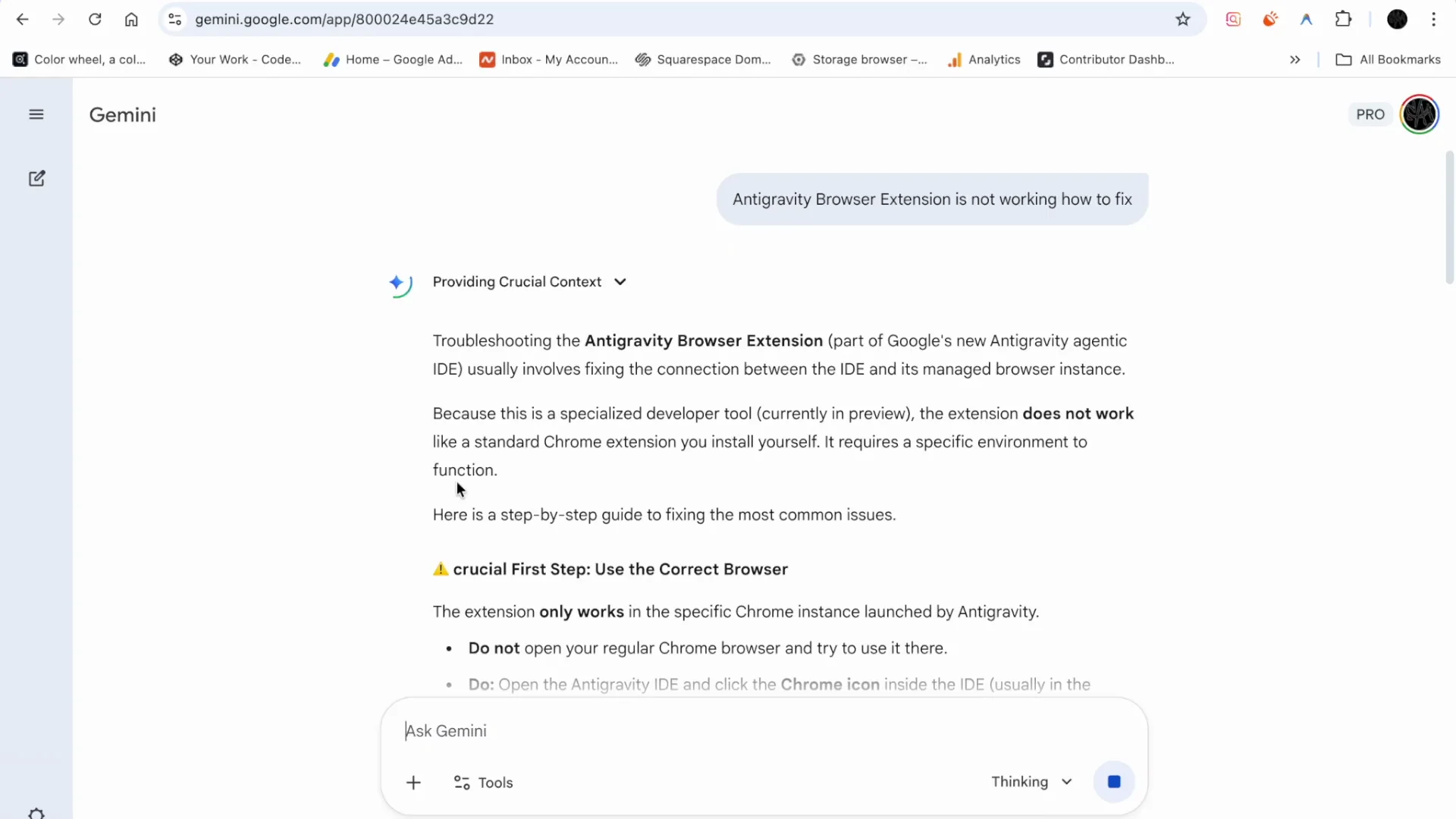
Step 1: Trying to Fix by using the correct browser (the IDE-launched Chrome)
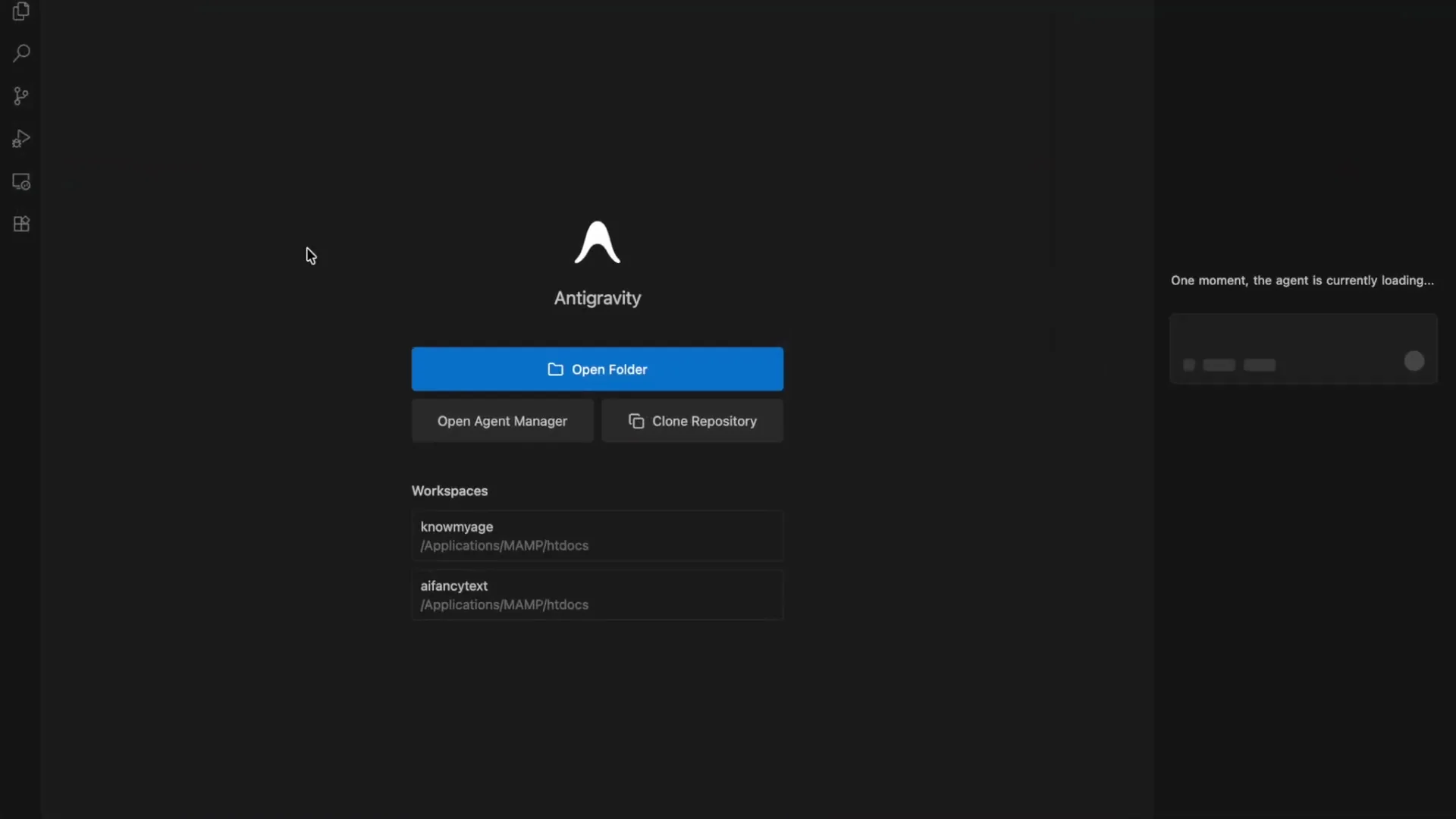
- Open Antigravity (the IDE).
- Use the Chrome icon the IDE launches for the agent/preview. Don’t open your regular Chrome and try to use it there.
- From the IDE’s index page, click Open again.
Result: I still get “Install extension.” The toolbar button for the extension shows, but clicking it does nothing.
Step 2: Trying to Fix by cleanly reinstalling the extension inside the managed profile
- In the Chrome window launched by the IDE, go to the extensions page.
- Remove the Antigravity extension.
- Add it again.
- If it shows “This item is inactive,” click Enable now.
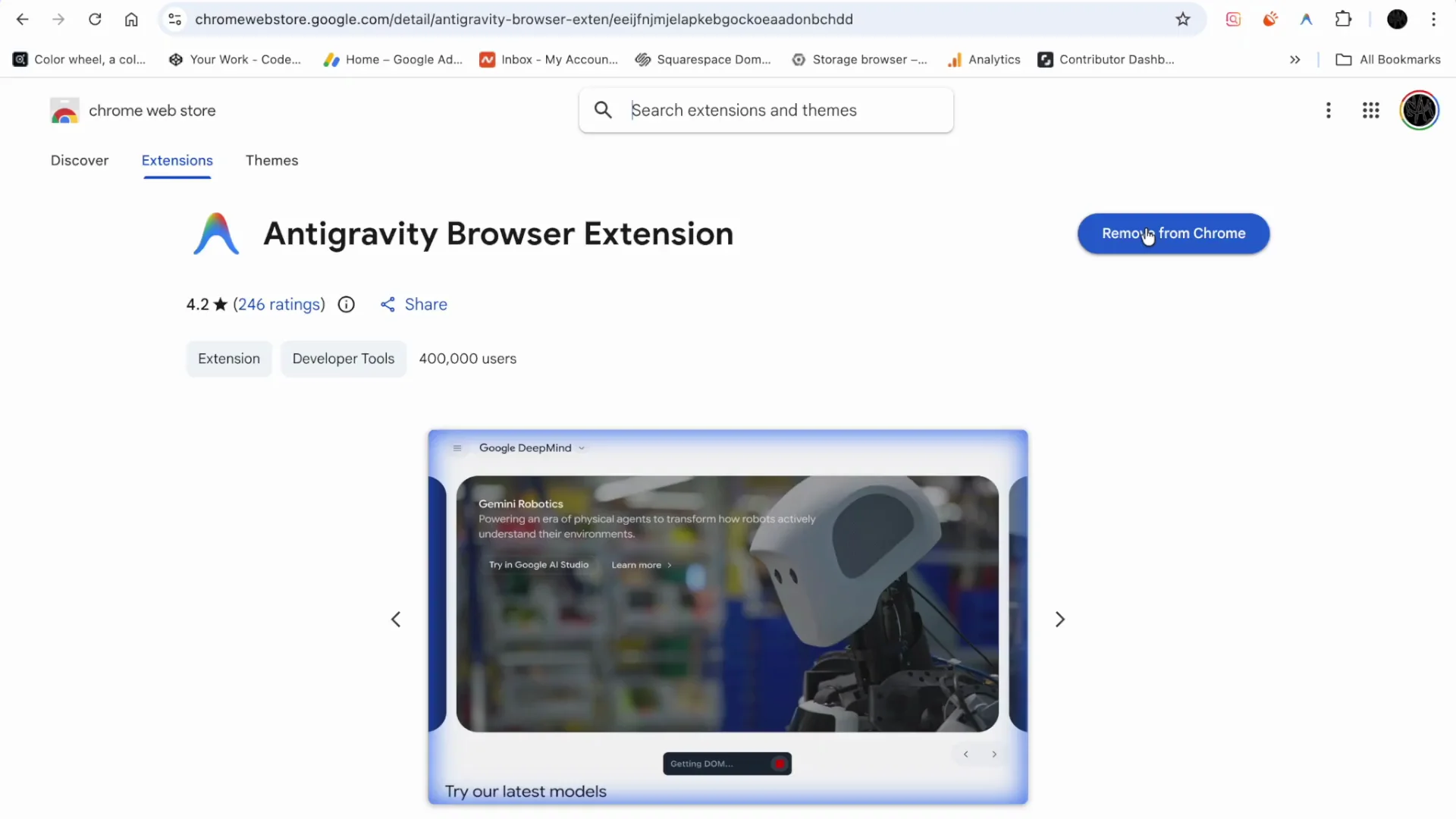
Result: Even after removing and re-adding, it keeps saying “Install extension.” Clicking the extension icon still does nothing. Sometimes I only see the Remove button.
Step 3: Trying to Fix by rebuilding the managed Chrome profile
People are saying: if the extension is missing, grayed out, or failing to connect, the managed Chrome profile is likely corrupted. Rebuilding it fixes the majority of cases. The guidance is:
- Quit Antigravity completely.
- Delete the Chrome profile folder for Antigravity (the managed profile directory).
- Restart Antigravity and launch the browser from within the IDE; it should recreate a fresh profile and auto-install the extension.
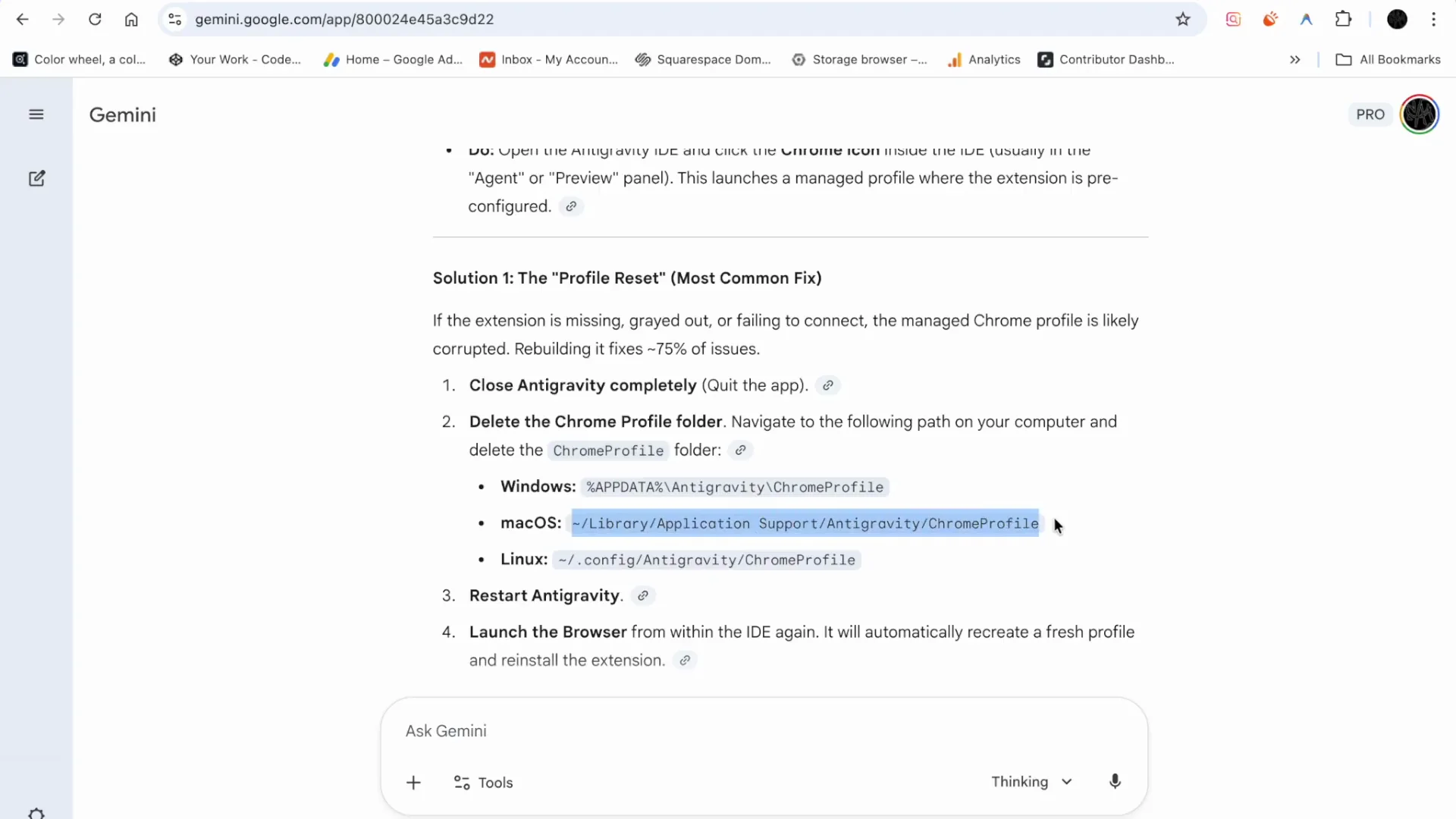
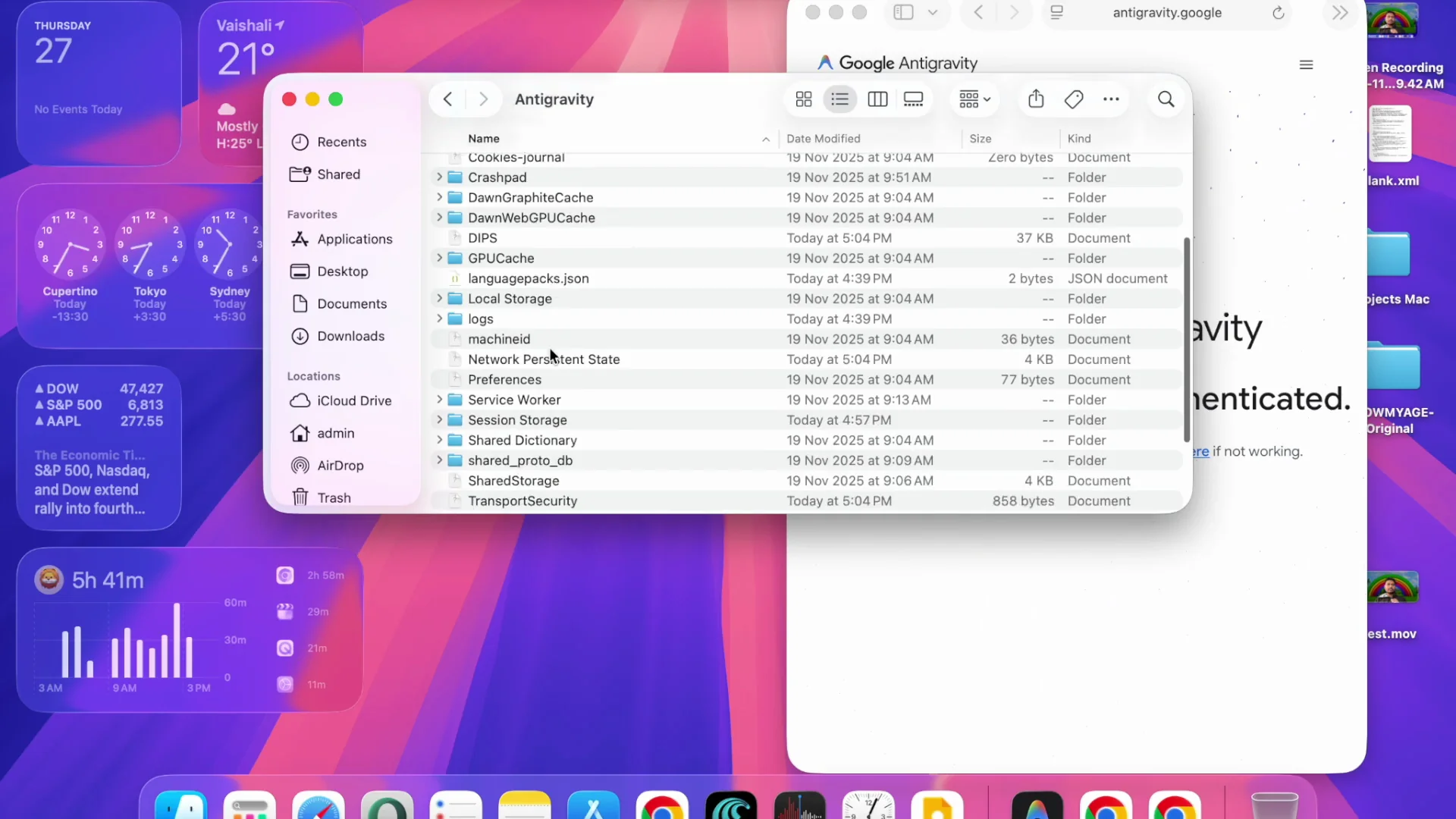
What I found: I went to Finder, used Go to Folder, and opened the Antigravity app data. I saw folders like logs, service worker, storage, user, but not a clear “chrome profile” folder as described. I deleted the caches/profile data I could find and restarted Antigravity.
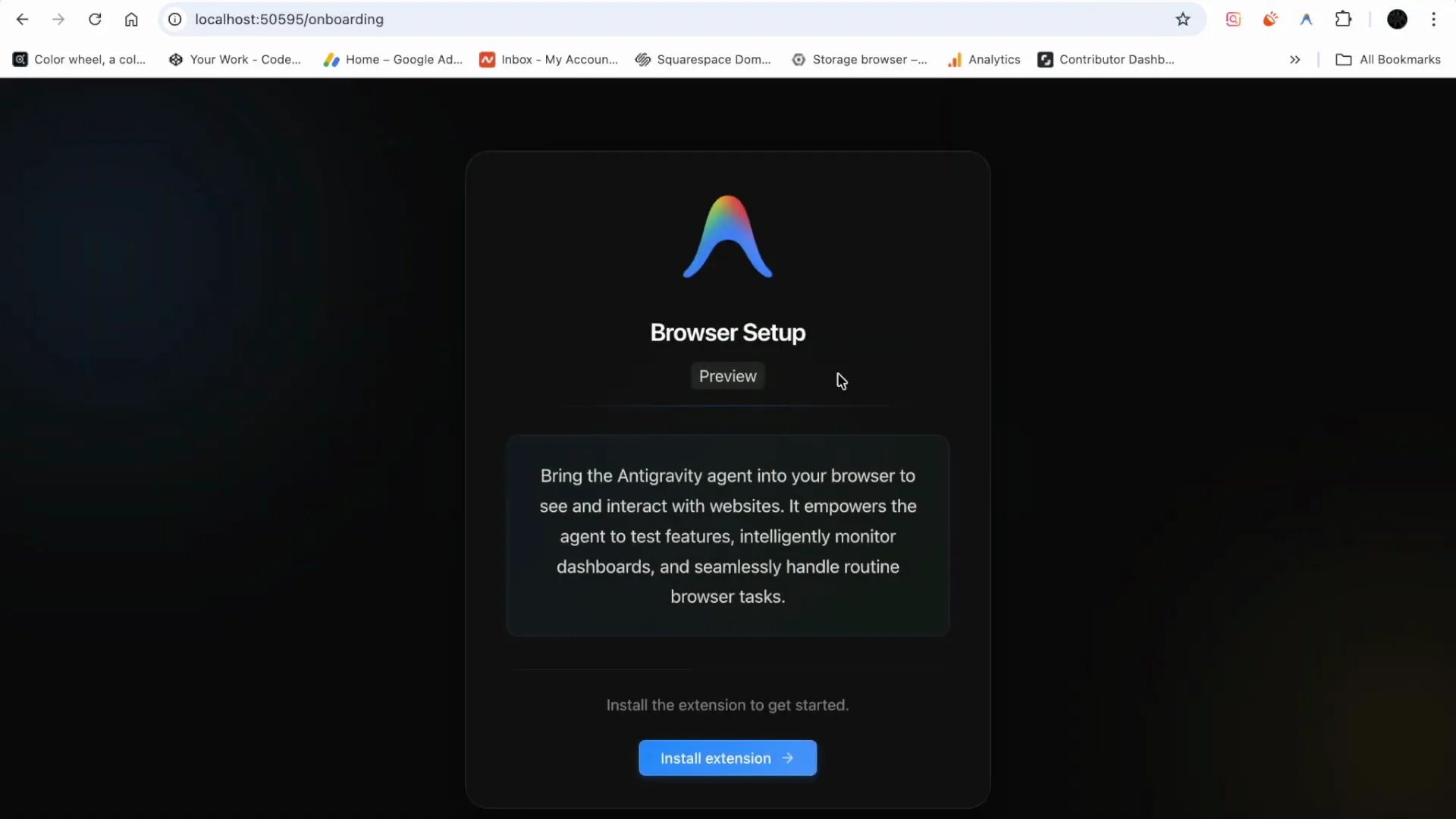
Result: Still getting the “Install extension” prompt. Removing/reinstalling again didn’t change it.
Step 4: Trying to Fix by checking Antigravity Settings → Agent → Browser Control
Another tip: the agent needs permission to drive the browser. If it hangs while trying to scroll or click, check automatic permissions.
- In Antigravity, go to Settings.
- Open Agent → Browser Control.
- Make sure browser tools is active.
- Ensure allow automation of browser access is enabled.
- Save and try again.
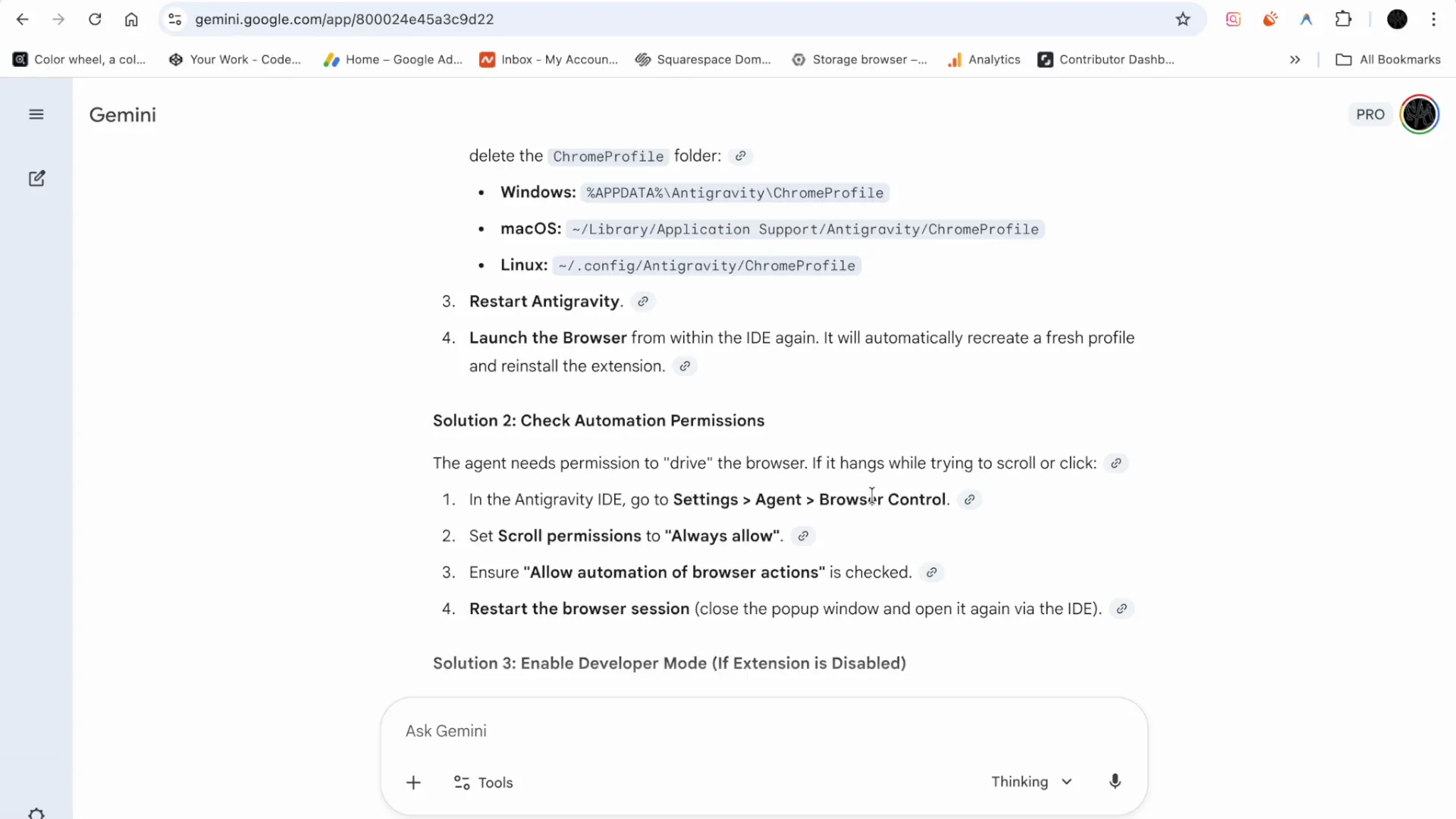
Result: I toggled the browser tool settings (including things like allowing open list file and scroll permission) and tried again. Still seeing “Install extension.” Multiple Chrome windows launched by the IDE were open, which was confusing; I closed extras and retried—no change.
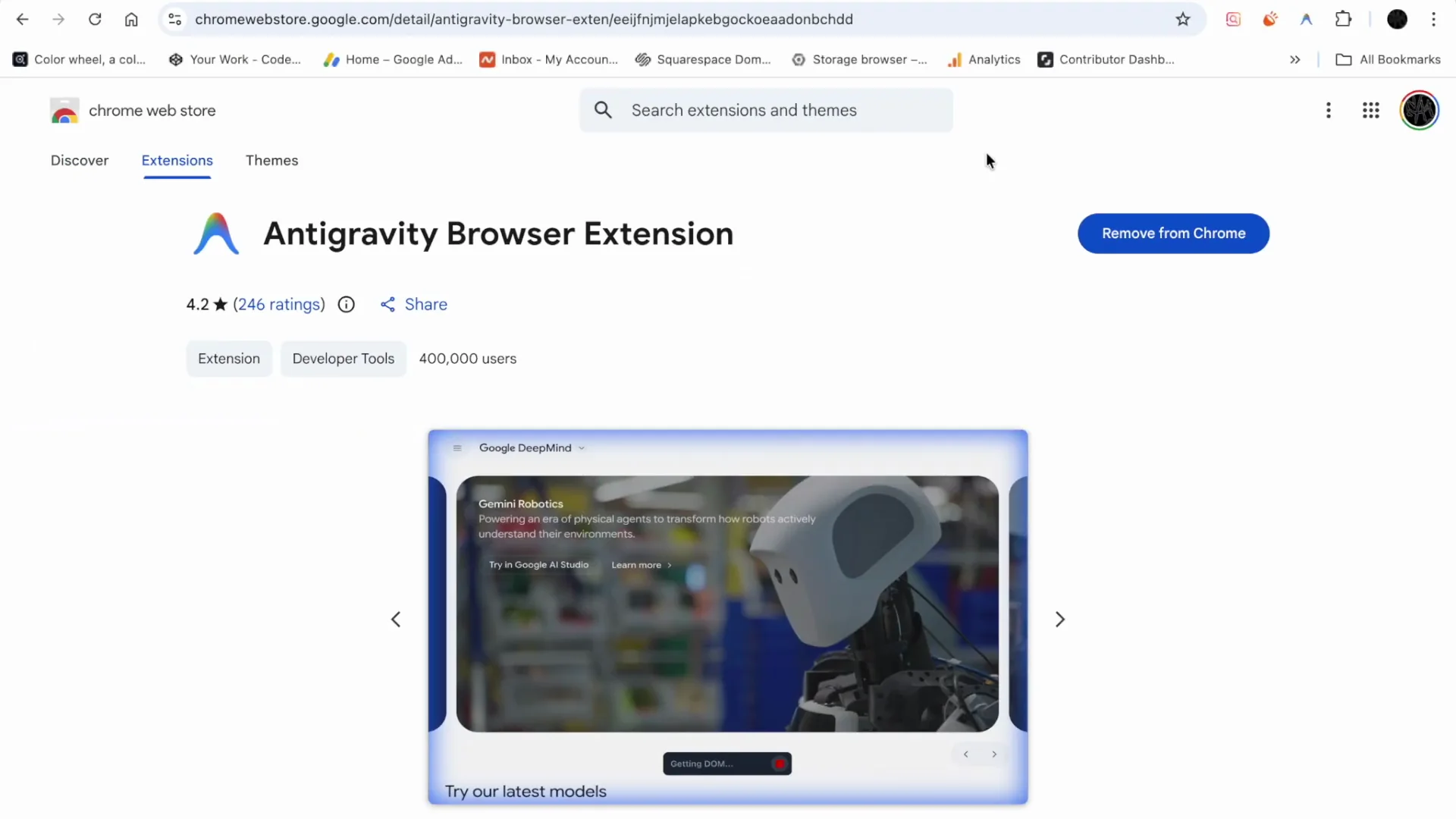
Step 5: Trying to Fix by enabling Developer mode for the extension
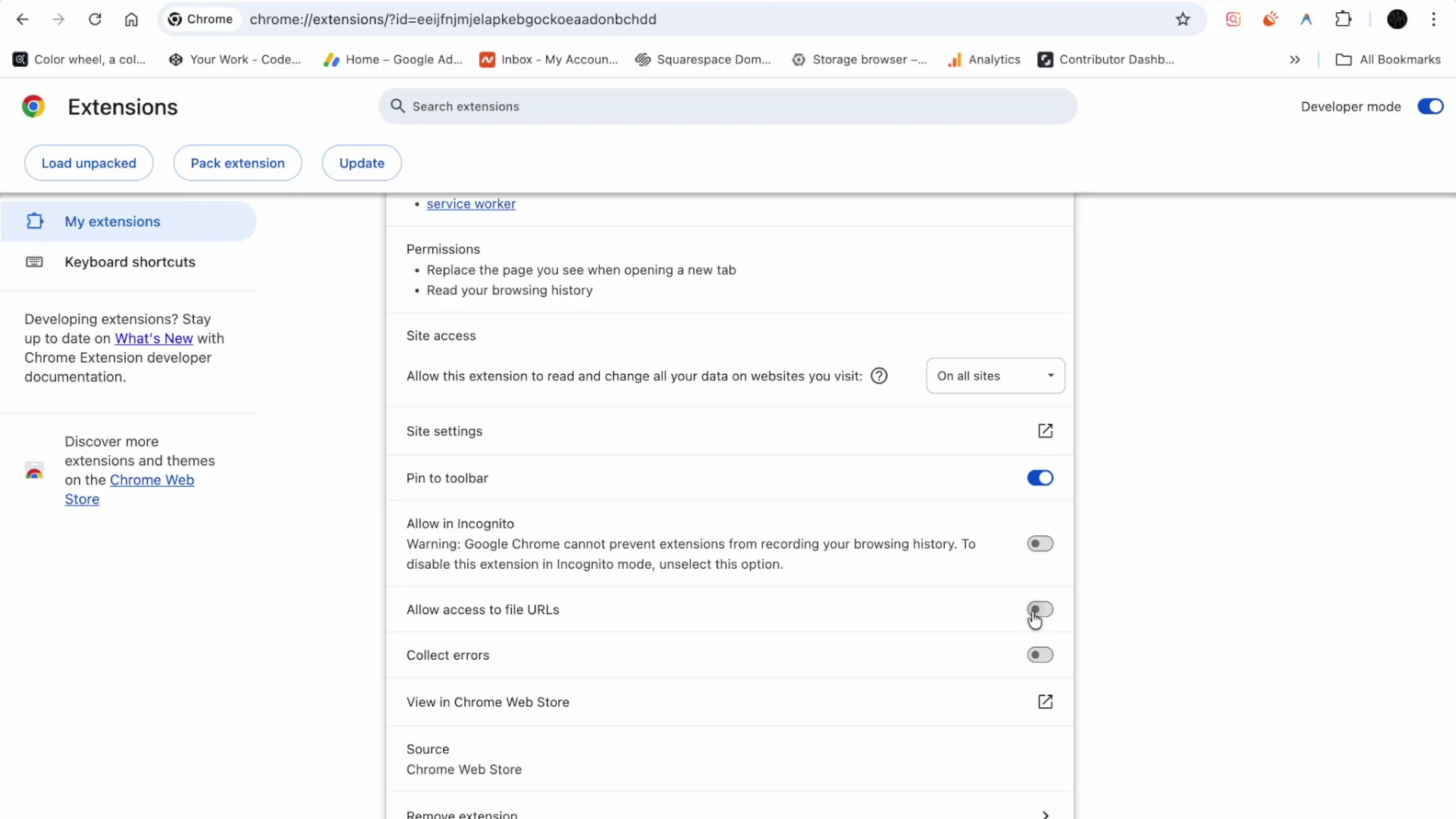
Another suggestion: if the extension is disabled or not attaching, enable Developer mode to help it load correctly.
- Open the extensions page in the IDE-launched Chrome.
- Turn on Developer mode.
- Check for any error messages and try enabling the extension.
Result: Developer mode is on. I can see errors reported, but enabling doesn’t resolve the install loop.
Step 6: Trying to Fix by logging out and logging back in
Some people said logging out and logging back in can solve it.
- Log out from the browser session inside the IDE.
- Log out from Antigravity as well.
- Log back in.
- Try Open in browser again.
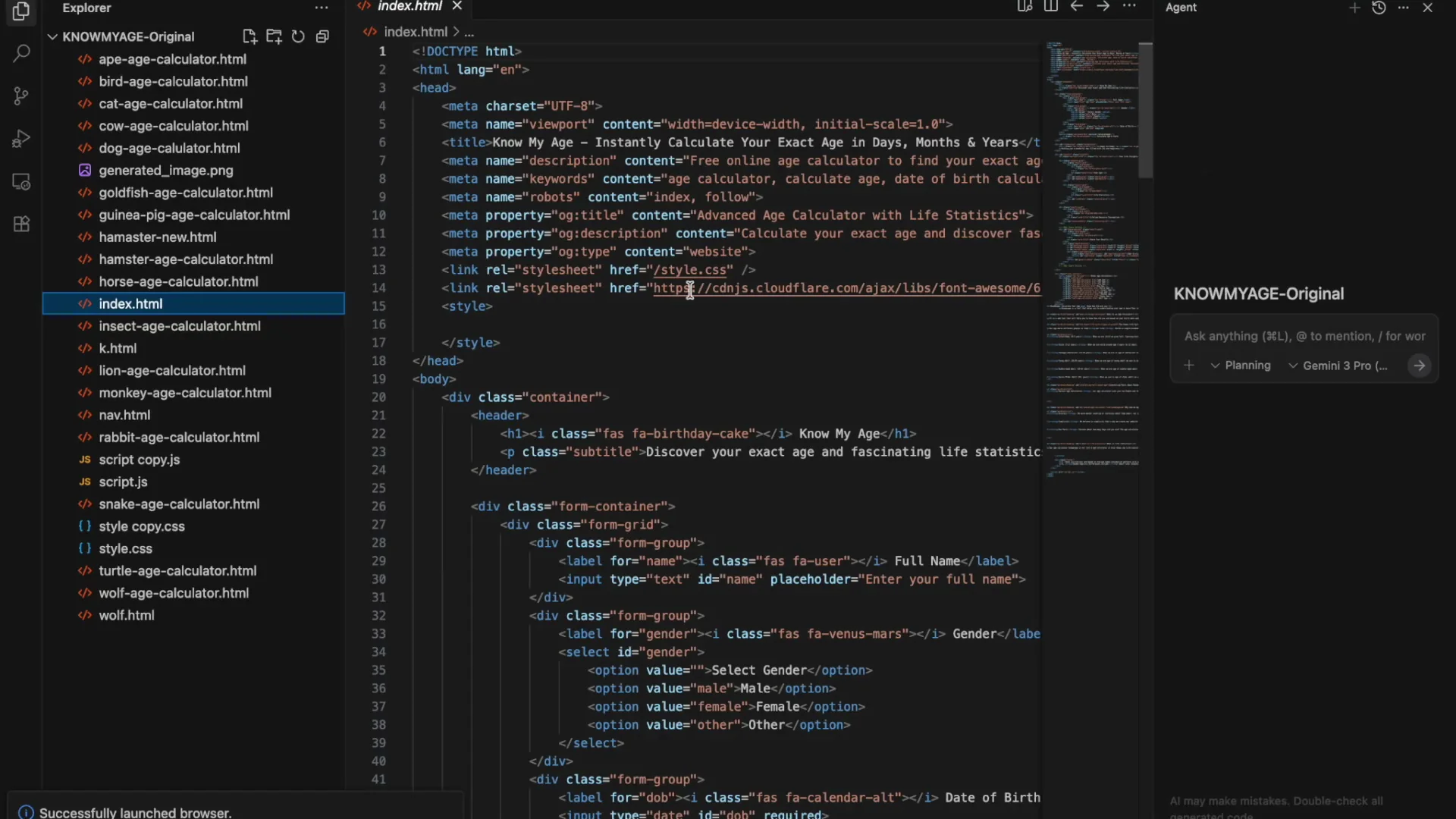
Result: Same loop. After logging in and clicking Open, it still says install extension. Clicking the extension button still does nothing.
Common Pitfalls / Alternative Fixes While Trying to Fix This
- Don’t open your regular Chrome. Use the Chrome launched by the Antigravity IDE (agent/preview). The extension requires that environment.
- If you see “This item is inactive,” explicitly click Enable now.
- If multiple IDE-launched Chrome windows are open, close extras and keep only the active one tied to your current session to avoid confusion.
- A corrupted managed Chrome profile is a common cause. Fully quit Antigravity and delete the correct managed profile folder. On restart, the IDE should recreate it and auto-install the extension. If you can’t find the exact “chrome profile” folder, deleting only caches/profile data might not be enough.
- If the extension icon does nothing and the console logs show an event handler TypeError about reading “open at URL,” that still points back to a broken or mismatched profile or missing permissions.
Final Thoughts
I’ve removed and reinstalled the extension, restarted everything, logged out and back in, enabled Developer mode, checked Agent → Browser Control permissions, and attempted to rebuild the profile by clearing caches. I’m still stuck in the “Install extension” loop inside the IDE-launched Chrome.
Based on what others said, a full rebuild of the exact managed Chrome profile directory is the step most likely to fix it; I couldn’t locate the precise folder the guidance referenced. I’ll dig up the correct profile path for Antigravity’s managed Chrome and try the full rebuild next.


