Links Not Opening in Chrome? This Simple Fix Works in 2026
Here’s how to fix links that are not opening in Google Chrome. It can be quite frustrating when you're unable to open links, especially if you've clicked on them expecting to be taken to a different page. Fortunately, there are a few straightforward steps you can follow to resolve this issue quickly.
Links Not Opening in Chrome? This Simple Fix Works in 2026
Make sure Chrome is up to date
It's essential to run the latest version of any software to avoid missing out on important updates and bug fixes.
Step-by-step:
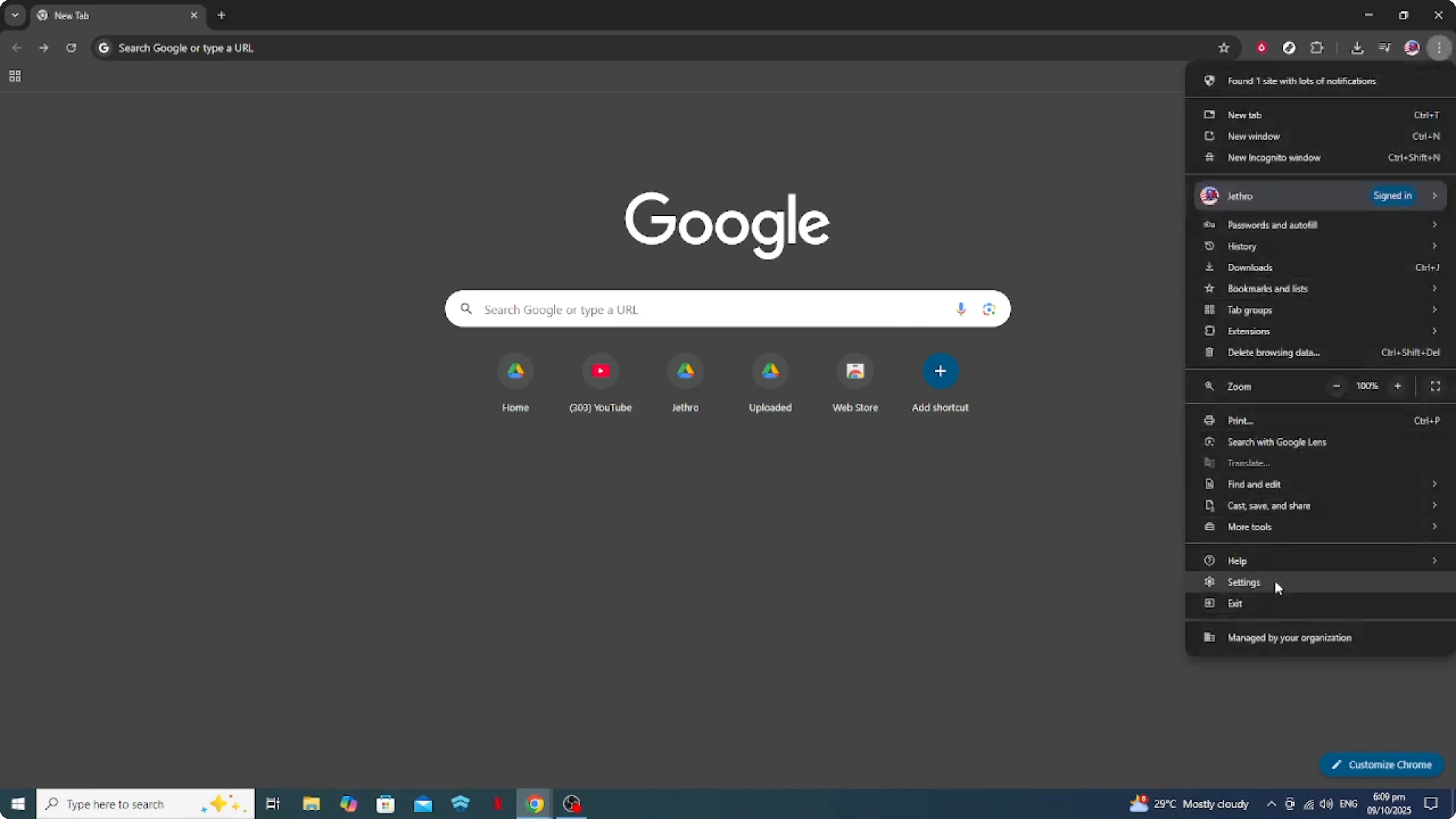
- Open your Chrome browser and click the three dots in the top right corner.
- Go to Settings.
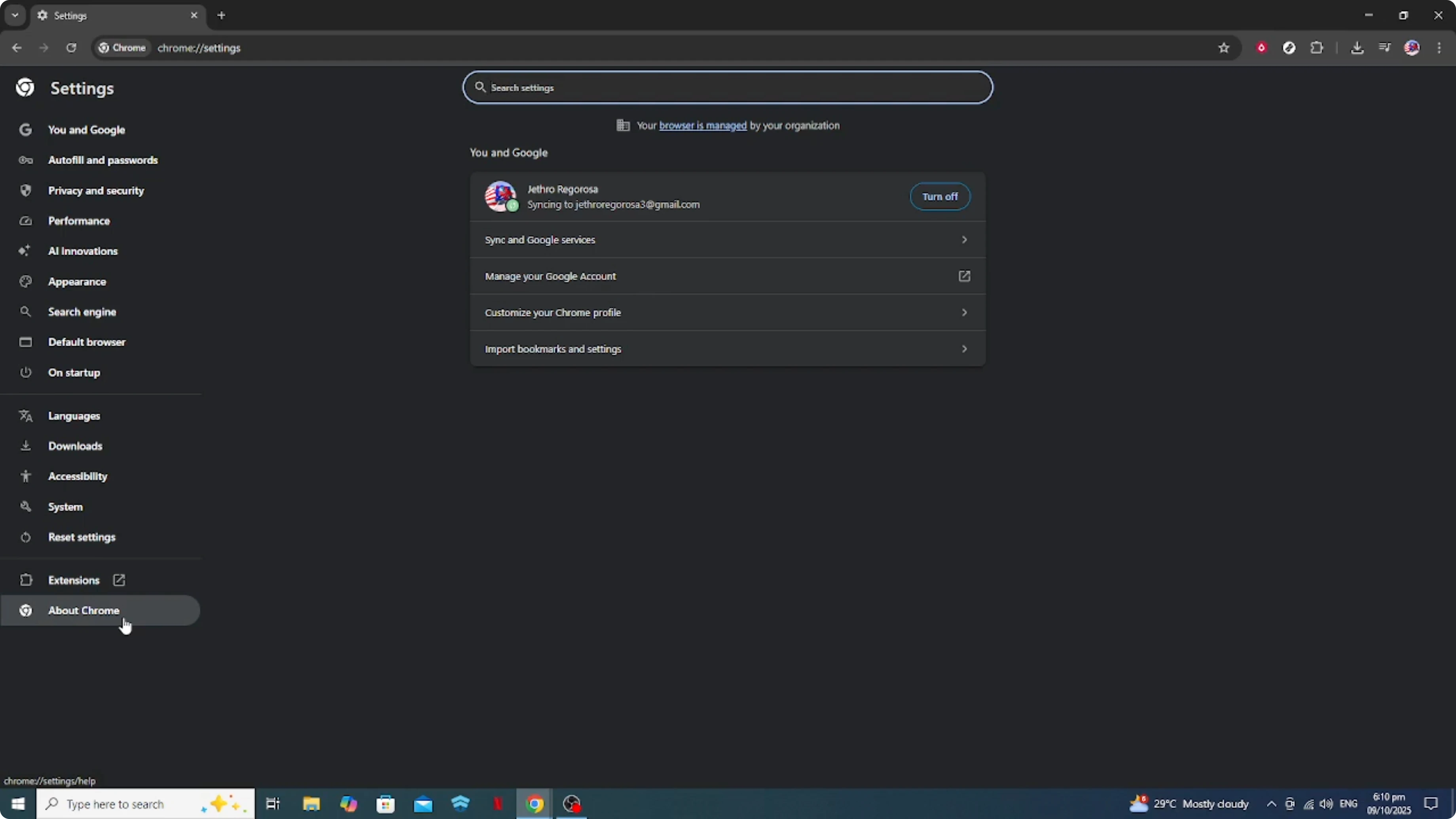
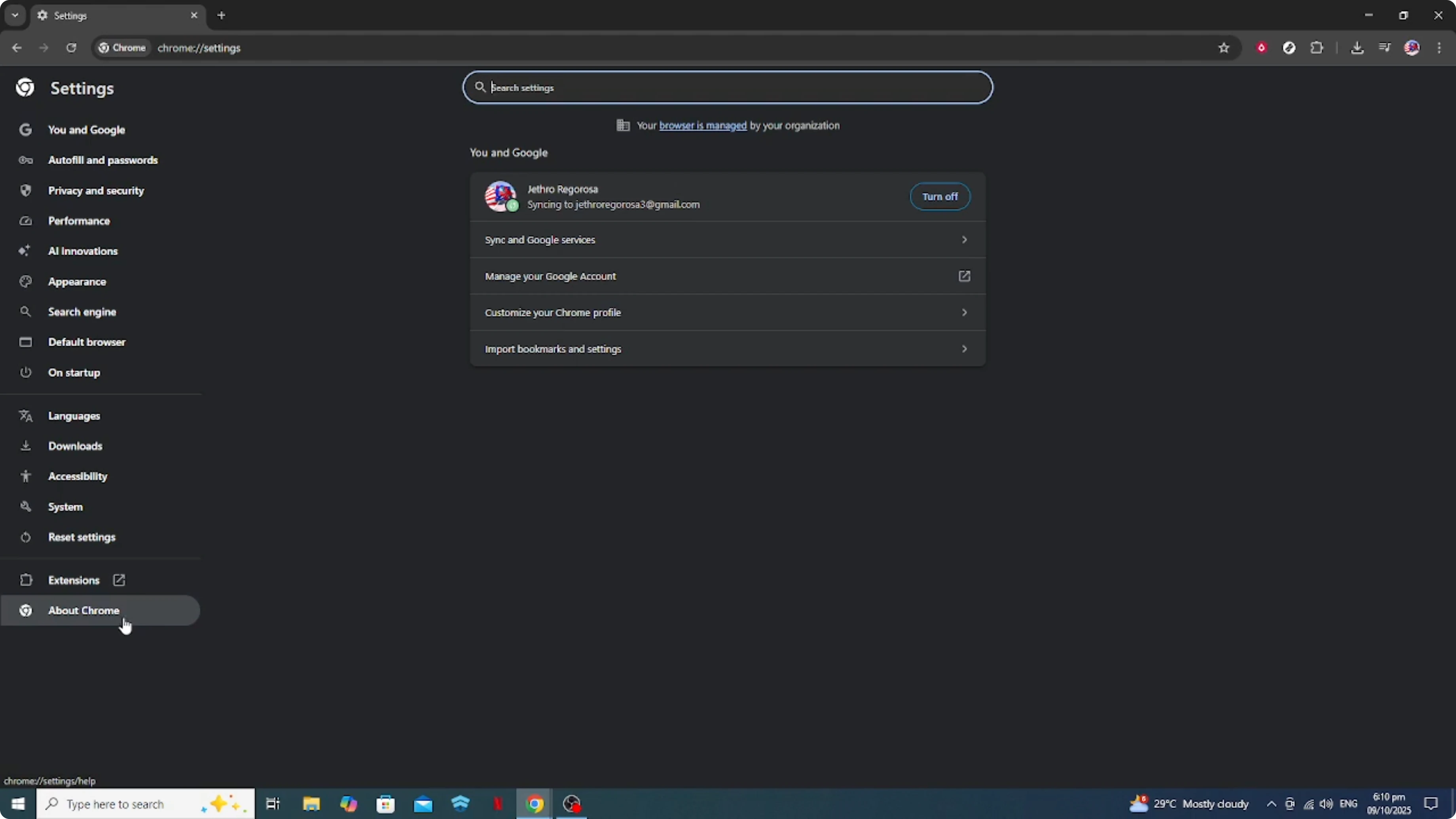
- On the left, open Help and click About Chrome (or About Google Chrome).
- Chrome will automatically check for updates and prompt you to install any if they are available.
- Restart Chrome after the update to apply any changes.
Clear your browsing data
Over time, a buildup of cached data and cookies can interfere with browser functionalities.
Step-by-step:
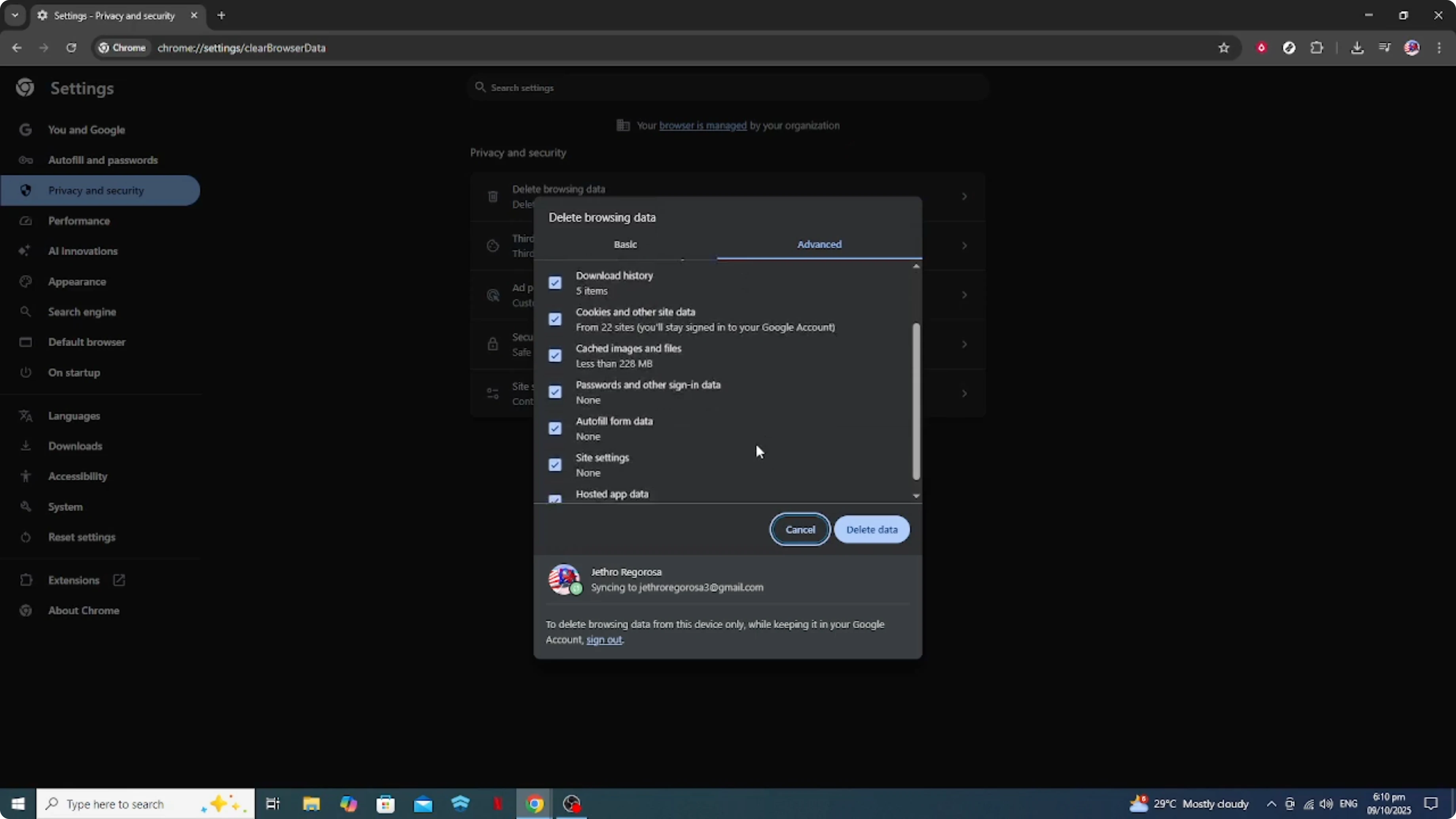
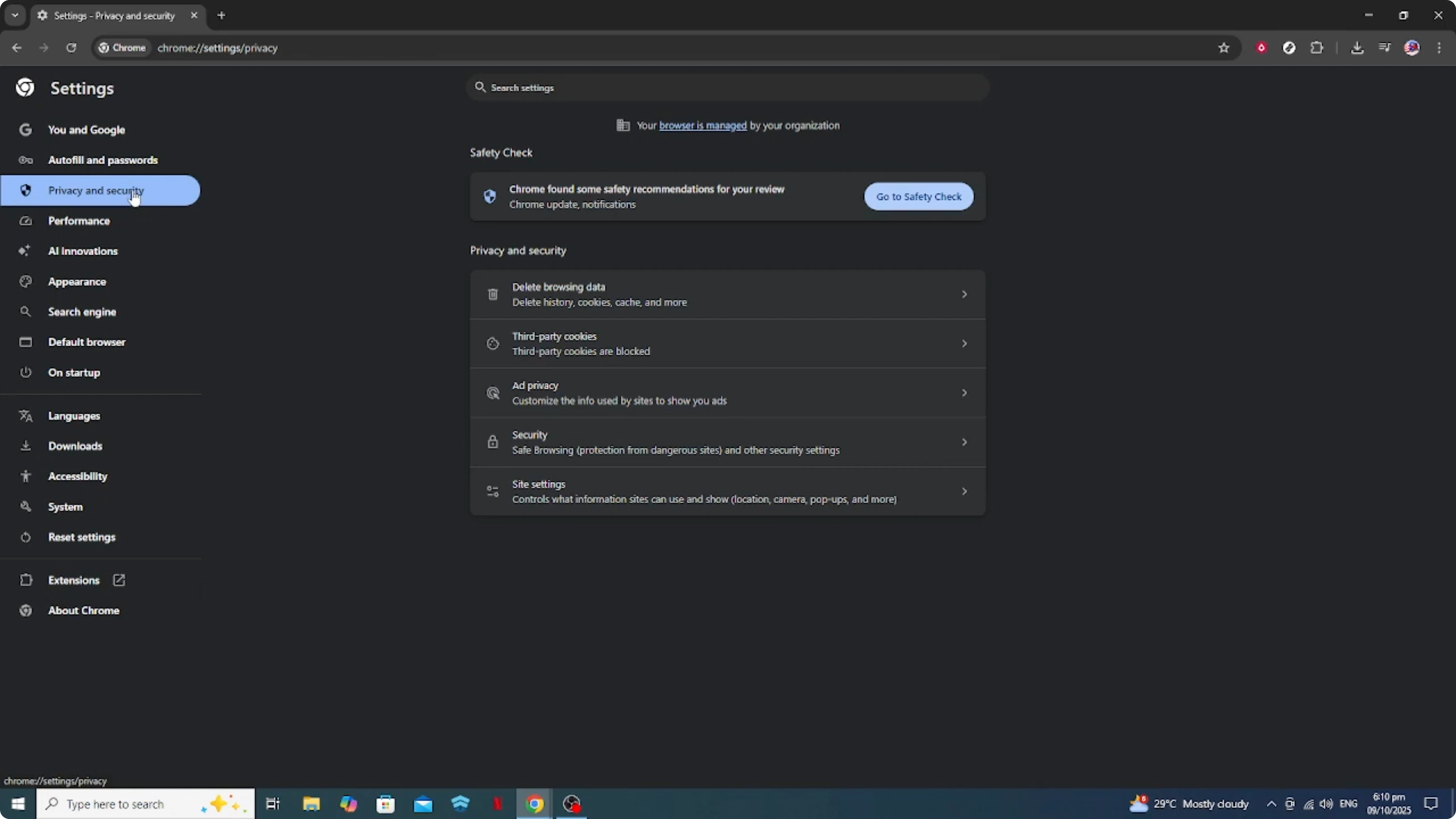
- Go to Settings.
- Open Privacy and security.
- Click Clear browsing data.
- Select the data types you wish to clear. It's generally safe to clear cached images and files, but feel free to tick cookies and other site data if you're experiencing significant issues.
- Choose a suitable time range, such as the past week or month.
- Click Clear data.
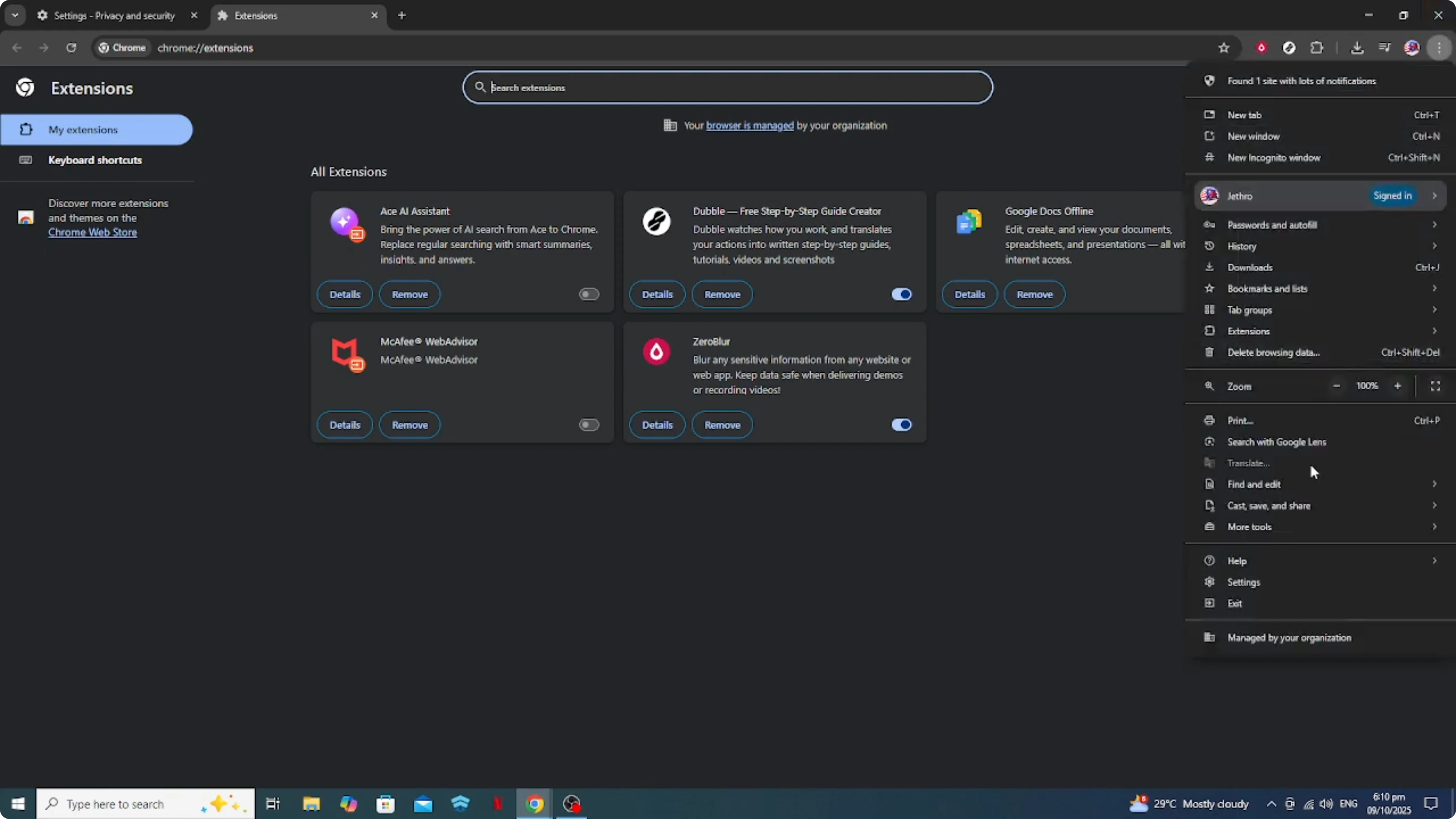
Disable extensions temporarily
Sometimes extensions can cause conflicts, especially if a newly installed one isn't functioning correctly.
Step-by-step:
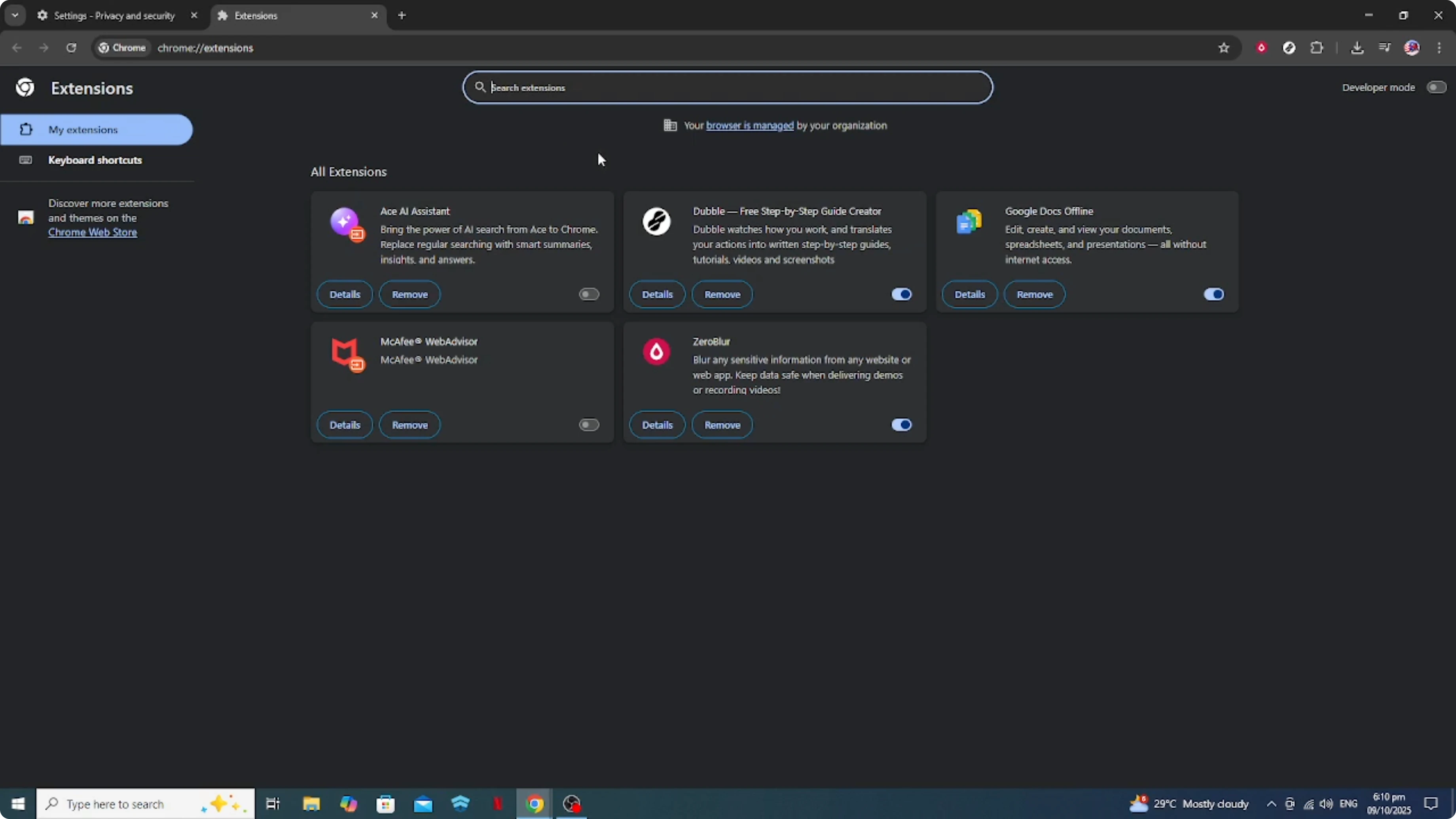
- Click the three dots, go to More tools, then Extensions.
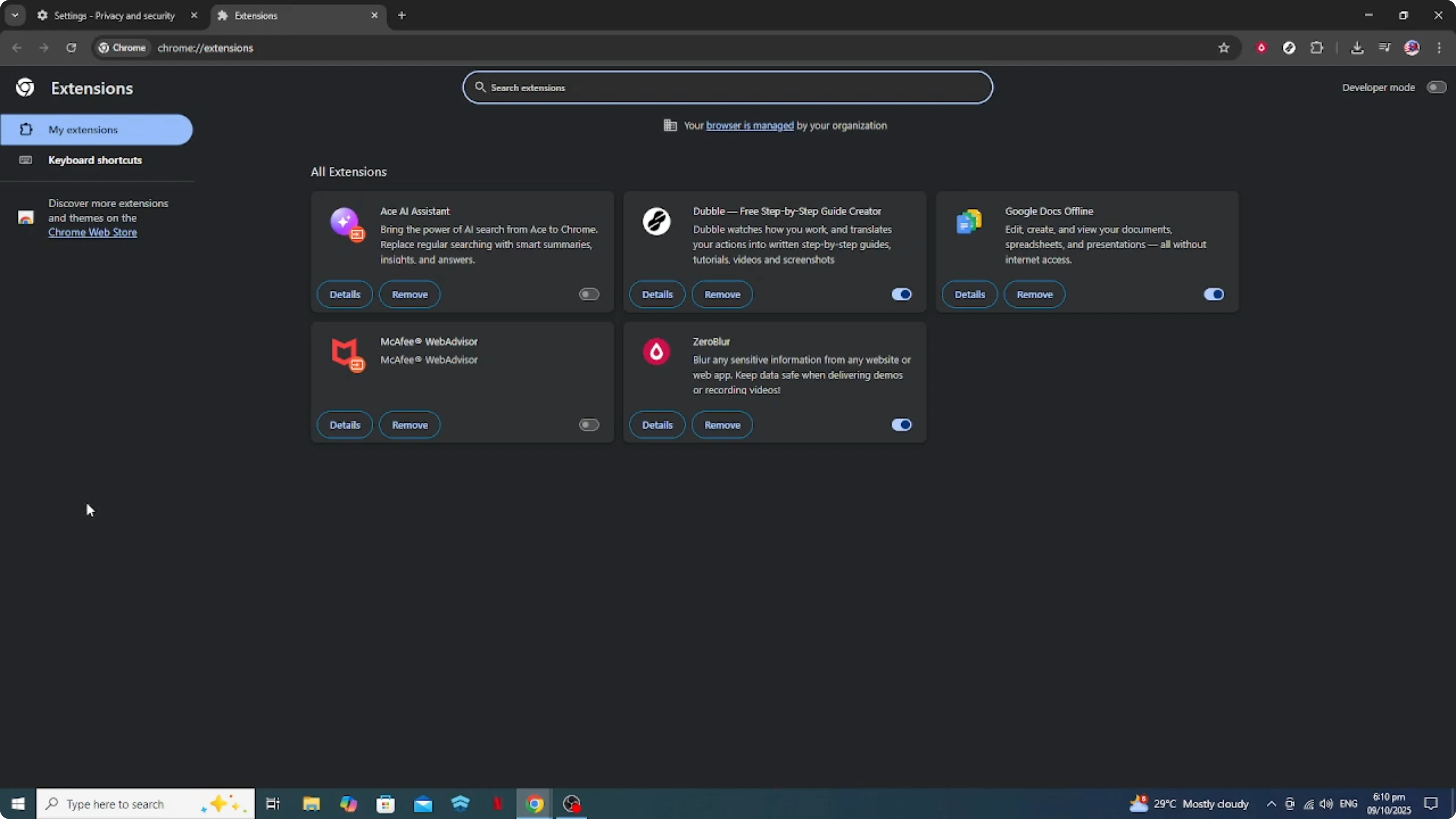
- Review all installed extensions.
- Turn them off by toggling the switch to a lighter shade.
- Try opening your links again to see if this resolves the issue.
- If it works, reenable the extensions one by one to find the culprit.
Reset Chrome settings to their original defaults
If none of these solutions work, it might be beneficial to reset Chrome settings to their original defaults. This action can resolve deeper issues, but is a more last-ditch effort as it will reset your homepage and disable installed extensions.
Step-by-step:
- In Settings, search for Reset settings.
- Click Restore settings to their original defaults.
- Follow the prompts to complete the reset.
Restart your computer
Remember to restart your computer if the problem persists. A fresh start is sometimes all that's needed for the system to recalibrate and fix any temporary glitches.
Final Thoughts
Following these steps should help fix the issue with links not opening in Google Chrome and get you back to browsing without issues.


