How to Add a Logo or Image in Lovable?
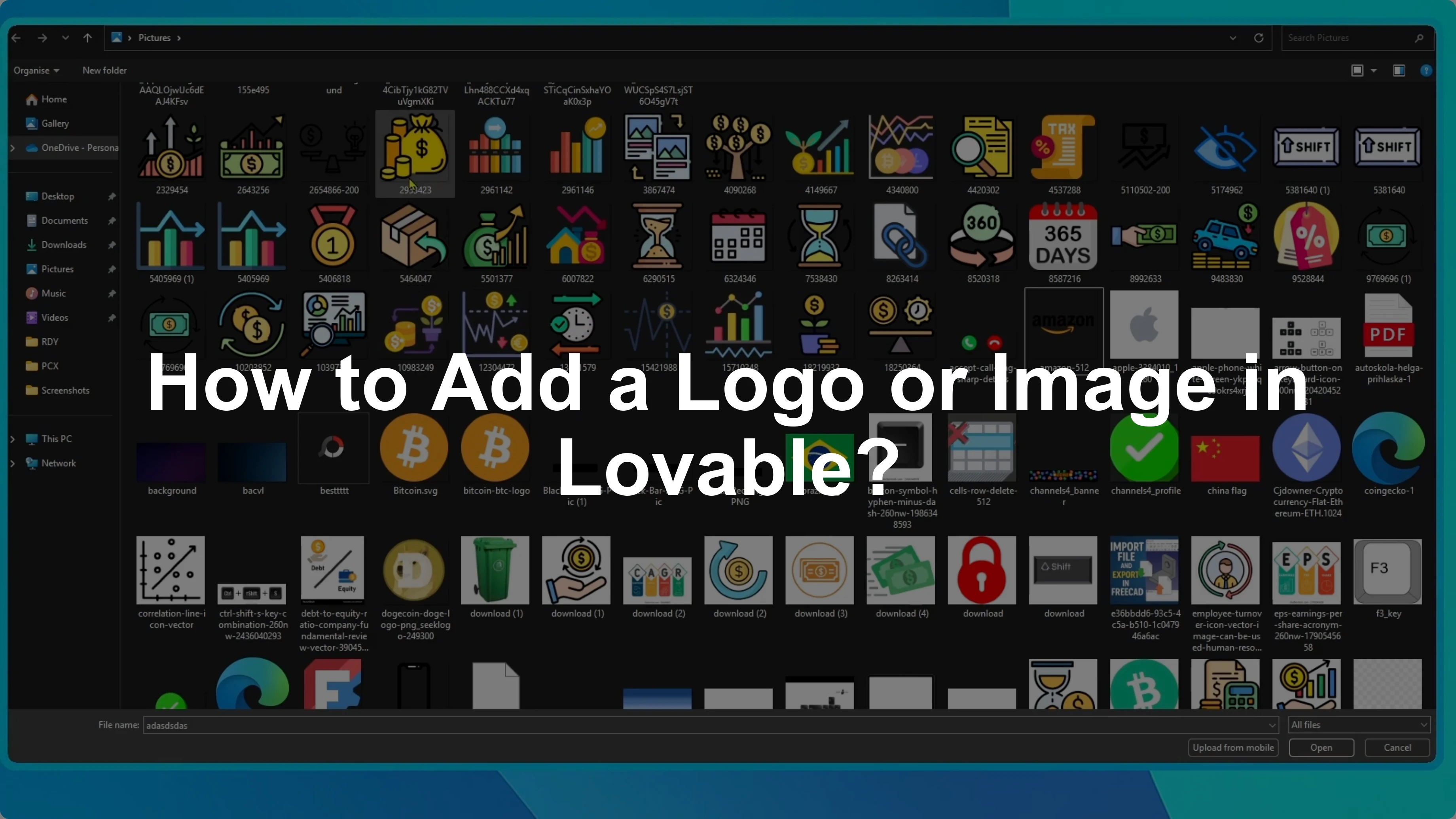
I’ll show you how to add a logo or an image to your Lovable project.
If you still need a logo, you can create a quick logo online before uploading.
Attach your file
Start by opening your project.
In the chat area, click on the plus icon, then select attach.
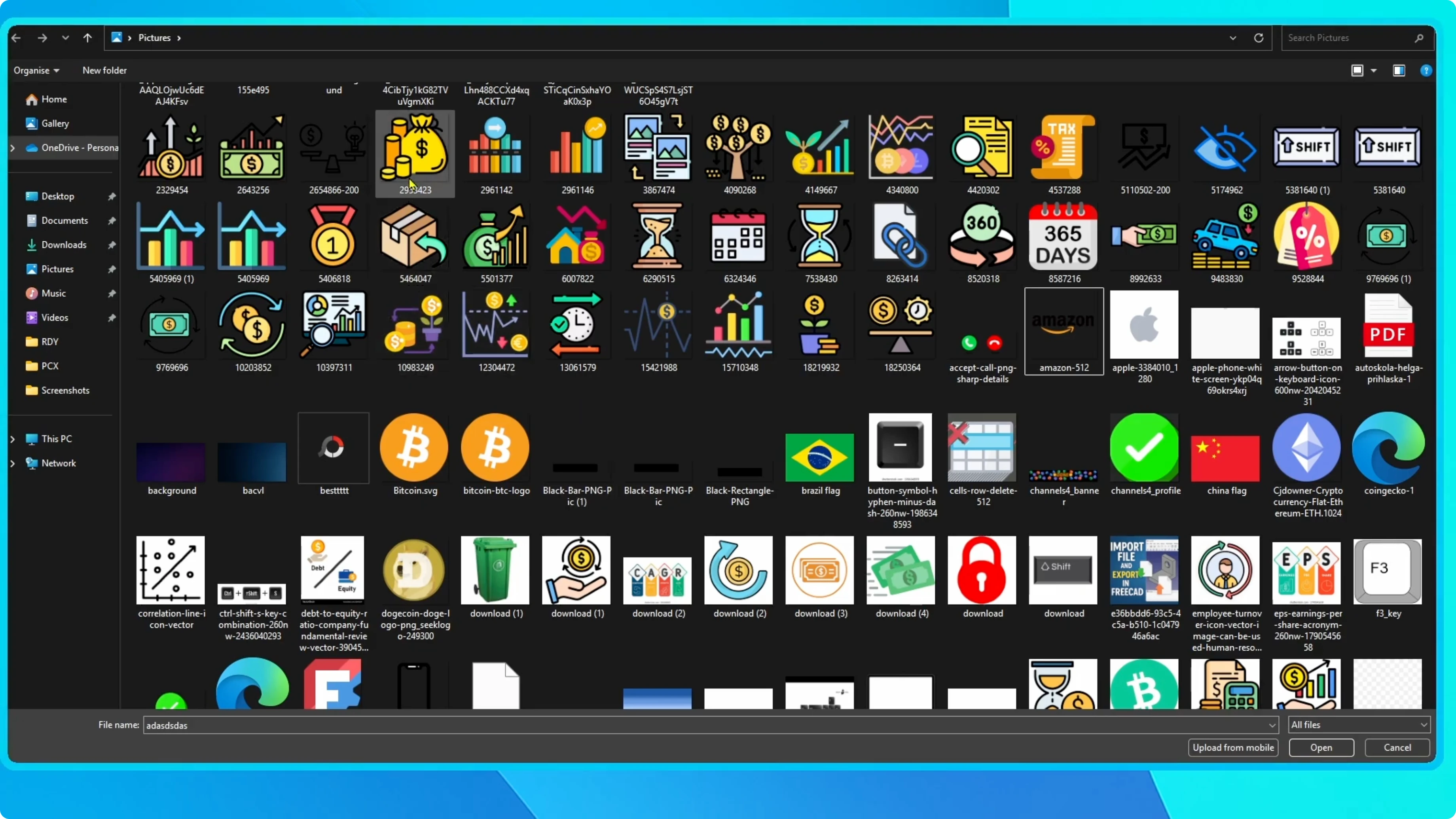
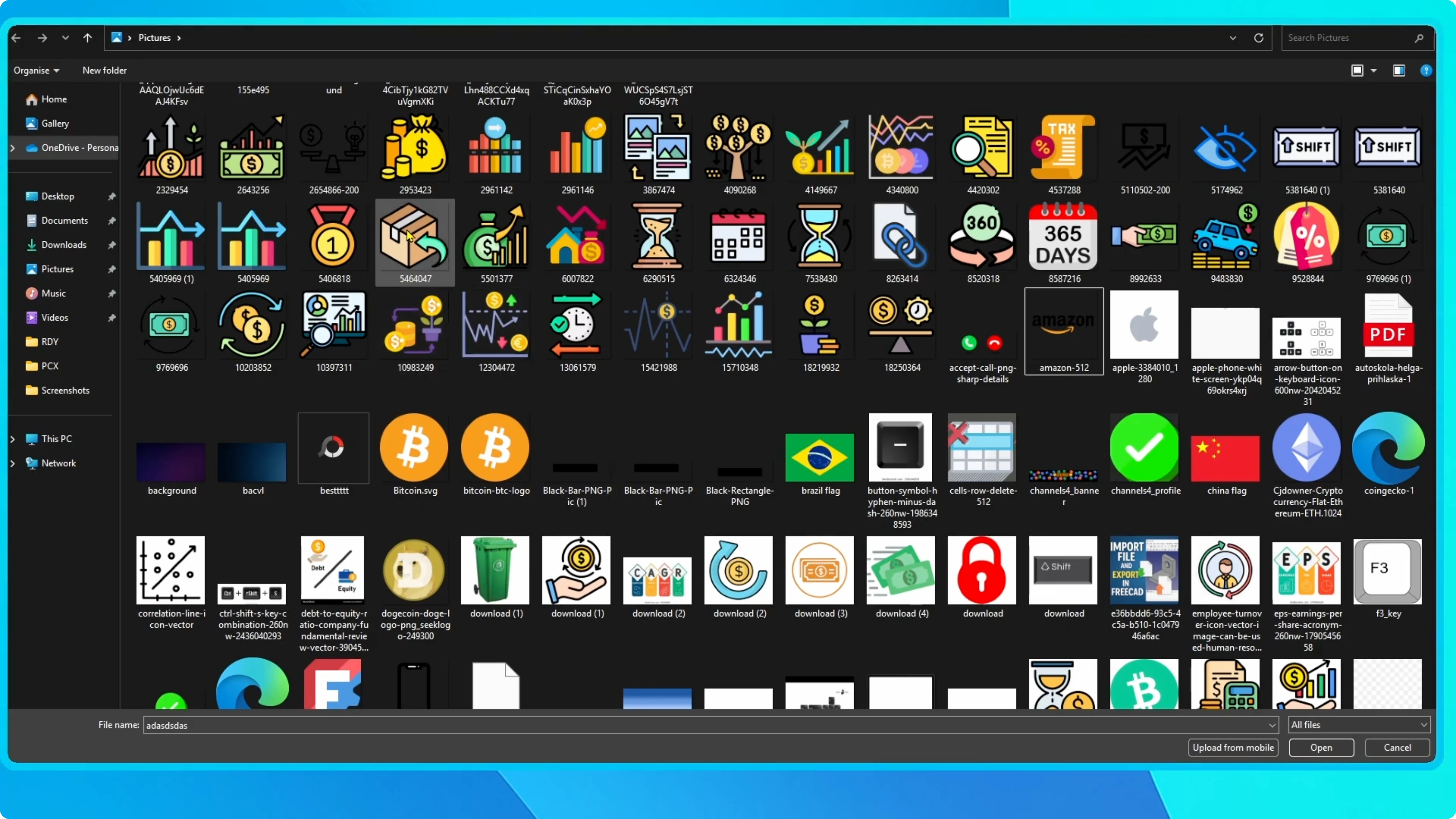
From here, choose the image or logo you want to upload and click Open.
Place the image
Once the file is attached, type a message to Lovable telling it where you want the image to appear.
For example, you can write a simple placement instruction like the line below.
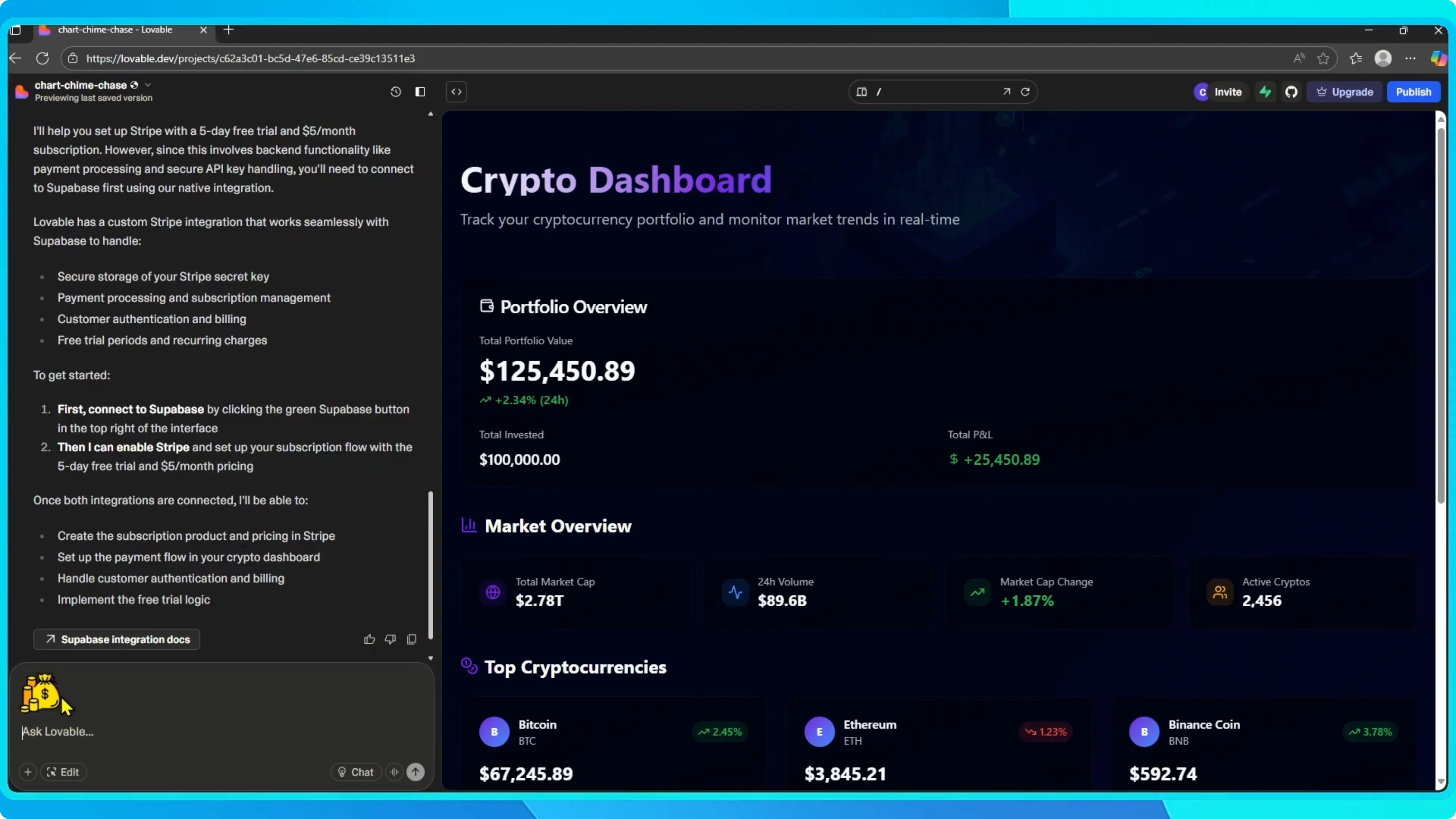
place this logo in the top right corner of the page
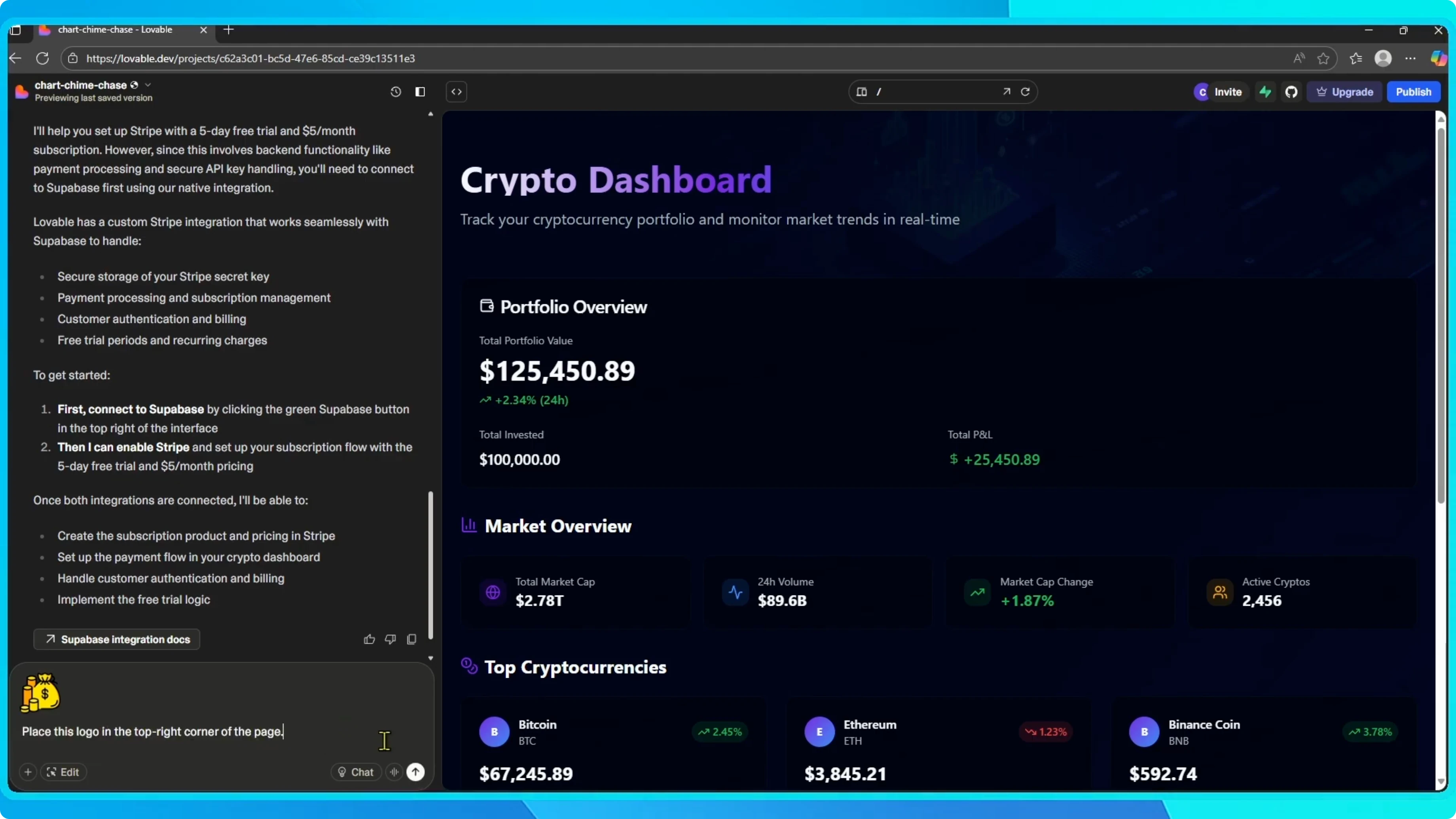
Then, press Enter.
Read More: Custom search in Chrome
See it applied
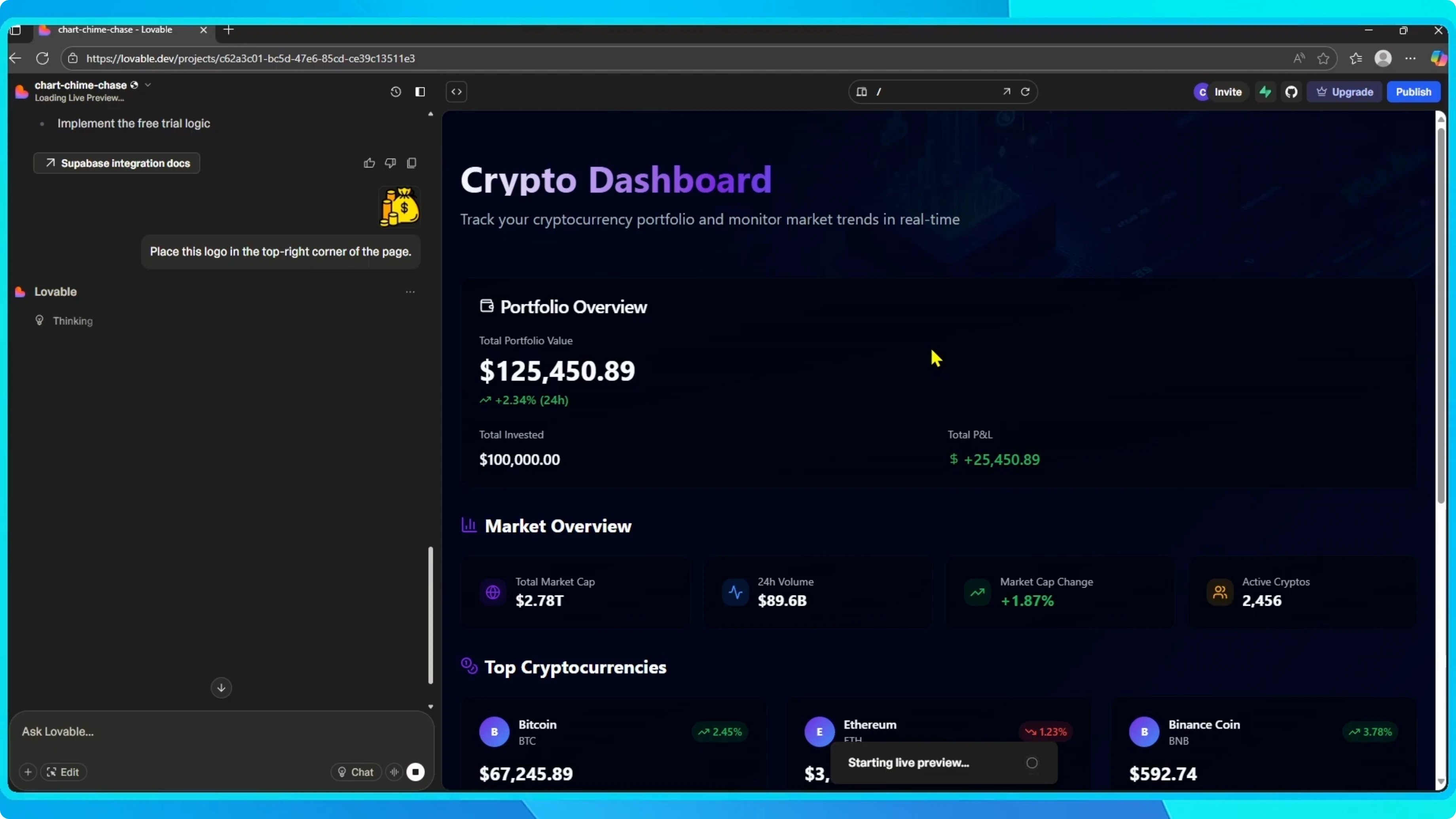
Lovable will process your request and apply the image automatically.
After a few moments, you will see the logo appear in your chosen location.
Read More: Add Adblock to Chrome
Make adjustments
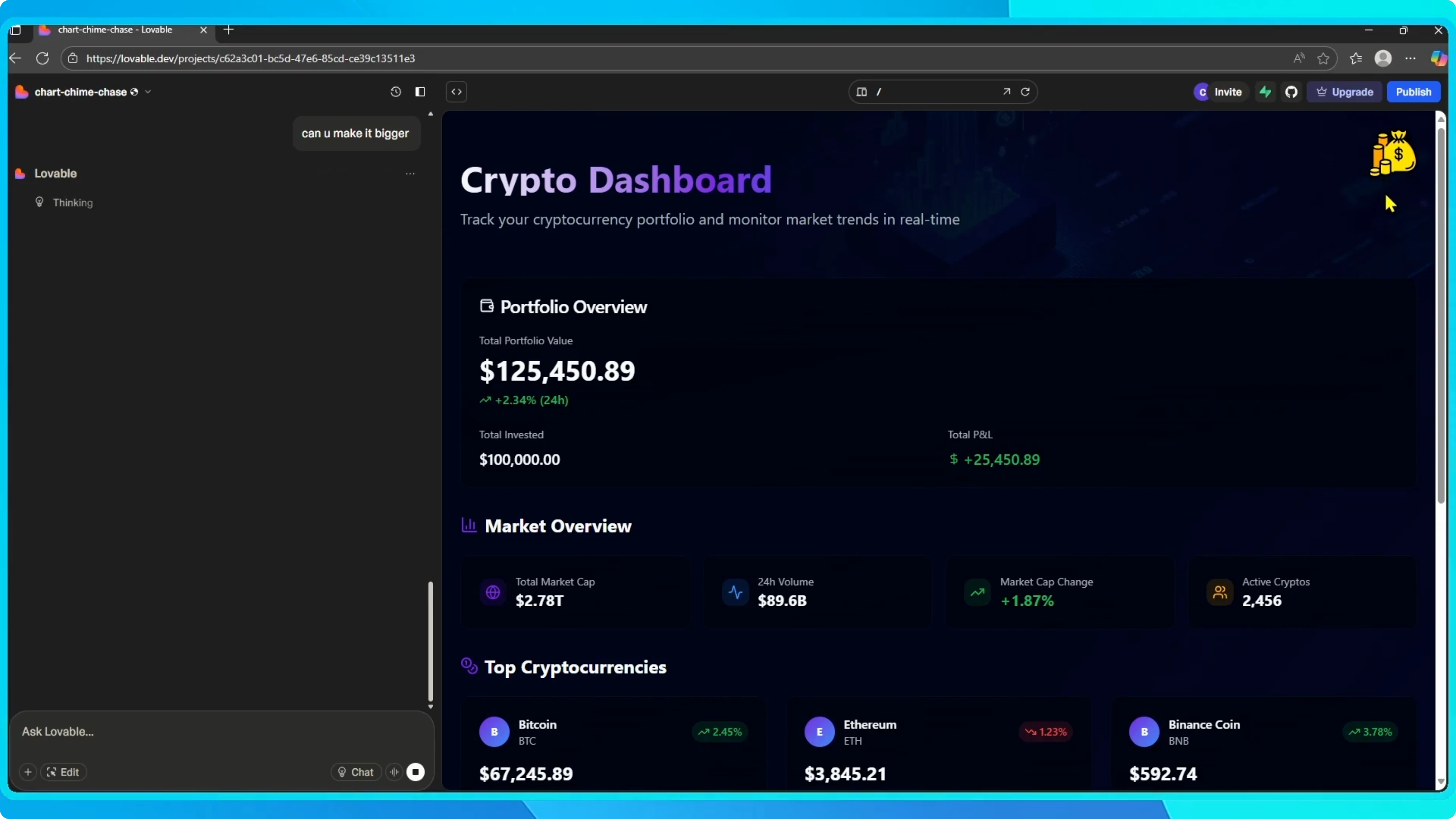
If you want adjustments, like making it bigger or moving it to another spot, you can simply ask Lovable again, and it will update it for you.
That is it.
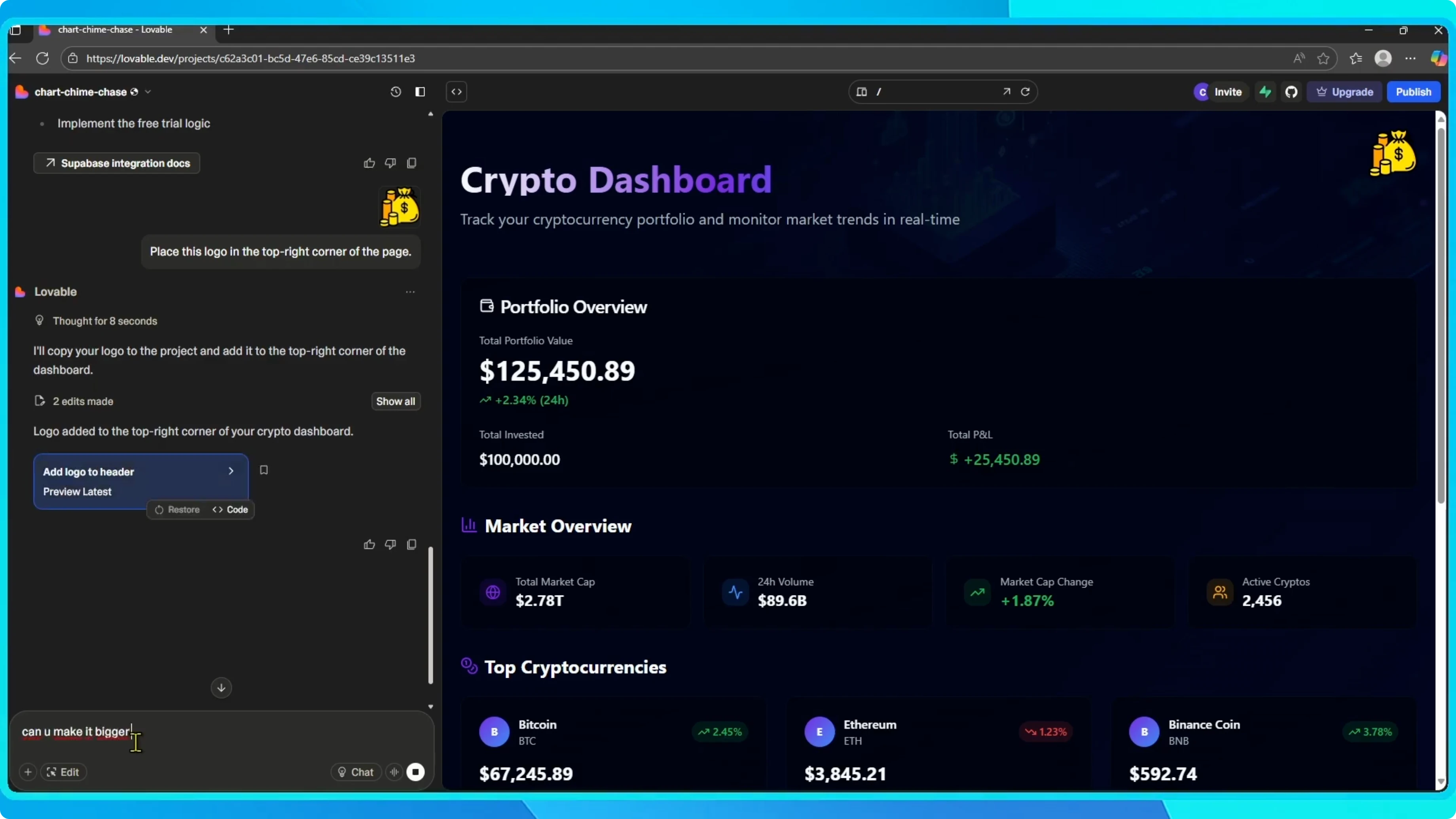
You have successfully added a logo or image to your Lovable project in just a few steps.
Final thoughts
The process is fast and gives you precise control through a short message.
Keep your placement instruction clear for best results.
If you need to update the position or size, just ask Lovable again.


