How To Browse and Open Folders and Files with Google Chrome
I'm going to teach you how to browse and open folders and files with Google Chrome. This can be a really efficient way to navigate your file system using a browser you likely use every day.
You should be familiar with using the browser, but if Chrome isn't your default browser, you might need to find it in your applications or open it directly from your desktop or taskbar.
Browse and Open Folders and Files with Google Chrome
Start in Chrome
To start, open Google Chrome on your computer.
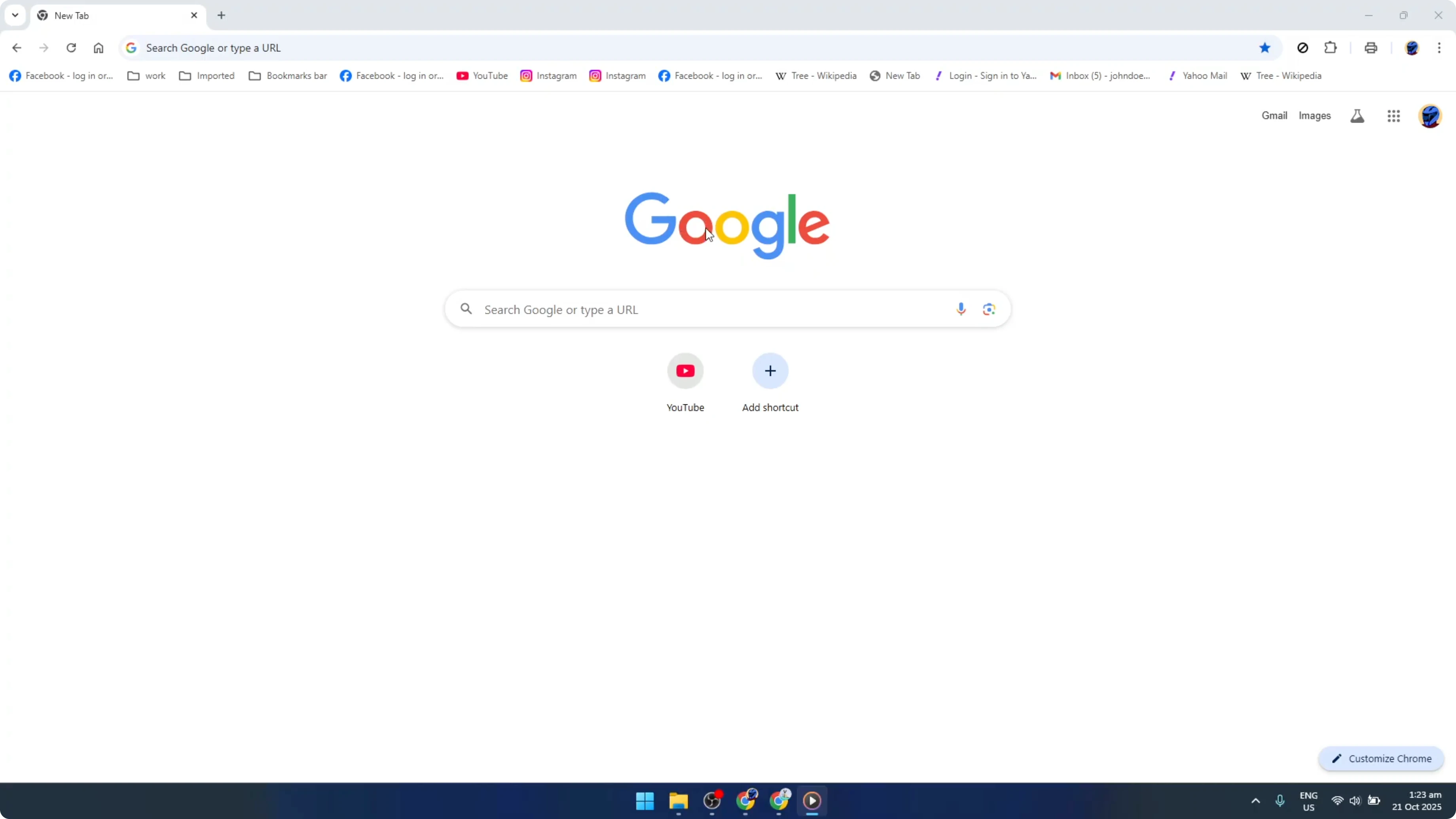
Once you have Chrome open, go to the address bar, which is typically at the top of the browser.
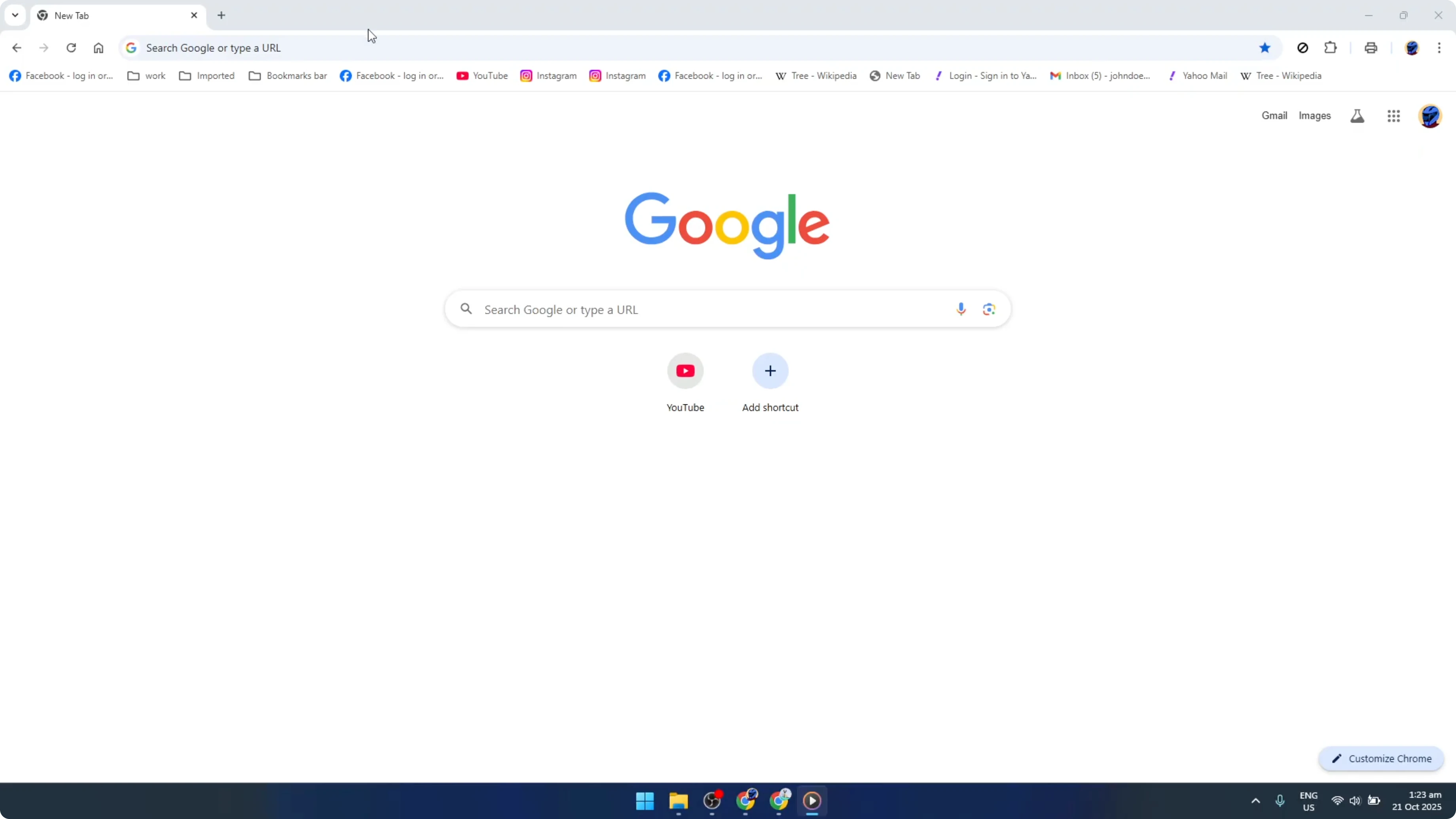
This is where you usually type in website URLs, but today we'll use it a bit differently.
Read More: Open a Private or Incognito Session in Chrome
Use the file URL scheme
Go ahead and type this command in the address bar, then press Enter.
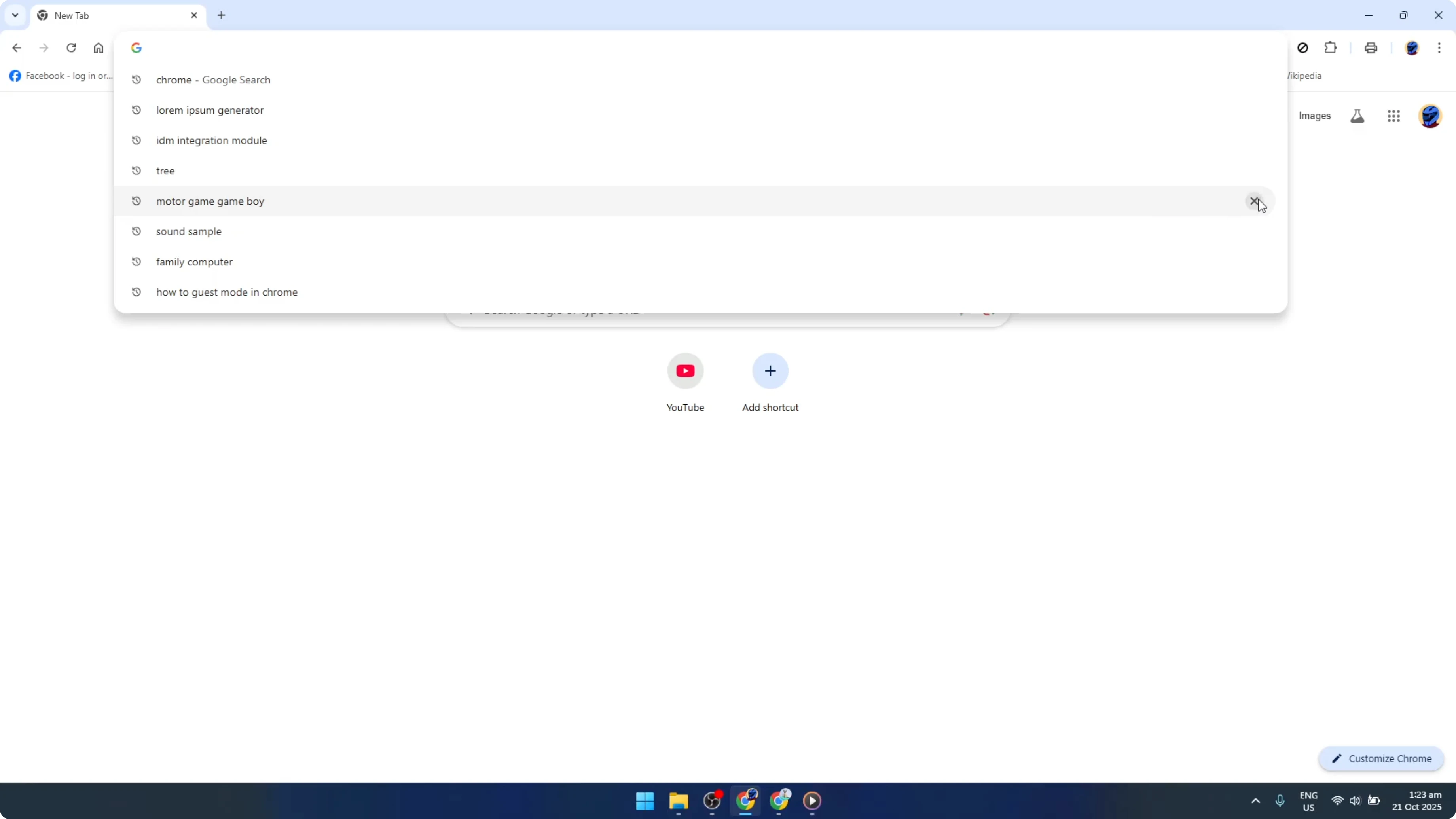
file:///C:/
Let's break this down for a moment. The file protocol is a URL scheme for accessing files directly. C: represents the root directory of your C drive, the main storage drive for many Windows computers.
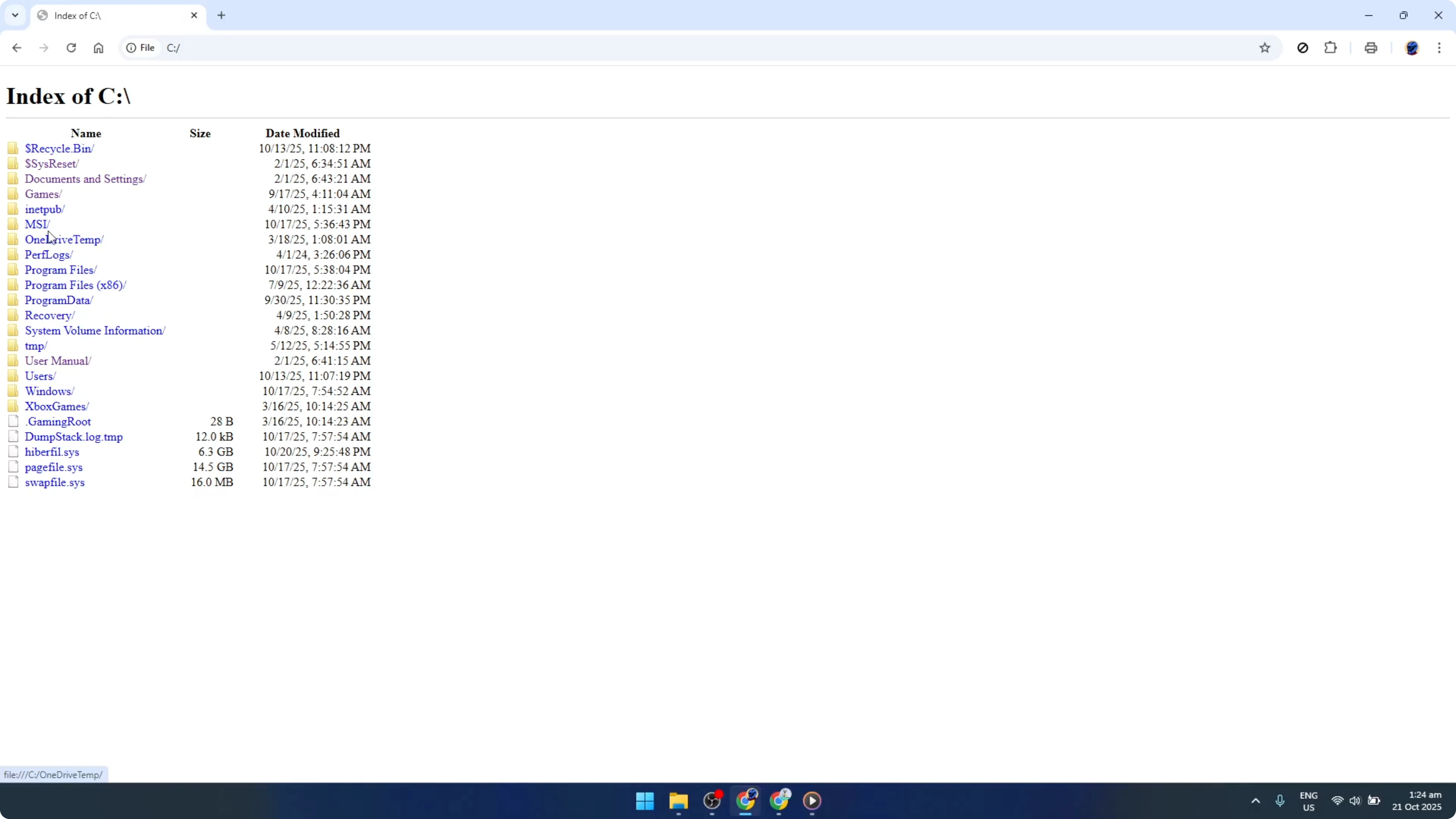
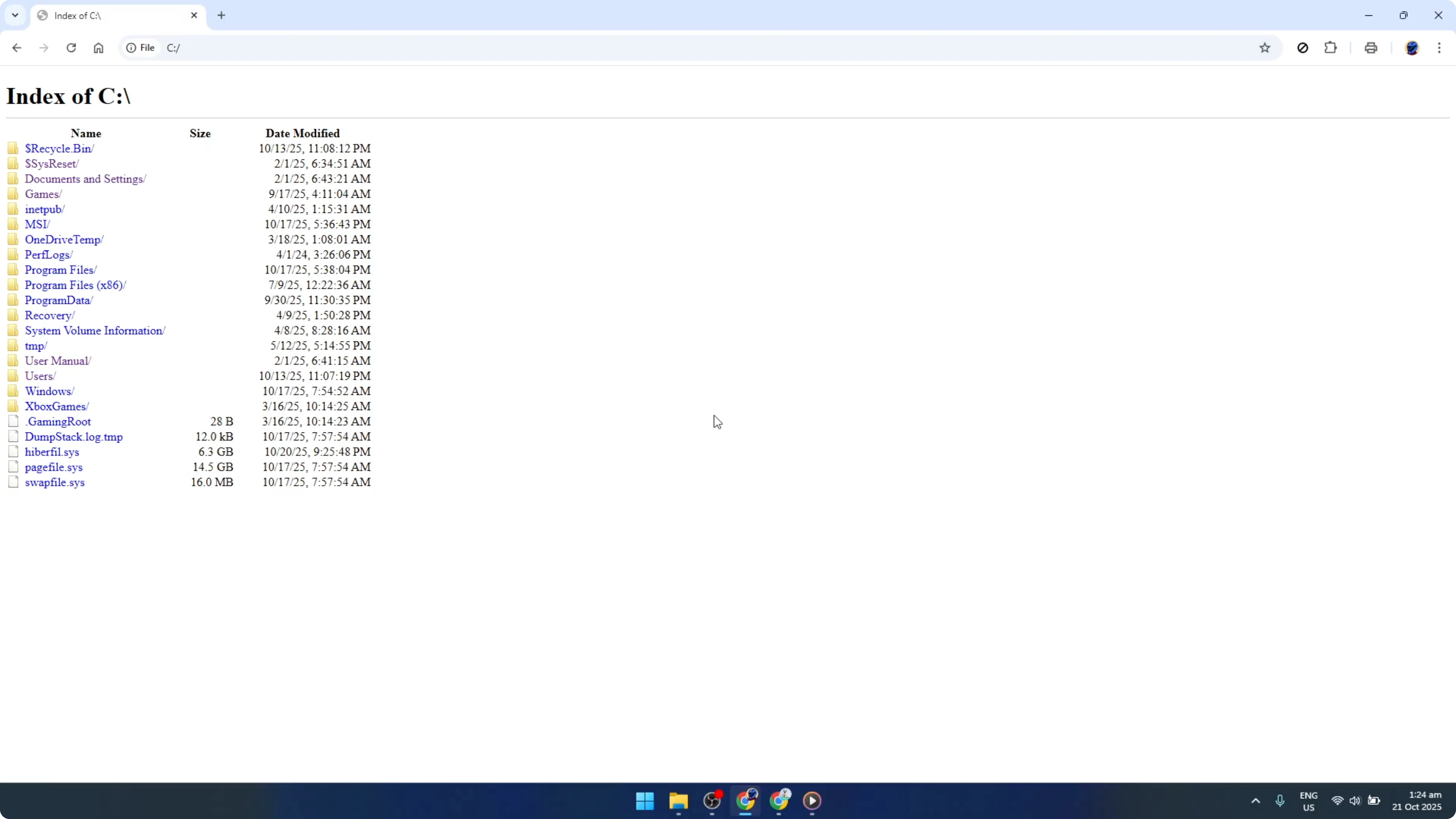
After typing the command, hit Enter on your keyboard. Chrome will now display the contents of your C drive. What you'll see is a straightforward file explorer view, but in your browser.
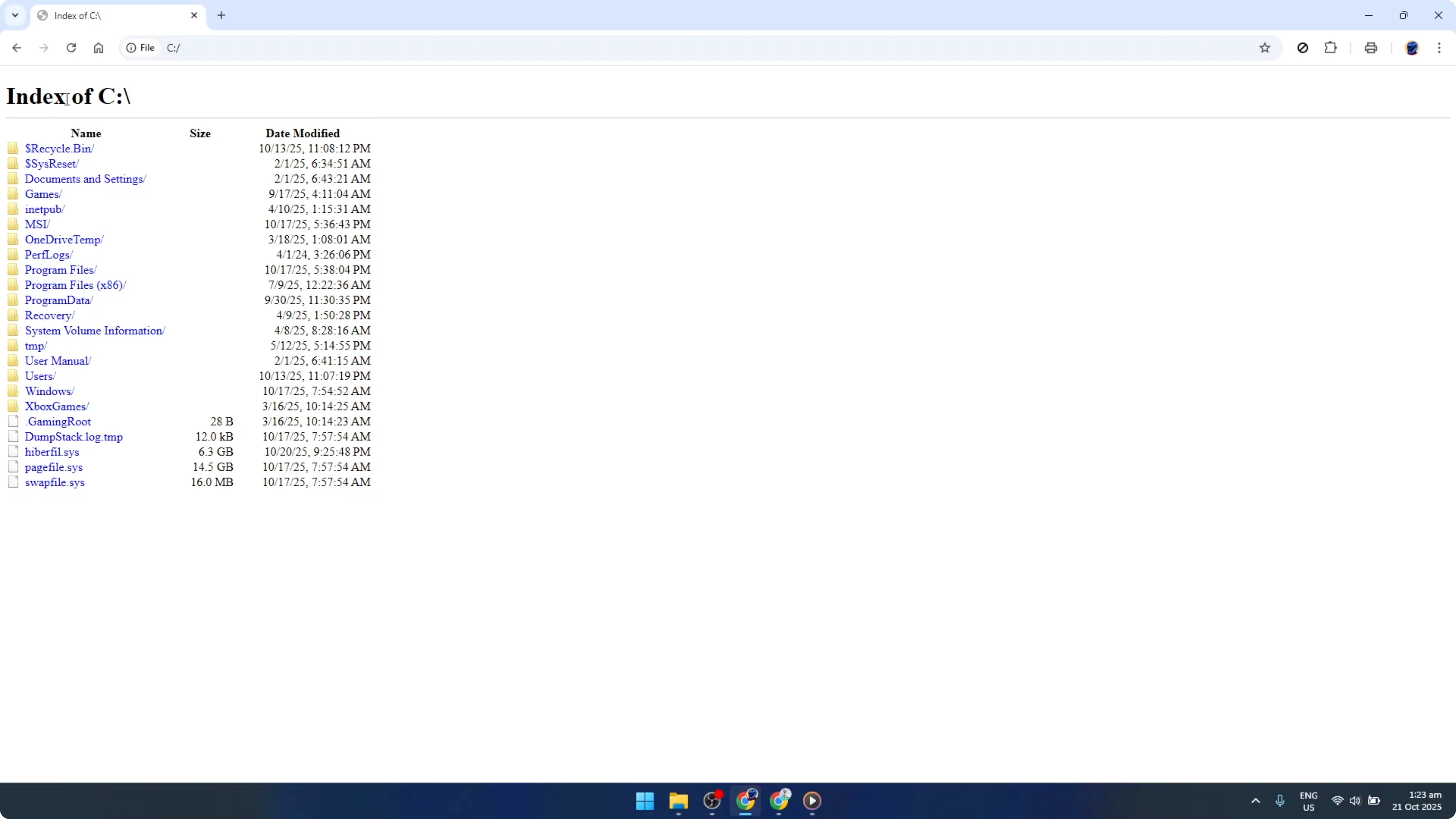
This view will display all the folders and files stored in your selected drive. It's a simple but very effective way to browse your files without opening another program.
Navigate folders and open files
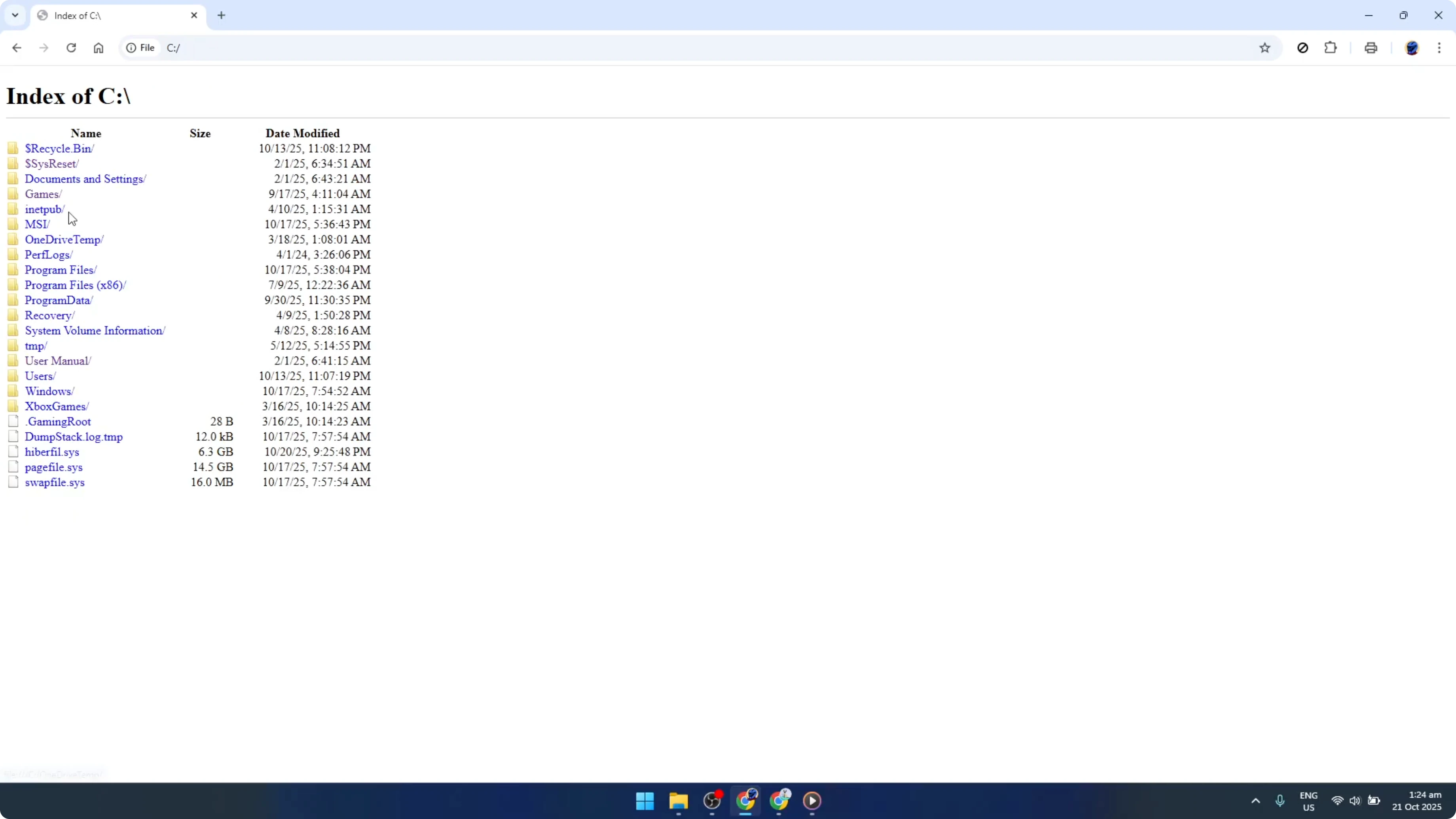
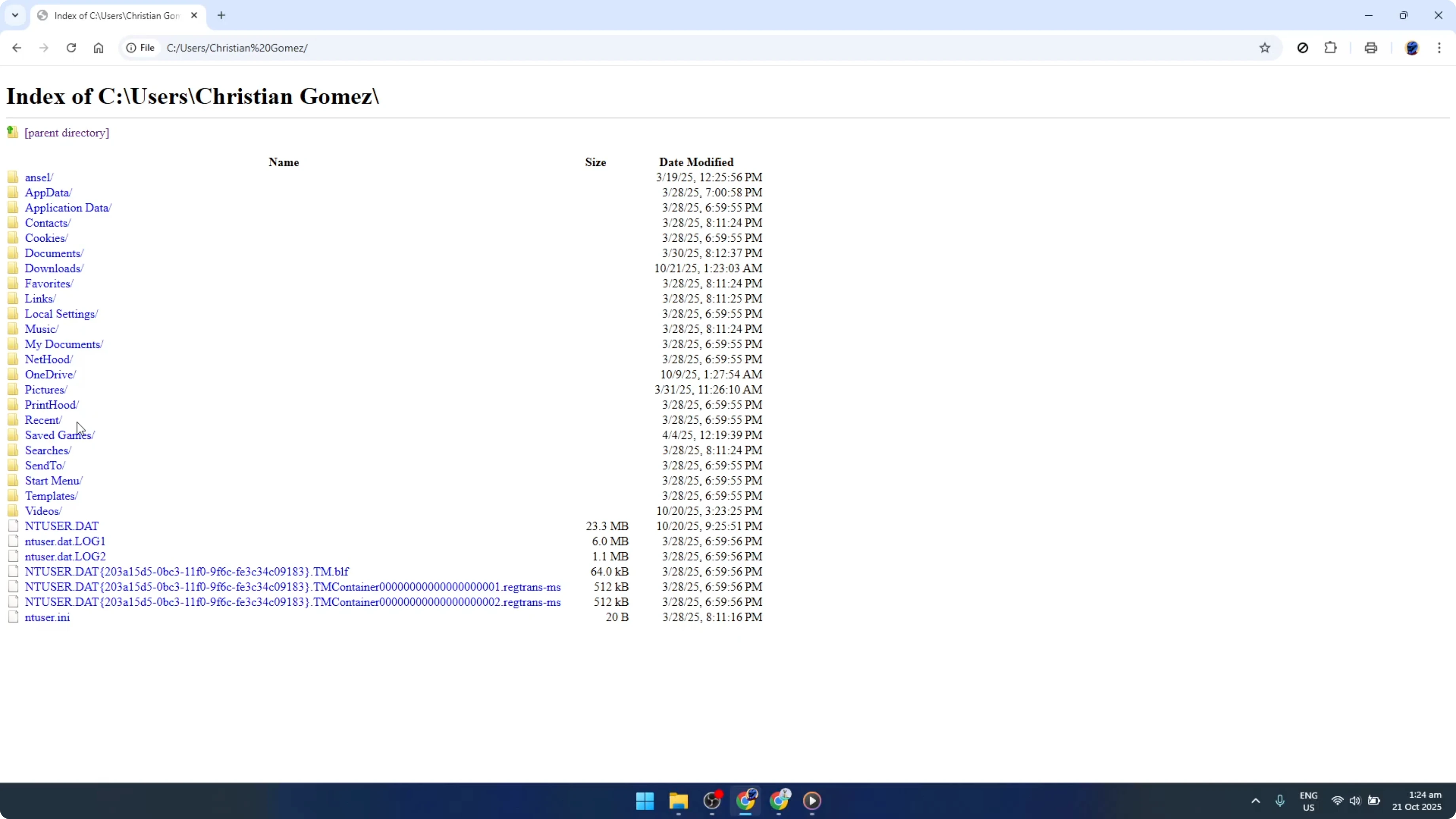
If you double-click on any folder, the browser will navigate into it, showing you its contents, just like a regular file explorer.
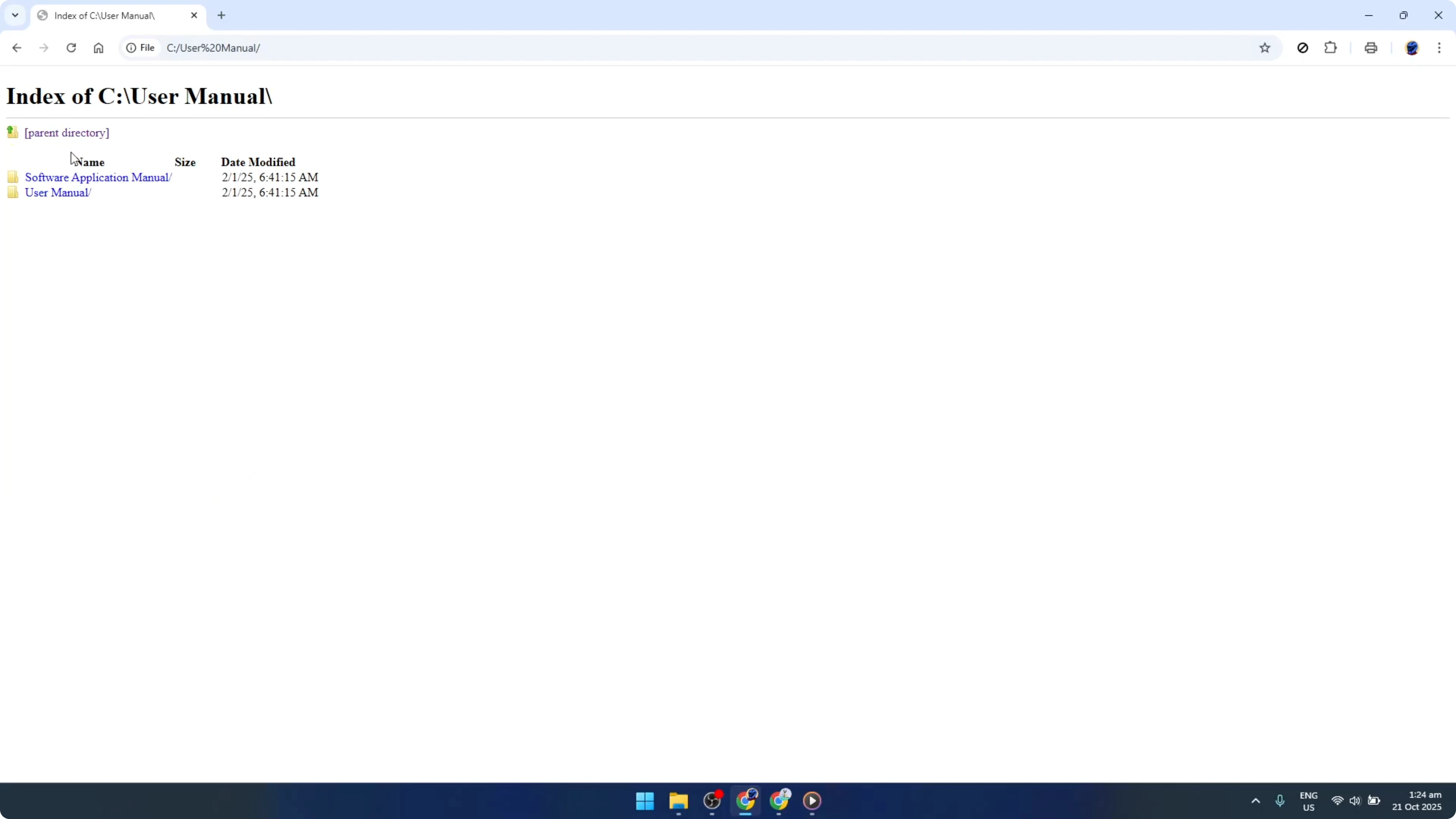
Keep in mind that this method allows you to view and open files that your browser can natively handle, such as images and text files. If you try to open a file that Chrome doesn't support directly, it'll likely download it instead.
If you want to control how PDFs behave, see how to manage PDF downloads in Chrome. That way, you can open or download PDFs according to your preference.
What you can and cannot do
An interesting thing about using Chrome this way is how organized it can help you feel. Since you're likely already using Chrome for web browsing, switching to file browsing using the same tool can be time-saving.
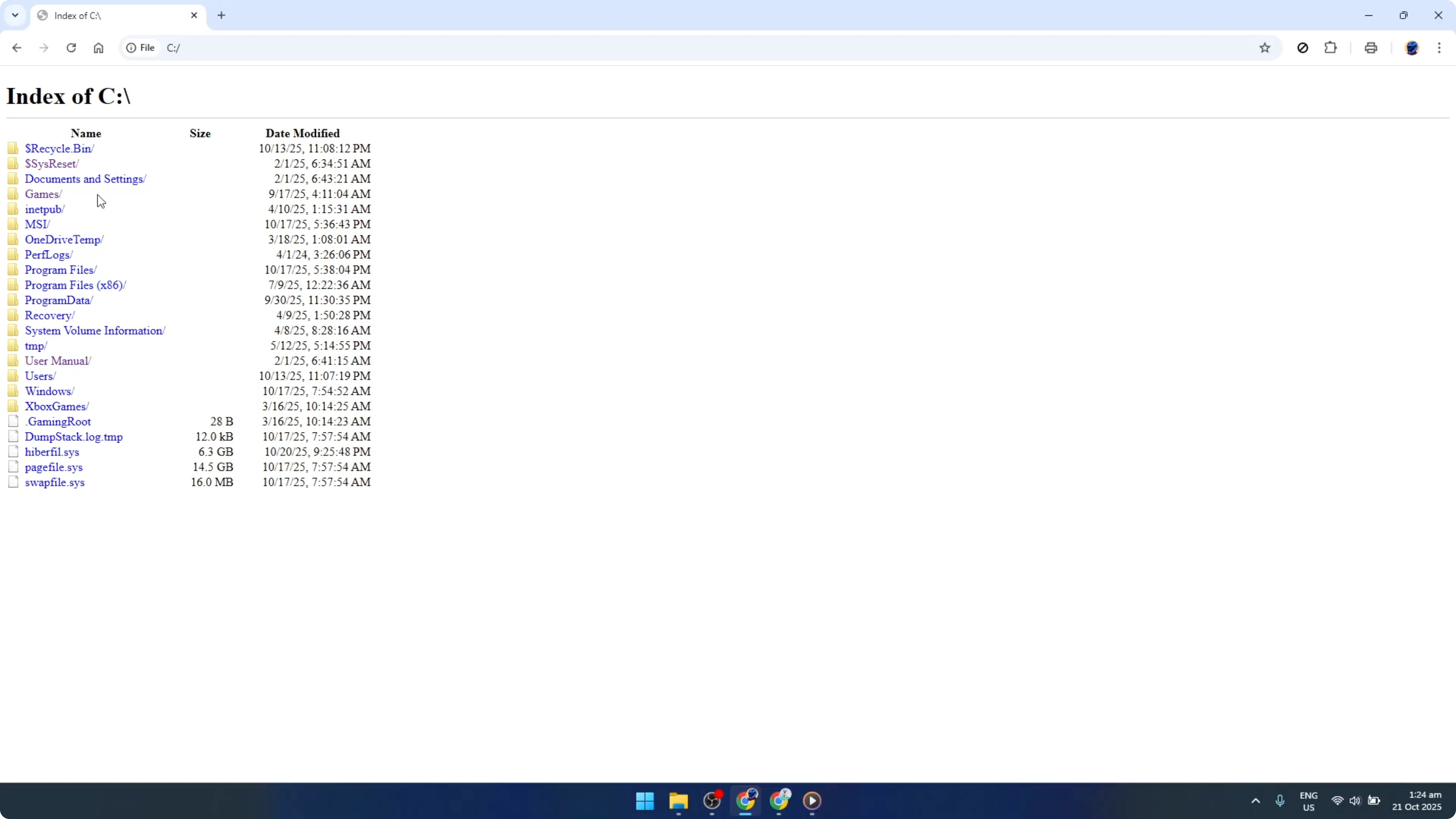
Just remember though that what you can do once the file opens depends on its type and what plugins or extensions you have installed. Additionally, this method of browsing is generally read-only, meaning you can't modify or delete files directly through the browser.
If you need to do more complex operations, you'll still need to use your operating system's default file manager. However, for a quick peek or to open files supported by the browser, this is a fantastic trick to have up your sleeve.
Read More: Open blocked sites in Chrome
Quick command recap
Type this in the address bar to browse your C drive in Chrome.
file:///C:/
Press Enter to open the drive, then double-click folders to navigate. Open files that Chrome supports, or download those it does not.
Final thoughts on Browse and Open Folders and Files with Google Chrome
You're now equipped with a new efficient way of navigating your files directly through Chrome. Use it for quick access to folders, images, and text files, and switch to your system file manager for edits and moves.
I hope you found this guide useful and easy to follow.


