How to Fix App Crashing Issues on macOS Sequoia?

I will show you how to fix a problem when apps are crashing or not properly running on your Mac. Start with clean exits and basic checks, then work through permissions, updates, storage, network, and resource issues that commonly trigger crashes.
These steps are safe to try and will help you confirm whether the issue is app-specific or caused by system settings or resources.
Fix App Crashing Issues on macOS Sequoia? Understanding the Issue
- Small point releases often contain crash fixes for frameworks that many apps use.
- Many creative apps, games, and developer tools generate large caches and temporary files. Aim for several gigabytes of free space so apps can create caches and virtual memory safely.
- Some apps need to verify licenses or reach update service and can crash or hang if the connection is blocked or rerouted.
- If you see memory pressure turning yellow or red, close other heavy apps or select runaway helper process and click the stop button to quit it.
- Reinstalling replaces corrupted files while keeping your user documents intact.
Fix App Crashing Issues on macOS Sequoia? Step-by-Step Solution
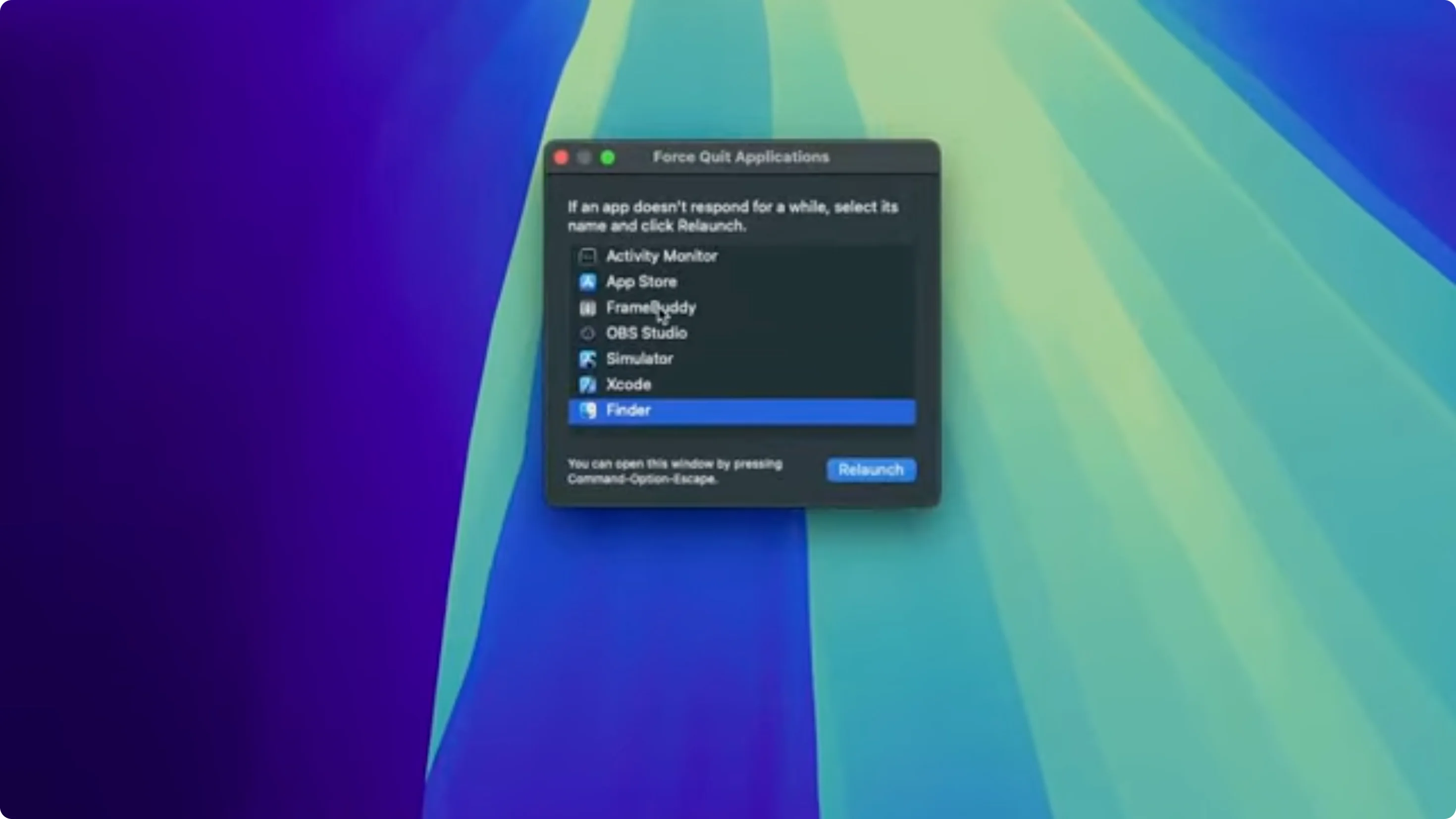
Step 1: Force Quit the frozen app
- Use the Apple menu on the top left corner and choose Force Quit.
- In the Force Quit Applications window, select the problematic app and click Force Quit.
- If it shows Not Responding, confirm the action and wait a moment before reopening the app.
Step 2: Review required permissions
- Open System Settings.
- Select Privacy & Security in the sidebar and verify that the app has what it needs.
- Turn on access where appropriate:
- Location Services (if the app relies on your location)
- Bluetooth
- Camera
- Microphone
- Files and Folders
- Photos
- Screen Recording
- Accessibility
- Local Network
- Toggle access on, then relaunch the app to test.

Step 3: Update macOS
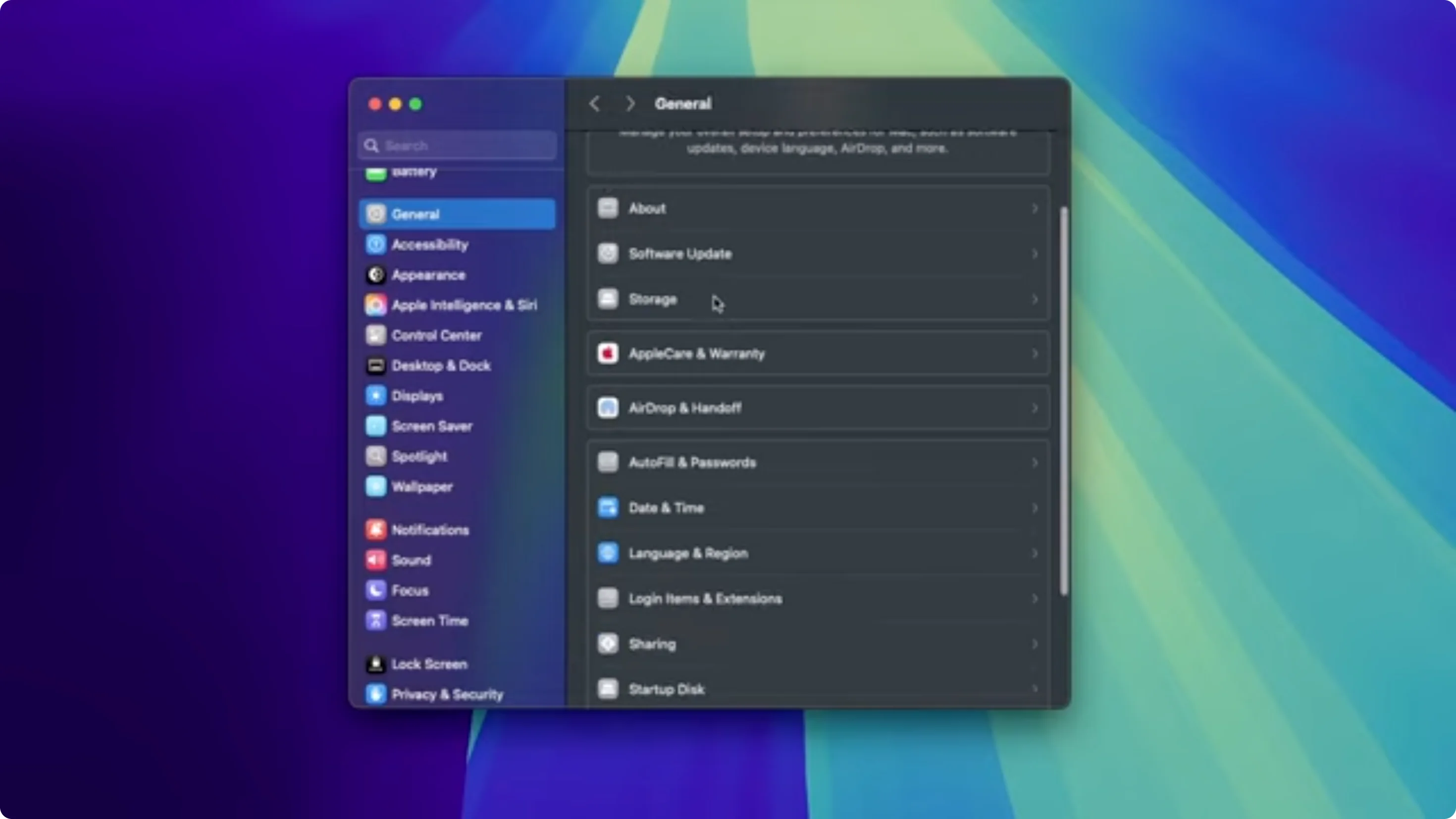
- Go to General in System Settings and click Software Update.
- If an update is available, install it and restart your Mac.
- Small point releases often contain crash fixes for frameworks that many apps use.

Step 4: Verify available storage
- In the General section of System Settings, open Storage to see how much free space you have.
- If free space is low, delete unneeded files, empty the Trash, and follow the storage recommendations Apple shows.
- Aim for several gigabytes of free space so apps can create caches and virtual memory safely.
Step 5: Temporarily disable VPN and test
- In System Settings > Network, turn off VPN.
- Relaunch the app.
- Some apps need to verify licenses or reach update service and can crash or hang if the connection is blocked or rerouted.

Step 6: Check Activity Monitor for resource problems
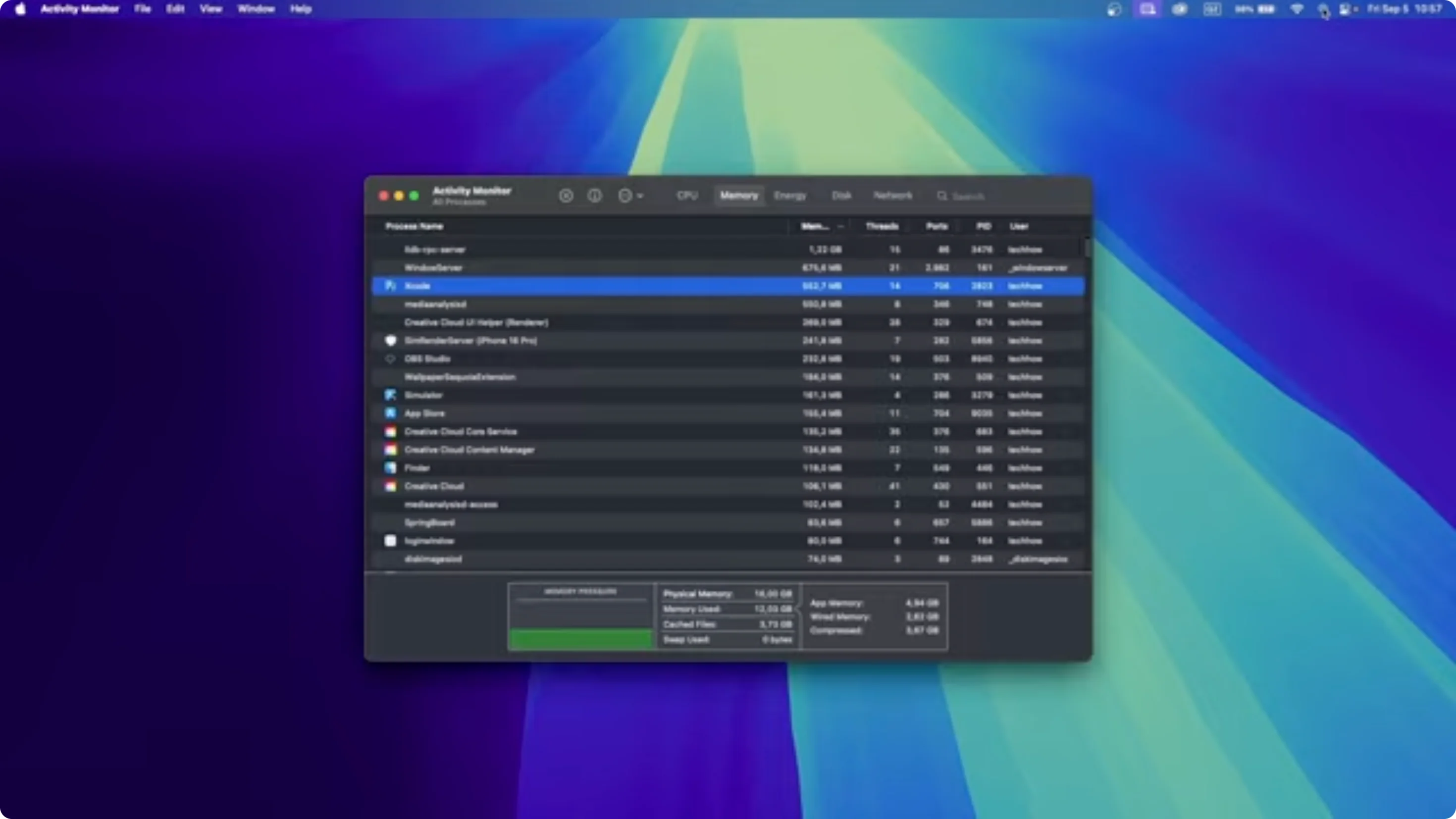
- Open Activity Monitor from Spotlight.
- Sort by CPU and Memory while the app is running.
- If you see memory pressure turning yellow or red, close other heavy apps or select runaway helper process and click the Stop button to quit it.
- Try relaunching the app again after you free up resources.
Step 7: Confirm the app is up to date
- If you installed it from the Mac App Store, open App Store and check the Updates tab. Install any available update.
- If you downloaded the app from the developer website, check their in-app updater or download the newest version directly.

Step 8: Remove and reinstall the app
- Quit the app.
- Move it to the Trash.
- Empty the Trash.
- Reinstall the latest version.
- Reinstalling replaces corrupted files while keeping your user documents intact.

Fix App Crashing Issues on macOS Sequoia? Alternative Fixes
- You can use the Activity Monitor application while the other app is running to see if this or another app is using excessive amounts of memory or CPU percentage. You can stop tasks from running and troubleshoot any performance related problems with your Mac.
Fix App Crashing Issues on macOS Sequoia? Final Thoughts
Once you have made these changes, launch the application again to see if it still crashes. These checks cover permissions, OS and app updates, storage, network-related license checks, and system resource bottlenecks that commonly cause instability.


